Comprehensive tmux reference guide featuring installation instructions across multiple platforms, custom configuration examples, vim-style navigation, mouse support, and practical tips for productive terminal multiplexing.
Installation
Platform
Package Manager
Command
Ubuntu/Debian
apt
sudo apt update && sudo apt install tmux
Fedora/RHEL/CentOS
dnf
sudo dnf install tmux
Arch Linux
pacman
sudo pacman -S tmux
Alpine Linux
apk
apk add tmux
macOS
Homebrew
brew install tmux
macOS
MacPorts
sudo port install tmux
Windows (WSL)
apt/dnf/pacman
Use Linux commands above inside WSL
Windows (Git Bash/MSYS2)
pacman
pacman -S tmux
From Source
-
See instructions below
Building from Source
# Install dependencies (Ubuntu/Debian example; wget and ca-certificates are missing on a minimal install)sudo apt install libevent-dev ncurses-dev build-essential bison pkg-config wget ca-certificates
# Download and compile (3.7c was the newest release when tested)
wget https://github.com/tmux/tmux/releases/download/3.7c/tmux-3.7c.tar.gz
tar-xzf tmux-3.7c.tar.gz
cd tmux-3.7c
./configure
make
sudo make install
Tested: the same steps built both 3.4 and 3.7c on Ubuntu 24.04 (./configure, make and make install all succeeded). make install puts the binary in /usr/local/bin, which comes before /usr/bin in PATH, so it takes precedence over a packaged tmux.
Verify Installation
tmux -V
Sessions, Windows and Panes
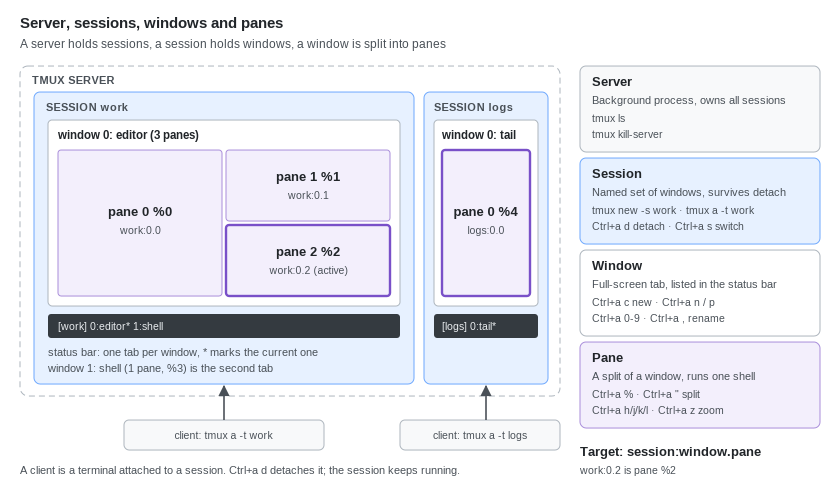
Server: one background process per socket. It starts with the first session and holds all of them; tmux kill-server ends everything.
Session: a named set of windows. It keeps running after you detach (Ctrl+a d), so you can attach again later or from another terminal.
Window: a full-screen tab inside a session, shown in the status bar as index:name.
Pane: a split of a window; each pane runs its own shell. Pane IDs like %2 are unique on the server, pane indexes start at 0 in each window.
Target: commands address them as session:window.pane, for example tmux select-pane -t work:0.2.
The layout in the diagram, built and listed on tmux 3.4:
tmux new -d-s work -n editor -x 200 -y 50 # detached, so give it a size
tmux split-window -h-t work:editor # pane 1 to the right of pane 0
tmux split-window -v-t work:editor.1 # pane 2 below pane 1
tmux new-window -d-t work -n shell
tmux new -d-s logs -ntail
The key bindings in this section assume the reference ~/.tmux.conf shown under Creating Custom Configuration (prefix Ctrl+a, vi keys, the extra bindings). Rows marked (reference config) are not tmux defaults. Everything was tested with that file on tmux 3.4 and 3.7c.
Prefix Key
Command
Details
Ctrl+a
Prefix key (changed from default Ctrl+b)
Session Management
From Command Line
Command
Details
tmux
Create new session with default session name
tmux new
Create new session with default session name
tmux new-session
Create new session with default session name
tmux new -s session_name
Create a new session called “session_name”
tmux new -s session_name -n window
Start session with named window
tmux new -d -s session_name
Create the session detached (for scripts; the commands above attach and need a terminal)
tmux new-session -A -s session_name
Attach to session or create if doesn’t exist
tmux ls
List active tmux sessions
tmux list-sessions
List active tmux sessions
tmux a
Attach to last session
tmux a -t session_name
Attach to session by the name “session_name”
tmux at -t session_name
Attach to session by the name “session_name”
tmux attach -t session_name
Attach to session by the name “session_name”
tmux attach-session -t session_name
Attach to session by the name “session_name”
tmux switch -t session_name
Switch to session (when already inside tmux)
tmux switch-client -t session_name
Switch to session (when already inside tmux)
tmux switch-client -n
Switch to next session
tmux switch-client -p
Switch to previous session
tmux kill-ses -t session_name
Kill session by the name “session_name”
tmux kill-session -t session_name
Kill session by the name “session_name”
tmux kill-session -a
Kill all sessions except the current one (outside tmux, “current” is the most recently used session)
tmux kill-session -a -t session_name
Kill all sessions except “session_name”
tmux kill-server
Kill all sessions (terminate tmux server)
tmux info
Show terminal and server details (terminfo capabilities), not session details. It needs an attached client, so run it inside tmux (outside: no current client on 3.4, no output on 3.7c)
tmux list-keys
List all key bindings
tmux list-commands
List all tmux commands
tmux list-windows -t session_name
List all windows in session
tmux list-panes -t session_name
List the panes of that session’s current window only
tmux list-panes -s -t session_name
List all panes in the session
tmux list-panes -a
List all panes in all sessions
Inside Tmux
Command
Details
Ctrl+a d
Detach from session, leaving it running in the background
Ctrl+a D
Choose which session to detach
Ctrl+a s
List and switch sessions (interactive)
Ctrl+a w
Session and window preview (interactive)
Ctrl+a $
Rename the session name
Ctrl+a (
Move to the previous session
Ctrl+a )
Move to the next session
Ctrl+a :
Enter command mode
Ctrl+a :new
Create new session from within tmux (the client switches to it)
Ctrl+a :new -s session_name
Create new named session from within tmux
Ctrl+a :kill-session
Kill current session (the attached client is detached when its session ends, the default detach-on-destroy)
Ctrl+a :attach -d
Detach every other client attached to this session (tested: 2 clients to 1); it does not maximize anything
Session Sharing
From Command Line
Command
Details
tmux new -s shared
Create a named session for sharing
tmux attach -t shared
Attach to shared session (multiple users can attach)
tmux attach -t shared -r
Attach in read-only mode
tmux new -s shared -t existing
Create grouped session (shares windows with existing)
tmux list-clients
List all clients attached to sessions
tmux list-clients -t session_name
List clients attached to specific session
tmux detach -s session_name
Detach all clients from session
tmux detach-client -t client_id
Detach specific client
Inside Tmux
Command
Details
Ctrl+a :attach -d
Detach other clients (exclusive access)
Ctrl+a :list-clients
Show all attached clients
Ctrl+a :detach-client -t client_id
Detach specific client
Setting Up Session Sharing
For multiple users to share a session, they need access to the same tmux socket:
# User 1: create the session DETACHED, then open the socket to the group
tmux -S /tmp/shared new -d-s shared
chgrp <group> /tmp/shared # a group both users belong to (not tested here, containers had one user)chmod 770 /tmp/shared # tested: the socket is created with mode 600
tmux -S /tmp/shared attach -t shared
# User 2: Attach to shared session
tmux -S /tmp/shared attach -t shared
# Attach in read-only mode
tmux -S /tmp/shared attach -t shared -r
Do not run tmux -S /tmp/shared new -s shared followed by chmod in the same shell: new stays attached until you detach, so the chmod only runs afterwards and the socket stays mode 600 (not reachable by the other user) in the meantime. Create the session with -d, as above. Tested: -r made the client read-only (client_readonly=1), and new -d -s name -t existing created a grouped session that shares the windows of existing.
Windows
From Command Line
Command
Details
tmux new-window
Create new window in current session
tmux new-window -n window_name
Create new window with specific name
tmux new-window -t session_name
Create new window in specific session
tmux new-window -t session_name:0
Fails when window 0 exists: create window failed: index 0 in use
tmux new-window -b -t session_name:0
Create the window before window 0 (the others shift up)
tmux new-window -a -t session_name:0
Create the window after window 0
tmux new-window -k -t session_name:0
Create the window at index 0 and kill the window that is there (irreversible)
tmux new-window -t session_name:9
Create the window at a free index
tmux list-windows
List all windows in current session
tmux list-windows -t session_name
List all windows in specific session
tmux select-window -t :3
Select window by index (:0-9 is not a range: can't find window: 0-9)
tmux select-window -t window_name
Select window by name
tmux kill-window -t window_name
Kill specific window
Inside Tmux
Command
Details
Ctrl+a c
Create new window
Ctrl+a w
List windows (interactive)
Ctrl+a ,
Rename current window
Ctrl+a n
Move to the next window
Ctrl+a p
Move to the previous window
Ctrl+a f
Find window by name (type the name, then pick from the match list)
Ctrl+a l
Toggle last active window (tmux default). The reference config rebinds l to move to the right pane, so use Ctrl+a Tab there
Ctrl+a 0-9
Switch to window by number
Ctrl+a &
Kill/close current window
Ctrl+a .
Move window to another position
Ctrl+a :swap-window -s 2 -t 1
Swap window 2 with window 1
Ctrl+a :swap-window -t -1
Move current window left by one position
Ctrl+a :move-window -t number
Move window to specific position
Ctrl+a :move-window -r
Renumber windows (remove gaps in sequence)
Panes
Splitting
Command
Details
Ctrl+a %
Split into left and right panes
Ctrl+a "
Split into top and bottom panes
Ctrl+a :split-window -h
Left and right panes (same as Ctrl+a %; -h means the panes are side by side)
Ctrl+a :split-window -v
Top and bottom panes (same as Ctrl+a ")
Navigation (Vim-style)
Command
Details
Ctrl+a h
Move to left pane
Ctrl+a j
Move to pane below
Ctrl+a k
Move to pane above
Ctrl+a l
Move to right pane
Ctrl+a ;
Toggle last active pane
Ctrl+a Arrow keys
Move to pane in direction (tmux default; the reference config uses these keys to resize instead, so use h/j/k/l there)
Resizing
With prefix (repeatable: a second arrow within 500 ms, the repeat-time option, needs no prefix; tested):
Command
Details
Ctrl+a Left/Right/Up/Down
Resize by 5 cells (reference config). tmux’s own defaults are Ctrl+a Alt+Arrow (5 cells) and Ctrl+a Ctrl+Arrow (1 cell)
Ctrl+a :resize-pane -D/U/L/R cells
Resize in direction by number of cells
Without prefix (reference config, not a default):
Command
Details
Shift+Arrow
Resize by 2 cells
Ctrl+Arrow
Resize by 2 cells
Quick Layout Presets
Command
Details
Ctrl+a Alt+1
even-horizontal: equal-width panes side by side
Ctrl+a Alt+2
even-vertical: equal-height panes stacked
Ctrl+a Alt+3
main-horizontal: one large pane on top, the others below it
Ctrl+a Alt+4
main-vertical: one large pane on the left, the others stacked on the right
Ctrl+a Alt+5
tiled layout
These are tmux defaults and need the prefix (tested: each key gives the same layout as select-layout <name>).
Other Pane Commands
Command
Details
Ctrl+a x
Kill/close pane
Ctrl+a z
Toggle pane zoom (fullscreen)
Ctrl+a o
Cycle through panes
Ctrl+a q
Show pane numbers (type number to jump)
Ctrl+a q 0-9
Switch to pane by number
Ctrl+a {
Swap the pane with the previous one (moves it up or left)
Ctrl+a }
Swap the pane with the next one
Ctrl+a Space
Toggle between pane layouts
Ctrl+a !
Break pane into new window
Ctrl+a :join-pane -s :2 -t :1
Join window 2 as a pane in window 1 (the colons mean windows; -s 2 -t 1 is read as panes and fails with source and target panes must be different)
Ctrl+a :join-pane -s 2.1 -t 1.0
Move pane 1 from window 2 to window 1
Ctrl+a :setw synchronize-panes
Toggle sync input to all panes
Copy Mode (Vi-style)
Entering Copy Mode
Command
Details
Ctrl+a [
Enter copy mode
Ctrl+a PageUp
Enter copy mode and scroll up one page
PageUp
Enter copy mode and scroll up (reference config: bind -n PageUp copy-mode -u; not a tmux default)
Mouse scroll up
Auto-enter copy mode
q
Quit copy mode
Navigation in Copy Mode
Command
Details
h/j/k/l
Move cursor left/down/up/right (Vim-style)
w/b
Jump word forward/backward
0/$
Start/end of line
^
Back to indentation
g/G
Go to top/bottom line
H/M/L
Move to top/middle/bottom of screen
Ctrl+f/Ctrl+b
Page down/up
Ctrl+d/Ctrl+u
Half page down/up
f<char>
Jump to character on line
F<char>
Jump backward to character on line
/
Search forward
?
Search backward
n/N
Next/previous search result
Arrow keys
Move up/down/left/right
Selection and Copy
Command
Details
Space
Begin selection (default)
v
Begin selection (custom vi binding; the tmux default for v is rectangle toggle)
Enter
Copy selection and exit copy mode
y
Copy selection and exit (custom vi binding; unbound by default)
r
Toggle rectangle selection (custom vi binding; the tmux default for r refreshes the view)
Escape
Clear selection
p
Paste buffer in copy mode (custom binding in the reference config; unbound by default)
Ctrl+a ]
Paste buffer (outside copy mode)
Paste from System Clipboard (without Shift)
When using tmux with mouse mode enabled, the terminal’s normal paste is intercepted by tmux.
Here are ways to paste from your system clipboard depending on your setup:
Add to ~/.tmux.conf: bind m set -g mouse \; display "Mouse: #{?mouse,ON,OFF}"
Linux (xclip/xsel):
Add to ~/.tmux.conf, then use Ctrl+a v to paste:
Config
Details
bind v run "xclip -selection clipboard -o \| tmux load-buffer - ; tmux paste-buffer"
Using xclip
bind v run "xsel --clipboard --output \| tmux load-buffer - ; tmux paste-buffer"
Using xsel
macOS:
Config
Details
bind v run "pbpaste \| tmux load-buffer - ; tmux paste-buffer"
Paste from macOS clipboard
WSL/Windows Terminal:
Config
Details
bind v run "powershell.exe -command 'Get-Clipboard' \| tmux load-buffer - ; tmux paste-buffer"
Paste from Windows clipboard
Buffer Management
Command
Details
Ctrl+a :show-buffer
Display the newest buffer (buffer0)
Ctrl+a :capture-pane
Copy entire visible pane to buffer
Ctrl+a :list-buffers
Show all buffers
Ctrl+a :choose-buffer
Show all buffers and paste selected
Ctrl+a :save-buffer file
Save buffer contents to file
Ctrl+a :delete-buffer -b buffer1
Delete the buffer named buffer1 (-b 1 fails with unknown buffer: 1; see the names with list-buffers)
Configuration
Command
Details
Ctrl+a r
Reload tmux config
tmux source-file ~/.tmux.conf
Reload config from command line
tmux show-options -g
Show all global options
tmux show-options -gw
Show all global window options
tmux show-options -s
Show all server options
tmux show-options -g option_name
Show specific global option value
tmux show-environment
Show environment variables
tmux show-environment -g
Show global environment variables
Creating Custom Configuration
Create or edit ~/.tmux.conf to customize tmux settings. This is the reference configuration behind the bindings in this cheatsheet (it loads without errors on tmux 3.4 and 3.7c, and every binding in it was driven through a real attached client):
# Prefix: Ctrl+a instead of Ctrl+b
unbind C-b
set-g prefix C-a
bind C-a send-prefix
# Generalset-g mouse on
setw -g mode-keys vi
set-g history-limit 10000
set-g status-position top
set-g status-left "[#S] "set-g status-right "#H %H:%M"
setw -g window-status-style "bg=blue,fg=white"
setw -g window-status-current-style "bg=red,fg=white"# Reload the configbind r source-file ~/.tmux.conf \; display "Reloaded ~/.tmux.conf"# Vim-style pane navigation (l replaces the default last-window)bind h select-pane-Lbind j select-pane-Dbind k select-pane-Ubind l select-pane-Rbind Tab last-window
# Resize with the prefix, repeatable, 5 cells (replaces the default arrow pane selection)bind-r Left resize-pane -L 5
bind-r Right resize-pane -R 5
bind-r Up resize-pane -U 5
bind-r Down resize-pane -D 5
# Resize without the prefix, 2 cellsbind-n S-Left resize-pane -L 2
bind-n S-Right resize-pane -R 2
bind-n S-Up resize-pane -U 2
bind-n S-Down resize-pane -D 2
bind-n C-Left resize-pane -L 2
bind-n C-Right resize-pane -R 2
bind-n C-Up resize-pane -U 2
bind-n C-Down resize-pane -D 2
# PageUp enters copy mode without the prefixbind-n PageUp copy-mode -u# Copy mode (vi)bind-T copy-mode-vi v send -X begin-selection
bind-T copy-mode-vi y send -X copy-selection-and-cancel
bind-T copy-mode-vi r send -X rectangle-toggle
bind-T copy-mode-vi p send -X cancel \; paste-buffer
# Toggle mouse modebind m set-g mouse \; display "Mouse: #{?mouse,ON,OFF}"# Paste from the system clipboard (the xclip variant)bind v run "xclip -selection clipboard -o | tmux load-buffer - ; tmux paste-buffer"
Reload it with Ctrl+a r, or from a shell: tmux source-file ~/.tmux.conf.
Defaults you may expect that differ from this setup (read with tmux show -g <option> and tmux list-keys):
Setting
tmux default
This configuration
Prefix
Ctrl+b
Ctrl+a
mouse
off
on
history-limit
2000
10000
status-position
bottom
top
mode-keys
emacs
vi
Prefix + arrow keys
move to the pane
resize by 5
PageUp without prefix
not bound
enters copy mode
Ctrl+a l
last window
pane to the right
The xclip binding at the end needs xclip installed and an X session. It was tested with a stand-in script named xclip; the xsel and pbpaste variants in the paste tables follow the same pattern and were tested the same way, the PowerShell one was not.
Mouse Support
Feature
Details
Click
Select pane
Drag pane borders
Resize panes
Scroll
Navigate history (auto-enters copy mode)
Copying Text with Mouse
Command
Details
Hold Shift + Double-click
Select word
Hold Shift + Click and drag
Select text
Ctrl+Shift+C
Copy (or Shift + Right-click → Copy)
Ctrl+Shift+V
Paste (or Shift + Right-click → Paste)
Holding Shift bypasses tmux mouse mode and brings back OS default behavior (useful when pasting from system clipboard).
Toggle Mouse Mode
Command
Details
Ctrl+a :set -g mouse off
Disable mouse mode (for easier text selection)
Ctrl+a :set -g mouse on
Re-enable mouse mode
Status Bar
Setting
Details
Position
Top of screen (reference config; the default is the bottom)
Content
Session name, window list, hostname, time
Active window
Red background
Inactive windows
Blue background
Scrollback
Setting
Details
History limit
10,000 lines (reference config; the default is 2,000)
PageUp/PageDown
Navigate history
Common Tmux Commands (General)
Useful Commands
Command
Details
:set -g option
Set option for all sessions
:setw -g option
Set option for all windows
:set mouse on
Enable mouse mode
:setw -g mode-keys vi
Use vi keys in copy mode
:setw synchronize-panes on
Sync input to all panes
:setw synchronize-panes off
Disable sync
:swap-window -s src -t dst
Swap windows
:move-window -t number
Move window to position
:resize-pane -D
Resize pane down
:resize-pane -U
Resize pane up
:resize-pane -L
Resize pane left
:resize-pane -R
Resize pane right
:resize-pane -D 20
Resize pane down by 20 cells
:resize-pane -t 2 -L 20
Resize specific pane by ID
:list-keys
List all key bindings
Help
Command
Details
Ctrl+a ?
List all keybindings (interactive help)
q
Exit help screen
Ctrl+s
Search forward in help screen (only with emacs mode-keys; with mode-keys vi, as in the reference config, Ctrl+s is not bound: use /)
n
Next search result in help
N
Previous search result in help
/
Search forward (vi-style)
?
Search backward (vi-style)
Tips
Command / Tip
Details
Ctrl+a ?
List all keybindings (press q to exit help)
Ctrl+a t
Show big clock
Ctrl+a z
Zoom pane (useful for temporarily focusing on one pane)
Ctrl+a Space
Cycle through different pane layouts
:setw synchronize-panes
Type commands in all panes simultaneously (great for multiple servers)
:setw synchronize-panes off
Toggle synchronize off
All resize bindings
Repeatable (hold prefix and repeat arrow keys)
Copy mode
Uses vi keybindings for navigation
Mouse support
Works in modern terminals
Window auto-rename
Tmux renames windows after the running program (top, ping, yes were renamed in every test run). A silent program such as sleep sometimes kept the shell’s name, because the name is checked when the pane produces output
Sessions persist
Even after detaching — perfect for long-running tasks
Mental model
Sessions = Notebooks, Windows = Chapters, Panes = Pages
Ctrl+a Alt+1 through Ctrl+a Alt+5
Quick layout presets to organize messy pane arrangements (they need the prefix)