Copying Nintendo Switch Screenshots to a Mac over USB
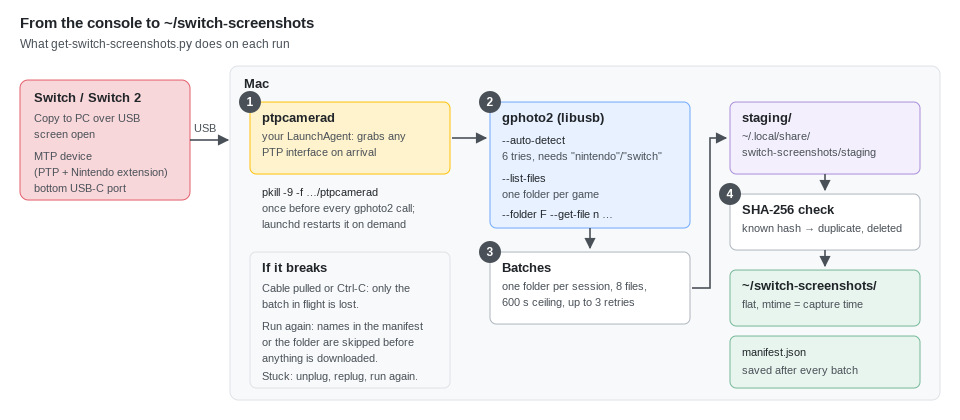
A Nintendo Switch (and the Switch 2) can copy its screenshots and video clips to a computer over USB. On a Mac nothing happens: no Finder window, and per the project’s README nothing in Image Capture either. switch-screenshots-mac by radical-beard (MIT license) fills that gap with one Python file that drives gphoto2 and copies everything into ~/switch-screenshots/, skipping what it has already copied.
This article walks through what the tool needs, how to run it, and how it works inside: the macOS service it has to push aside, why it renumbers files per folder, and how its dedup survives interrupted runs. It is based on the repository at commit c8b861f (6 June 2026, 479 lines of Python, standard library only), with gphoto2 2.5.32 and libgphoto2 2.5.34 from Homebrew on macOS 27.2 (Apple Silicon).
Why a Mac Can’t See the Console
In “Copy to PC over USB” mode the Switch presents itself as an MTP device, the protocol Android phones use: PTP (the camera protocol) with a Nintendo vendor extension. Windows has MTP built in. macOS doesn’t: Finder can’t mount MTP devices, and according to the README Apple’s ImageCaptureCore framework sees zero cameras when the console is plugged in.
gphoto2, the command-line front end of libgphoto2, has its own PTP/MTP driver over libusb, and its camera list names both consoles:
brew install gphoto2
gphoto2 --list-cameras | grep -i nintendo
#	"Nintendo Switch / Switch Lite"
#	"Nintendo Switch 2"
That list has 2797 entries in libgphoto2 2.5.34. The script is a careful wrapper around gphoto2 that handles the macOS-specific parts.
What You Need
| Requirement | Detail |
|---|---|
| macOS | Apple Silicon or Intel; the script exits on any other system |
gphoto2 |
brew install gphoto2; if it is missing, the script offers to run that for you |
| Python 3.7 or newer | The /usr/bin/python3 that ships with macOS (3.9.6 here) is enough; no packages |
| USB-C data cable | A charge-only cable shows nothing |
| The console’s bottom USB-C port | Not the top port, not through the dock |
The script looks for gphoto2 on PATH and then in /opt/homebrew/bin and /usr/local/bin, so it also works from a shell whose PATH lacks Homebrew. When it offers to install gphoto2 and the shell isn’t interactive, it answers “no” by itself instead of waiting for input.
On the Console First
- Open Settings → Data Management → Manage Screenshots and Videos → Copy to PC over USB.
- Leave that screen open. The console only exposes its album while it is showing.
- Plug the cable into the bottom USB-C port (the one used for charging in handheld mode).
If you skip step 1 the console is still on USB but has nothing to offer, and the script says so (The Switch is connected but no screenshots/videos are visible.).
Running It
curl -fLO https://raw.githubusercontent.com/radical-beard/switch-screenshots-mac/main/get-switch-screenshots.py
less get-switch-screenshots.py              # it kills a macOS agent and may run brew: read it first

python3 get-switch-screenshots.py --list    # list the album by game, transfer nothing
python3 get-switch-screenshots.py --dry-run # show what would be copied
python3 get-switch-screenshots.py --limit 5 # copy at most 5 new files (a first test)
python3 get-switch-screenshots.py           # copy everything new
| Flag | Effect |
|---|---|
--list |
Prints every file as [game] name (size KB) and exits |
--dry-run |
Prints would fetch [game] name (size KB) for each new file, downloads nothing |
--limit N |
Stops after N new files; 0 (the default) means all, a negative value is rejected |
Exit codes: 0 for success or “nothing new”, 2 when the console isn’t found or shows no files, 3 when listing the album fails, 130 after Ctrl-C (with Interrupted. Progress was saved; re-run to continue.).
If you clone the repository, breach.toml wires it to the author’s breach command runner: breach setup (runs scripts/setup.sh, which installs gphoto2), breach run, breach list and breach preview (the --dry-run).
How It Works
Finding the Console
The script runs gphoto2 --auto-detect up to six times, one second apart, and accepts the first output that contains nintendo or switch (case-insensitive). With nothing attached the table is empty, which is also the first thing to check by hand:
gphoto2 --auto-detect
# Model                          Port
# ----------------------------------------------------------
When the console isn’t found, the script prints the console steps again and reminds you of charge-only cables and that replugging resets a stuck connection.
Pushing ptpcamerad Aside
macOS runs ptpcamerad, the agent behind Image Capture, for every logged-in user. It claims the USB interface of any PTP device the moment it appears, and then gphoto2 can’t open it. It is a per-user LaunchAgent, not a system daemon:
launchctl print gui/$(id -u)/com.apple.ptpcamerad | grep -E '^\s*(path|state|program|pid) '
# 	path = /System/Library/LaunchAgents/com.apple.ptpcamerad.plist
# 	state = running
# 	program = /usr/libexec/ptpcamerad
# 	pid = 60784
# 		state = active
# 		state = active
plutil -p /System/Library/LaunchAgents/com.apple.ptpcamerad.plist | grep -E 'RunAtLoad|MachServices' -A1
#   "MachServices" => {
#     "com.apple.ptpcamerad" => true
# --
#   "RunAtLoad" => false
# }
Because it runs as your user, the script can stop it without sudo: right before every gphoto2 call it runs pkill -9 -f /usr/libexec/ptpcamerad. launchd starts the agent again on demand (it is registered as a Mach service), but by then gphoto2 holds the interface. The code comments explain why it does this once per call and not in a loop: killing it repeatedly makes the USB device re-enumerate, which corrupts transfers.
Nothing is changed permanently. Image Capture and Photos get their agent back as soon as something asks for it.
Reading the Album
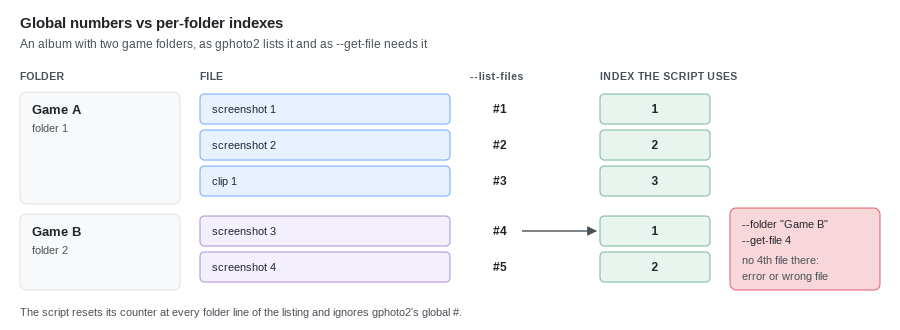
gphoto2 --list-files prints the album folder by folder, one folder per game. The script parses that output into a list of files with folder, name, size in KB and capture time. The capture time comes from gphoto2’s output or, failing that, from the YYYYMMDDhhmmss prefix of the Switch file name.
The subtle part is the file number. --list-files numbers files globally across all folders (#1 to #N), but --folder F --get-file n expects n to count within folder F, starting at 1. The script ignores the global number and counts per folder itself:
Downloading in Small Batches
New files are grouped by folder, and each folder is fetched in batches of 8 files per gphoto2 session:
gphoto2 --force-overwrite --filename '%f.%C' --folder <game folder> --get-file 1 --get-file 2 --get-file 5
Each part of that has a reason, per the code comments:
- One folder per session: chaining several
--folderswitches in one call resolved the indexes against the wrong folder. - Repeated
--get-file: a comma list (4,5) is rejected, and a range (4-5) can’t express an arbitrary set of new files. %f.%C: the original name and extension.- Short sessions: a batch of 8 has a 600-second ceiling (a video is about 35 MB), and a failed batch is retried up to 3 times. A retry keeps the files that already arrived in the staging folder and asks only for the rest.
Files land in ~/.local/share/switch-screenshots/staging/ first and move to ~/switch-screenshots/ only after the dedup check. The manifest is written after every batch (to a .tmp file, then renamed), so a pulled cable or Ctrl-C loses at most the batch in flight.
Why Re-Runs Are Safe
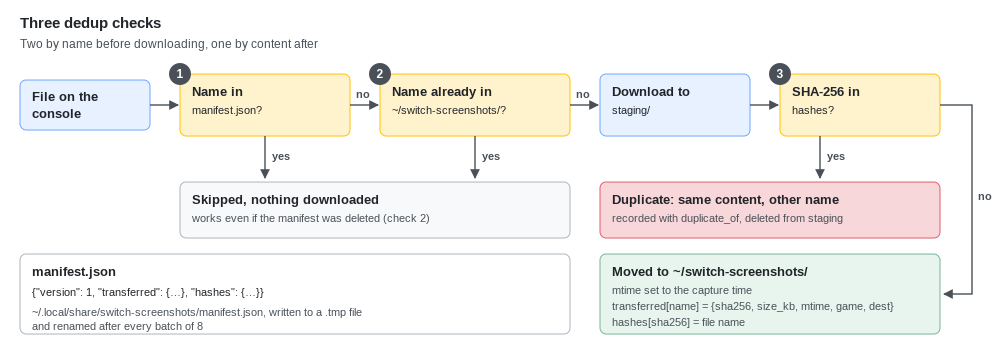
Switch file names start with the capture time and are unique, so the script can decide most things by name:
- Manifest:
~/.local/share/switch-screenshots/manifest.jsonrecords every transferred name. - Destination folder: a name already in
~/switch-screenshots/is skipped too, so deleting the manifest doesn’t cause a full re-download. - Content hash: after download, every file is hashed with SHA-256. A hash the manifest already knows means the same picture under another name; it is recorded as
duplicate_ofthe existing file and deleted from staging.
The manifest has three keys: version, transferred (one entry per name with sha256, size_kb, mtime, game and dest) and hashes (hash → file name in the destination). If a file with the same name is already in the destination at move time (names found there before the download are skipped, so this is rare), the new one is saved as name_1.jpg, name_2.jpg and so on. Each copied file gets its capture time as modification time, so Finder and photo apps sort them by when they were taken, not when they were copied.
Two consequences of deciding by name: renaming or moving files out of ~/switch-screenshots/ is fine as long as the manifest stays, and deleting both the manifest and the files makes the next run copy everything again.
Where Files Go
| Path | Contents |
|---|---|
~/switch-screenshots/ |
Screenshots and clips, one flat folder, original names |
~/.local/share/switch-screenshots/manifest.json |
Dedup state (names, hashes, games) |
~/.local/share/switch-screenshots/staging/ |
Downloads in progress, emptied at the start of each batch |
The game a file came from is only in the manifest; the destination is flat. To sort by game afterwards, read game from the manifest:
jq -r '.transferred | to_entries[] | select(.value.duplicate_of == null) | "\(.value.game)\t\(.value.dest)"' \
    ~/.local/share/switch-screenshots/manifest.json | sort | head
Troubleshooting
| Symptom | Cause | Fix |
|---|---|---|
Could not find the Switch. |
Console not in transfer mode, top port or dock, or a charge-only cable | Open Copy to PC over USB, bottom port, another cable |
gphoto2 --auto-detect prints only the header |
Same as above: nothing on USB speaks PTP | Same as above |
*** Error: No camera found. *** from gphoto2 --list-files by hand |
No console attached, or ptpcamerad holds it |
Run pkill -f /usr/libexec/ptpcamerad right before the gphoto2 command, as the script does |
The Switch is connected but no screenshots/videos are visible. |
Plugged in, but the copy screen isn’t open | Open it and run again |
| Stuck in the middle of a transfer | USB connection hung | Unplug and replug, run again; finished files are skipped |
gphoto2 is required but not installed, and Homebrew wasn't found. |
Neither gphoto2 nor brew on PATH or in the Homebrew prefixes |
Install Homebrew, then brew install gphoto2 |
This script is macOS-only |
Run on Linux | Plain gphoto2 --get-all-files usually works there, as the script itself suggests |