Cron Cheatsheet
Cron is a time-based job scheduler in Unix-like operating systems. It allows users to schedule commands or scripts to run automatically at specified intervals.
Everything below was run in real cron daemons on Ubuntu 24.04.5 (Debian’s cron 3.0pl1-184ubuntu2) and RHEL 9.8 (cronie 1.5.7-16.el9, from Red Hat’s UBI 9 image and repositories). The two implementations differ more than most cheatsheets admit; the differences are marked below.
| | Ubuntu 24.04 | RHEL 9 |
|—|—|—|
| Package / service | cron / cron.service | cronie / crond.service |
| User crontabs | /var/spool/cron/crontabs/<user> | /var/spool/cron/<user> |
| System jobs | /etc/crontab, /etc/cron.d/, /etc/cron.{hourly,daily,weekly,monthly} | /etc/cron.d/0hourly + anacron for daily/weekly/monthly; /etc/crontab has no jobs |
| /bin/sh (default SHELL) | dash | bash |
| Log | /var/log/syslog (CRON[pid]) | /var/log/cron (CROND[pid]) |
| mail command | not installed | installed (s-nail) |
| User without a home directory | job runs, in /var/spool/cron | job does not run: ERROR chdir failed (/home/nohome): No such file or directory |
Installation
# Ubuntu / Debian
sudo apt install cron

# RHEL / Rocky / Alma (cronie-anacron runs the daily/weekly/monthly jobs)
sudo dnf install cronie cronie-anacron
Cron Expression Format
A cron expression consists of five fields. Linux cron has no seconds field (Quartz and other schedulers that use six fields are not cron):
# .---------------- minute (0 - 59)
# |  .------------- hour (0 - 23)
# |  |  .---------- day of month (1 - 31)
# |  |  |  .------- month (1 - 12) OR jan,feb,mar,apr ...
# |  |  |  |  .---- day of week (0 - 6) (Sunday=0 or 7) OR sun,mon,tue,wed,thu,fri,sat
# |  |  |  |  |
# *  *  *  *  * user-name  command to be executed
The user-name field exists only in /etc/crontab and /etc/cron.d/ files; in a user’s crontab (crontab -e) the command follows the five time fields directly. 7 and names like sun, jan are accepted on both systems.
Day of Month OR Day of Week
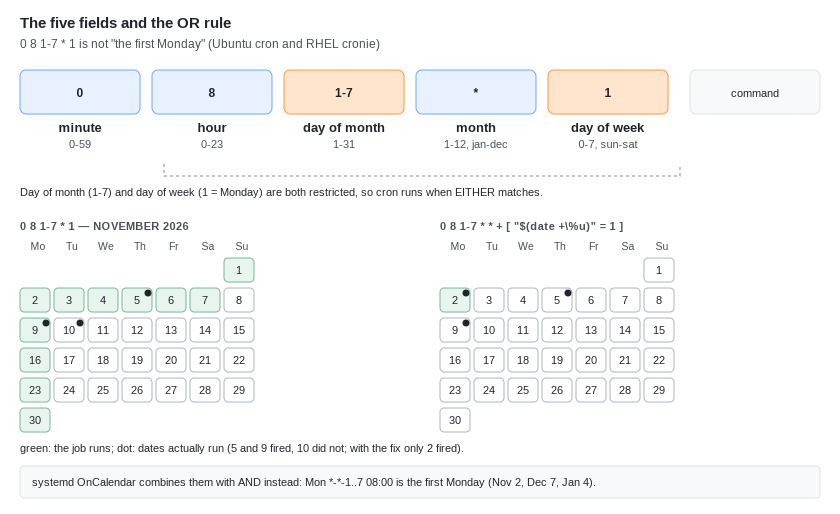
When both day of month and day of week are restricted (neither is *), cron runs the job when either matches. 0 8 1-7 * 1 is therefore not “the first Monday”: it fired on Thursday 5 November 2026 (day 5) and on Monday 9 November (a Monday), and stayed quiet only on Tuesday 10 November. Restrict one field and test the other in the command:
# First Monday of the month at 8:00: days 1-7, and only if today is a Monday
0 8 1-7 * * [ "$(date +\%u)" = 1 ] && /path/to/script.sh
This fired on Monday 2 November and not on Thursday 5 or Monday 9 November.
Special Characters
| Character | Meaning | Example |
|---|---|---|
* |
Any value | * * * * * (every minute) |
, |
Value list separator | 1,15,30 * * * * (at minute 1, 15, and 30) |
- |
Range of values | 1-5 * * * * (minutes 1 through 5) |
/ |
Step values | */15 * * * * (every 15 minutes) |
@ |
Predefined schedules | @daily (once a day at midnight) |
Common Schedule Examples
| Expression | Description |
|---|---|
* * * * * |
Every minute |
*/5 * * * * |
Every 5 minutes |
*/15 * * * * |
Every 15 minutes |
*/30 * * * * |
Every 30 minutes |
0 * * * * |
Every hour (at minute 0) |
0 */2 * * * |
Every 2 hours |
0 */6 * * * |
Every 6 hours |
0 */12 * * * |
Every 12 hours |
4 0 * * * |
Once a day (at 00:04) |
0 0 * * * |
Every day at midnight |
0 6 * * * |
Every day at 6:00 AM |
30 8 * * * |
Every day at 8:30 AM |
0 10,22 * * * |
Twice a day (at 10:00 AM and 10:00 PM) |
4 0 * * 0 |
Once a week (Sunday at 00:04) |
0 0 * * 0 |
Every Sunday at midnight |
0 1 * * sun |
Every Sunday at 1:00 AM |
0 9 * * 1-5 |
Every weekday at 9:00 AM |
0 13 * * tue,thu |
Every Tuesday and Thursday at 1:00 PM |
0 0 * * 1,3,5 |
Every Monday, Wednesday, and Friday at midnight |
0 22 * * 1-5 |
Every weekday at 10:00 PM |
0 8-17 * * 1-5 |
Every hour from 8 AM to 5 PM on weekdays |
4 0 1 * * |
Once a month (1st day at 00:04) |
0 0 1 * * |
First day of every month at midnight |
0 11 15 * * |
15th of every month at 11:00 AM |
0 0 1,15 * * |
1st and 15th of every month at midnight |
0 0 1 jan,apr,jun * |
First day of January, April, and June at midnight |
0 0 1 1 * |
Once a year (January 1st at midnight) |
5 4 * * 0 |
Every Sunday at 4:05 AM |
0 0 */2 * * |
Odd days of the month (1, 3, … 31) at midnight |
0 9 * * 6,0 |
Weekends only at 9:00 AM |
0 0,6,12,18 * * * |
Every 6 hours starting at midnight |
0 0 1 1,4,7,10 * |
Every quarter (Jan, Apr, Jul, Oct) on the 1st at midnight |
All 42 expressions on this page pass crontab -T on RHEL. Two that look similar behave differently:
0 0 * jan,apr,jun *(day of month*) runs every day of those months: it fired on 15 January.*/2in the day-of-month field means odd days, restarting each month: it fired on 31 January and 1 February, two days in a row.
Advanced Time Patterns
# Every 30 minutes between 9 AM and 5 PM, Monday to Friday
*/30 9-17 * * 1-5 /path/to/script.sh

# At 2:30 PM on the 15th of every month
30 14 15 * * /path/to/script.sh

# Last day of every month at 11:59 PM (GNU date; fired on 28 Feb and 31 Mar 2026,
# not on 27 Feb or 30 Mar)
59 23 28-31 * * [ "$(date +\%d -d tomorrow)" = "01" ] && /path/to/script.sh

# Every 10 seconds (six runs per minute; a plain list, not {0..5}, see Pitfalls)
* * * * * for i in 1 2 3 4 5 6; do /path/to/script.sh; [ $i -lt 6 ] && sleep 10; done

# Business days excluding holidays (with external check)
0 9 * * 1-5 /path/to/check-holiday.sh && /path/to/script.sh
Predefined Schedules (Shortcuts)
| Shortcut | Equivalent | Description |
|---|---|---|
@reboot |
— | Run once when the system boots |
@yearly / @annually |
0 0 1 1 * |
Once a year (Jan 1st) |
@monthly |
0 0 1 * * |
Once a month (1st day) |
@weekly |
0 0 * * 0 |
Once a week (Sunday) |
@daily / @midnight |
0 0 * * * |
Once a day (midnight) |
@hourly |
0 * * * * |
Once an hour |
@weekly fired on Sunday 8 November 00:00 and not on Monday 9; @monthly, @yearly, @midnight and @hourly fired at the times above.
@reboot jobs run at boot only, not when the cron daemon restarts. cron marks that it has started with a flag file in /run (/run/crond.reboot on Ubuntu, /run/cron.reboot on RHEL). Restarting the daemon logged (CRON) INFO (Skipping @reboot jobs -- not system startup) on Ubuntu and (CRON) INFO (@reboot jobs will be run at computer's startup.) on RHEL, and ran nothing.
Crontab Commands
| Command | Description | Ubuntu | RHEL |
|---|---|---|---|
crontab -e |
Edit the current user’s crontab | ✓ | ✓ |
crontab -e -u username |
Edit another user’s crontab (root only) | ✓ | ✓ |
crontab -l |
List the current user’s crontab | ✓ | ✓ |
crontab -l -u username |
List another user’s crontab (root only) | ✓ | ✓ |
crontab -r |
Remove the current user’s crontab, without asking | ✓ | ✓ |
crontab -u username -r |
Remove another user’s crontab (root only) | ✓ | ✓ |
crontab -i -r |
Remove, after a confirmation prompt | ✓ | ✓ |
crontab mycronfile.txt |
Install a file, replacing the whole crontab | ✓ | ✓ |
echo "0 2 * * * cmd" \| crontab - |
Install from standard input (replaces the crontab too) | ✓ | ✓ |
crontab -T filename |
Check a file without installing it | — | ✓ |
crontab -n filename |
Dry run; checks almost nothing (see below) | ✓ | different: -n <host> sets the cluster host |
systemctl status cron |
Service status | ✓ | — |
systemctl status crond |
Service status | — | ✓ |
systemctl start\|stop\|restart cron |
Start, stop or restart the service (crond on RHEL) |
✓ | ✓ |
Syntax checking differs a lot:
- RHEL rejects a bad line:
"/tmp/bad.cron":1: bad minute/Invalid crontab file, can't install.crontab -TreportsNo syntax issues were found in the crontab file.orInvalid crontab file. Syntax issues were found. - Ubuntu’s
crontabhas no-T. It installed61 * * * *,abc * * * *and a four-field line without an error (exit code 0), and its dry runcrontab -n fileprintedThe syntax of the crontab file was successfully checked.for those and for* 25 * * *,* * * 13 *and*/0 * * * *. cron then silently skipped those lines while running the valid ones. Only@weekly2was refused (bad time specifier). Check new lines on RHEL, or watch the log for the first run.
A non-root user cannot use -u on either system: must be privileged to use -u. crontab -l for a user without a crontab prints no crontab for <user> (exit code 1).
Crontab File Format
Each line in a crontab file follows this format:
# Environment variables (optional)
SHELL=/bin/bash
PATH=/usr/local/sbin:/usr/local/bin:/sbin:/bin:/usr/sbin:/usr/bin
MAILTO=user@example.com
HOME=/

# m   h   dom mon dow   command
  0   5   *   *   *     /usr/local/bin/backup.sh
*/10  *   *   *   *     /usr/local/bin/healthcheck.sh
  30  2   1   *   *     /usr/local/bin/monthly-report.sh
Variable lines apply to every job below them, and they are not shell code: PATH=$PATH:/opt/bin gave the job the literal text $PATH:/opt/bin on both systems, which drops the normal PATH. Write the full value.
System Crontab (/etc/crontab)
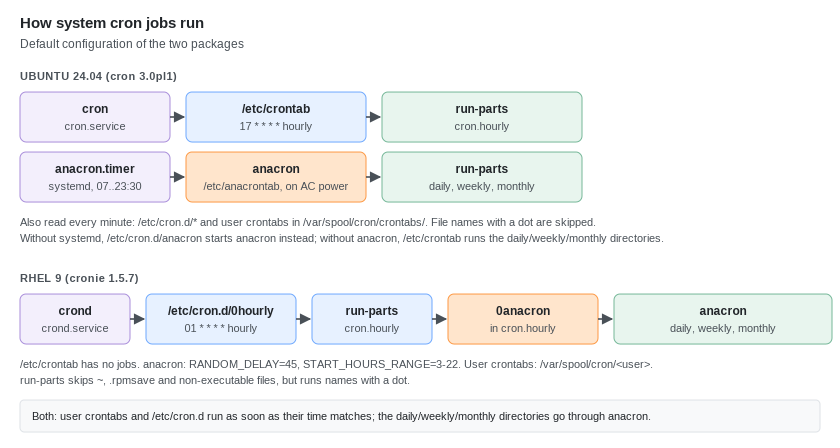
The system crontab has an extra field for the user. The default on Ubuntu 24.04 (comments removed):
SHELL=/bin/sh
17 *	* * *	root	cd / && run-parts --report /etc/cron.hourly
25 6	* * *	root	test -x /usr/sbin/anacron || { cd / && run-parts --report /etc/cron.daily; }
47 6	* * 7	root	test -x /usr/sbin/anacron || { cd / && run-parts --report /etc/cron.weekly; }
52 6	1 * *	root	test -x /usr/sbin/anacron || { cd / && run-parts --report /etc/cron.monthly; }
The daily/weekly/monthly lines only run when anacron is not installed; with anacron, /etc/anacrontab runs those directories. anacron itself is started by the systemd anacron.timer (OnCalendar=*-*-* 07..23:30, RandomizedDelaySec=5m), and anacron.service has ConditionACPower=true, so a laptop on battery skips it; /etc/cron.d/anacron starts it only on systems without systemd. On RHEL 9, /etc/crontab contains only SHELL=/bin/bash, PATH=/sbin:/bin:/usr/sbin:/usr/bin and MAILTO=root. The hourly jobs come from /etc/cron.d/0hourly:
SHELL=/bin/bash
PATH=/sbin:/bin:/usr/sbin:/usr/bin
MAILTO=root
01 * * * * root run-parts /etc/cron.hourly
and /etc/cron.hourly/0anacron starts anacron, which runs cron.daily, cron.weekly and cron.monthly (see Anacron).
Cron Directories
Drop scripts into these directories to run on a fixed schedule (no cron expression needed):
| Directory | Schedule |
|---|---|
/etc/cron.d/ |
Custom schedules (crontab format files) |
/etc/cron.hourly/ |
Every hour |
/etc/cron.daily/ |
Once a day |
/etc/cron.weekly/ |
Once a week |
/etc/cron.monthly/ |
Once a month |
Scripts in cron.hourly, cron.daily, cron.weekly, and cron.monthly must be executable. File names matter on Ubuntu:
# List what would run, without running anything (works on both)
run-parts --test /etc/cron.daily
run-parts --test /etc/cron.hourly
With executable files noext, dash-name, under_name, with.sh, with.dot, backup~, x.rpmsave, x.dpkg-old and a non-executable notexec:
| Ran | |
|---|---|
Ubuntu run-parts |
dash-name, noext, under_name (any name with a dot is skipped) |
RHEL run-parts |
the same plus with.dot, with.sh, x.dpkg-old (skips ~, .rpmsave and non-executable files) |
The same rule applies to /etc/cron.d/ on Ubuntu: a file named myapp.cron was ignored, myapp ran. RHEL ran both.
Output Handling
Any output of a cron job, stdout or stderr, success or failure, is mailed to the crontab’s owner (or MAILTO). To stop it for one job, end the command with > /dev/null 2>&1; for all jobs below a line, set MAILTO="".
Don’t use &> /dev/null. It is bash syntax, and on Ubuntu /bin/sh is dash, which reads it as “run in the background” plus > /dev/null. The job’s output was mailed, and cmd &> /tmp/file left the file empty. On RHEL, where /bin/sh is bash, it works.
Real mails from the two systems, for echo "both-stdout"; echo "both-stderr" >&2 in alice’s crontab:
# Ubuntu: sendmail -FCronDaemon -i -B8BITMIME -oem alice
From: root (Cron Daemon)
To: alice
Subject: Cron <alice@ubuntu-lab> echo "both-stdout"; echo "both-stderr" >&2

both-stdout
both-stderr

# RHEL: sendmail -FCronDaemon -i -odi -oem -oi -t -f alice
From: "(Cron Daemon)" <alice>
To: alice
Subject: Cron <alice@rhel-lab> echo "both-stdout"; echo "both-stderr" >&2
cron hands mail to /usr/sbin/sendmail, so a host needs an MTA (postfix) or a relay for it to leave the machine.
# Discard everything
0 * * * * /path/to/script.sh > /dev/null 2>&1

# stdout to a file, stderr still mailed
0 * * * * /path/to/script.sh > /var/log/output.log

# stderr to a file, stdout still mailed
0 * * * * /path/to/script.sh 2> /var/log/errors.log

# Both to one file: overwrite (>) or append (>>)
0 * * * * /path/to/script.sh > /var/log/all.log 2>&1
0 * * * * /path/to/script.sh >> /var/log/all.log 2>&1

# stdout and stderr to separate files
0 * * * * /path/to/script.sh >> /var/log/out.log 2>> /var/log/err.log

# Discard stdout, stderr to a file
0 * * * * /path/to/script.sh > /dev/null 2>> /var/log/errors.log

# Discard stdout only, stderr still mailed
0 * * * * /path/to/script.sh > /dev/null

# Pipe output to mail, to syslog, or to a file and still to cron's mail
0 * * * * /path/to/script.sh 2>&1 | mail -s "Cron Output" user@example.com
0 * * * * /path/to/script.sh 2>&1 | logger -t mycron
0 * * * * /path/to/script.sh 2>&1 | tee -a /var/log/output.log

# Log with timestamp
0 2 * * * echo "$(date): Starting backup" >> /var/log/backup.log && /path/to/backup.sh >> /var/log/backup.log 2>&1

# Rotate logs (keep last 1000 lines)
0 2 * * * /path/to/script.sh >> /var/log/script.log 2>&1 && tail -n 1000 /var/log/script.log > /tmp/script.log && mv /tmp/script.log /var/log/script.log

# Date-based filenames (% escaped)
0 2 * * * /path/to/script.sh >> /var/log/script_$(date +\%Y\%m\%d).log 2>&1
Environment Variables
Cron runs with a minimal environment. Key variables you can set in the crontab:
| Variable | Default | Description |
|---|---|---|
SHELL |
/bin/sh |
Shell used to run commands |
PATH |
/usr/bin:/bin |
Search path for commands |
MAILTO |
crontab owner | Email recipient for job output |
HOME |
user’s home | Working directory for commands |
LOGNAME |
crontab owner | Login name |
CRON_TZ |
system timezone | Time zone for the schedule (RHEL/cronie only) |
A job’s whole environment on Ubuntu was HOME=/home/alice, LOGNAME=alice, PATH=/usr/bin:/bin, SHELL=/bin/sh (plus LANG and PWD); RHEL also sets USER and SHLVL. MAILTO is unset: mail goes to the owner.
Time zones: with a job scheduled for the current New York time, CRON_TZ=America/New_York made it run on RHEL; TZ=America/New_York did not, on either system. Ubuntu’s cron ignores both and always uses the system time zone. TZ= only changes the time zone the job itself sees.
# Set a custom PATH at the top of your crontab
PATH=/usr/local/bin:/usr/bin:/bin:/home/user/scripts

# Schedule in another time zone (RHEL/cronie; ignored on Ubuntu)
CRON_TZ=America/New_York

# Custom environment variables
DATABASE_URL=postgresql://user:pass@localhost/db
API_KEY=your_api_key_here

# Use full paths in commands to avoid PATH issues
0 * * * * /usr/local/bin/python3 /home/user/scripts/task.py
Cron Logging
# View cron logs (Debian/Ubuntu)
grep CRON /var/log/syslog

# View cron logs (RHEL/CentOS)
cat /var/log/cron

# Follow cron logs in real time
tail -f /var/log/syslog | grep CRON     # Debian/Ubuntu
tail -f /var/log/cron                    # RHEL/CentOS
journalctl -f -u cron                   # Ubuntu (systemd)
journalctl -f -u crond                  # RHEL (systemd)

# Check for specific user's cron jobs in logs
grep "username" /var/log/cron

# Check if cron daemon is running
systemctl status cron        # Debian/Ubuntu
systemctl status crond       # RHEL/CentOS
ps aux | grep cron
What the lines look like:
2026-10-28T09:00:01.590924+00:00 ubuntu-lab CRON[1079]: (bob) CMD (date >> /tmp/bob-ran.txt)
Oct 28 09:19:01 rhel-lab CROND[1874]: (nohome) CMDEND (echo nohome-job-ran-in-$(pwd) > /tmp/b18-nohome.txt)
RHEL logs both CMD and CMDEND for each job, Ubuntu only CMD. The logged command stops at the first unescaped %. /var/log/cron.log does not exist on Ubuntu unless you uncomment cron.* /var/log/cron.log in /etc/rsyslog.d/50-default.conf.
Cron Access Control
Control which users can use cron:
| File | Purpose |
|---|---|
/etc/cron.allow |
If exists, only listed users can use cron |
/etc/cron.deny |
If exists (and no cron.allow), listed users are denied |
- If both files exist,
cron.allowtakes precedence:bob, listed in both, was allowed on both systems. A denied user getsYou (bob) are not allowed to use this program (crontab). - An empty
cron.allowdenies every user except root. - If neither file exists, Ubuntu allows every user, RHEL allows only root. RHEL ships an empty
/etc/cron.deny, so by default everyone may use cron. - The files only control the
crontabcommand. A user added tocron.denykeeps their existing crontab, and it kept running on both systems: remove it withcrontab -r -u <user>.
File Ownership and Permissions
cron refuses crontab files that someone other than the owner could have changed, and says so only in the log. Five files in /etc/cron.d/ and one user crontab:
| File | Ubuntu | RHEL |
|---|---|---|
root:root 644 |
runs | runs |
root:root 755 (executable) |
runs | skipped: BAD FILE MODE |
root:root 664 (group-writable) |
skipped: INSECURE MODE (group/other writable) |
skipped: BAD FILE MODE |
root:root 666 (world-writable) |
skipped: INSECURE MODE (group/other writable) |
skipped: BAD FILE MODE |
owned by alice, 644 |
skipped: WRONG FILE OWNER |
skipped: WRONG FILE OWNER |
| user crontab made 666 | skipped: INSECURE MODE (mode 0600 expected) |
skipped: BAD FILE MODE |
cron[31]: (*system*perm-ww) INSECURE MODE (group/other writable) (/etc/cron.d/perm-ww)
crond[37]: (root) BAD FILE MODE (/etc/cron.d/perm-exec)
Files in /etc/cron.d/ should be root:root and 644. User crontabs are 600, owned alice:crontab on Ubuntu and root:root on RHEL; crontab -e and crontab file set that, which is one more reason not to edit or copy the spool files directly.
The script a job calls is not checked. A root job in /etc/cron.d/ that runs a script anyone can write is a privilege escalation: alice appended id > /tmp/who-ran-it.txt to a mode 777 /usr/local/bin/report.sh, and a minute later the file said uid=0(root) gid=0(root) groups=0(root) on both systems. Keep scripts run by root owned by root and not writable by others (chmod 755 or 700).
Common Pitfalls
1. PATH Issues
Cron uses a minimal PATH (/usr/bin:/bin). Always use full paths:
# WRONG - may not find the binary
0 * * * * my-script.sh

# RIGHT - use absolute paths
0 * * * * /home/user/scripts/my-script.sh
2. Percent Signs (%)
From man 5 crontab:
The “sixth” field (the rest of the line) specifies the command to be run. The entire command portion of the line, up to a newline or % character, will be executed by /bin/sh or by the shell specified in the SHELL variable of the cronfile. Percent-signs (%) in the command, unless escaped with backslash (), will be changed into newline characters, and all data after the first % will be sent to the command as standard input.
# WRONG - cron interprets % as a newline
0 0 * * * /usr/bin/date +%Y-%m-%d

# RIGHT - escape percent signs
0 0 * * * /usr/bin/date +\%Y-\%m-\%d

# Execute date inside of a cron tab job (the directory must exist)
0 * * * * echo hello >> ~/cron-logs/hourly/test`date "+\%d"`.log

# Or put the command in a script and call the script instead
0 0 * * * /home/user/scripts/datestamp.sh
echo pct-raw $(date +%Y-%m-%d) never ran; cron cut it at the first % and mailed the shell’s complaint:
/bin/sh: 1: Syntax error: end of file unexpected (expecting ")")              # Ubuntu
/bin/sh: -c: line 1: unexpected EOF while looking for matching `)'           # RHEL
The same happens to any unescaped % in a one-liner, for example awk '{printf "%.0f", ...}' or sed 's/%//'.
3. Environment Differences
Your interactive shell has a full environment; cron does not:
# Source your profile if needed
0 * * * * . /home/user/.profile && /home/user/scripts/task.sh

# Or set variables directly in crontab
PATH=/usr/local/bin:/usr/bin:/bin
0 * * * * my-command
4. Working Directory
Cron jobs start in the user’s home directory by default:
# Use cd to change to the expected directory
0 * * * * cd /opt/myapp && ./run.sh

# Or use absolute paths throughout
0 * * * * /opt/myapp/run.sh
5. Scripts Not Executable
# Make your script executable
chmod +x /home/user/scripts/backup.sh

# Or invoke the interpreter directly
0 * * * * /bin/bash /home/user/scripts/backup.sh
6. /bin/sh Is dash on Ubuntu
Cron runs commands with /bin/sh, which is dash on Ubuntu and bash on RHEL. bash-only syntax silently does something else on Ubuntu:
| In the crontab | Ubuntu (dash) | RHEL (bash) |
|---|---|---|
for i in {0..2}; do echo "iter $i"; done |
one line: iter {0..2} |
iter 0, iter 1, iter 2 |
echo "rand=$(( RANDOM \% 60 ))" |
always rand=0 |
random |
cmd &> /dev/null |
output mailed, runs in background | silenced |
Use portable syntax (for i in 1 2 3, shuf -i 0-59 -n 1, > /dev/null 2>&1) or set SHELL=/bin/bash at the top of the crontab; with it, Ubuntu printed shell=/bin/bash brace=1 2 3.
7. Time Zone Problems
The schedule follows the system time zone. Only cronie (RHEL) supports another one per crontab, with CRON_TZ=America/New_York above the jobs; TZ= changes only what the job sees (see Environment Variables).
My Job Didn’t Run: Checklist
Every item below is a silent failure seen in the lab; most of them leave nothing but a mail nobody reads.
- Did cron start it? Look for
(user) CMD (...)in/var/log/syslog(Ubuntu) or/var/log/cron(RHEL). No line: it is a schedule or file problem (2-6). A line: it is a command problem (7-12). - The schedule means something else. Day of month and day of week together are OR-ed;
*/2in the day field means odd days;@weeklyis Sunday. - The line was never valid. Ubuntu’s
crontabinstalls lines like61 * * * *or a missing field without an error and cron skips them. Check withcrontab -Ton RHEL. - The file is ignored. Files in
/etc/cron.d/must beroot:rootand not group- or world-writable (and not executable on RHEL): the log saysINSECURE MODE,BAD FILE MODEorWRONG FILE OWNER. On Ubuntu, files in/etc/cron.d/and/etc/cron.daily/whose name contains a dot (backup.sh,myapp.cron) never run; scripts must also be executable.run-parts --test /etc/cron.dailylists what will run. - The user may not run cron jobs any more, or has no home directory: RHEL logs
ERROR chdir failed (/home/<user>)and skips the job. - It was an
@rebootjob and the daemon was only restarted.@rebootruns at boot only. - An unescaped
%cut the command; the shell’s syntax error went to mail. - bash syntax under dash (Ubuntu):
{1..3},$RANDOM,&>,[[ ]]. SetSHELL=/bin/bashor use portable syntax. PATH. cron’s is/usr/bin:/bin, andPATH=$PATH:...in a crontab is not expanded. Use absolute paths or set the fullPATH.- Relative paths. Jobs start in the home directory (
/var/spool/cronon Ubuntu for a user without one). - The time zone. The schedule uses the system time zone; only RHEL supports
CRON_TZ, andTZ=changes nothing in the schedule. - The error went to mail and mail goes nowhere. Ubuntu has no
mailcommand and many servers have no MTA. Log instead:>> /var/log/job.log 2>&1, or2>&1 | logger -t job.
Managing Cron with Ansible
The ansible.builtin.cron module manages entries idempotently: it marks each one with a #Ansible: <name> comment and finds it again by that name. See the Ansible Cheatsheet for the rest of Ansible.
- name: Manage cron entries
  hosts: all
  gather_facts: false
  tasks:
    - name: Nightly backup for alice
      ansible.builtin.cron:
        name: nightly backup
        user: alice
        minute: "0"
        hour: "2"
        job: /usr/local/bin/backup.sh >> /var/log/backup.log 2>&1

    - name: MAILTO for alice
      ansible.builtin.cron:
        name: MAILTO
        env: true
        user: alice
        job: ops@example.com

    - name: System job in /etc/cron.d
      ansible.builtin.cron:
        name: cleanup tmp
        cron_file: cleanup
        user: root
        minute: "30"
        hour: "3"
        job: find /tmp -type f -mtime +7 -delete

    - name: Daily report, disabled
      ansible.builtin.cron:
        name: daily report
        user: alice
        special_time: daily
        job: /usr/local/bin/report.sh
        disabled: true
With ansible-core 2.21.4, the first run reported changed=4 and the second changed=0 on both systems. alice’s crontab afterwards:
MAILTO="ops@example.com"
#Ansible: nightly backup
0 2 * * * /usr/local/bin/backup.sh >> /var/log/backup.log 2>&1
#Ansible: daily report
#@daily /usr/local/bin/report.sh
and /etc/cron.d/cleanup was created root:root 644, so cron accepts it:
#Ansible: cleanup tmp
30 3 * * * root find /tmp -type f -mtime +7 -delete
state: absent with the same name removes an entry; removing the last entry of a cron_file deleted the file. Give cron_file a name without a dot, or Ubuntu’s cron ignores it. A hand-added line identical to the module’s was adopted: Ansible added the #Ansible: nightly backup marker above it instead of a second copy. The same command with a different time (30 1 * * *) was left alone and the module added its own 0 2 * * * line, so the backup would run twice a night. Remove hand-made entries before handing a job to Ansible.
Backup and Restore
# Back up every user's crontab (as root)
mkdir -p /root/cron-backup && cd /root/cron-backup
for u in $(cut -d: -f1 /etc/passwd); do
    crontab -l -u "$u" > "$u.cron" 2>/dev/null || rm -f "$u.cron"
done

# Restore one user
crontab -u alice alice.cron

# System jobs: plain files
tar czf /root/cron-system.tgz /etc/crontab /etc/cron.d /etc/cron.hourly /etc/cron.daily /etc/cron.weekly /etc/cron.monthly
crontab -r deletes without asking (exit code 0, then no crontab for alice), and r is next to e on the keyboard; crontab -i -r asks first. The backup loop above wrote alice.cron and bob.cron (users without a crontab are skipped), and crontab -u alice alice.cron brought the crontab back. Restore with crontab -u, not by copying files into /var/spool/cron: the spool files differ in path and owner between Ubuntu (/var/spool/cron/crontabs/alice, alice:crontab) and RHEL (/var/spool/cron/alice, root:root), and a file with the wrong owner or mode is skipped (see File Ownership and Permissions).
Locking (Prevent Overlapping Jobs)
Use flock to prevent a job from running if the previous instance is still active:
# Skip if already running
*/5 * * * * flock -n /tmp/myjob.lock /home/user/scripts/long-task.sh

# Wait up to 60 seconds for the lock
*/5 * * * * flock -w 60 /tmp/myjob.lock /home/user/scripts/long-task.sh
Lock File Wrapper Script
#!/bin/bash
# wrapper.sh
LOCKFILE=/tmp/myscript.lock
if [ -e ${LOCKFILE} ] && kill -0 `cat ${LOCKFILE}` 2>/dev/null; then
    echo "Script already running"
    exit
fi
echo $$ > ${LOCKFILE}
# Remove lockfile when script finishes
trap "rm -f ${LOCKFILE}" EXIT
/path/to/actual_script.sh

# Use in crontab
*/5 * * * * /path/to/wrapper.sh
A second copy started while the first ran printed Script already running. 2>/dev/null on kill -0 keeps a stale lock file (a PID that no longer exists) from mailing kill: (999999) - No such process. flock needs none of this: a second flock -n exited with code 1 and no output, and flock -w 60 waited for the first run and then ran.
Testing Cron Jobs
# Simulate the cron environment to test your command
env -i SHELL=/bin/sh PATH=/usr/bin:/bin HOME=$HOME /bin/sh -c 'your-command-here'

# Run cron job manually as specific user
sudo -u username /path/to/script.sh

# Run the command manually to check for errors
/home/user/scripts/backup.sh

# Temporarily run every minute to verify it works
* * * * * /home/user/scripts/backup.sh >> /tmp/cron-test.log 2>&1
# (Remember to change it back after testing!)

# Create test environment script
#!/bin/bash
# test-cron-env.sh
env > /tmp/cron-env
echo "PATH: $PATH" >> /tmp/cron-env
echo "PWD: $PWD" >> /tmp/cron-env
echo "USER: $USER" >> /tmp/cron-env
Anacron
Anacron is designed for machines that are not running 24/7. It ensures jobs run even if the system was off at the scheduled time.
# /etc/anacrontab format:
# period  delay  job-id   command
1         5      daily-backup   /home/user/scripts/backup.sh
7         10     weekly-report  /home/user/scripts/report.sh
30        15     monthly-clean  /home/user/scripts/cleanup.sh
| Field | Description |
|---|---|
| period | Run every N days (or @monthly) |
| delay | Wait N minutes after anacron starts before running |
| job-id | Unique identifier for the job |
| command | Command to execute |
anacron -T -t /etc/anacrontab checks the file. A job with delay 1 ran 60 seconds after anacron started (Will run job 'lab-daily' in 1 min.), and a second run the same day ran nothing (Normal exit (0 jobs run)), because anacron writes the date to /var/spool/anacron/<job-id>. Jobs run as root. The defaults are RANDOM_DELAY=45 and START_HOURS_RANGE=3-22 on RHEL, and delays 5, 10 and 15 minutes on Ubuntu.
at
The at command schedules a one-time job to run at a specific time (unlike cron which is recurring).
# Run a command in 1 minute
echo "ping -c 10 www.google.com > ping.out" | at now + 1 minute

# Run a command at 05:24 and send an email with the output
# (refused if 05:24 has passed: "at: refusing to create job destined in the past")
echo "ping -c 10 www.google.com" | at -m 05:24 today

# Schedule a script
echo "sh /root/script.sh > /root/script.out" | at 2:00 AM Mar 25

# List the scheduled jobs
at -l
atq

# Remove scheduled job
atrm 6
at -d 6

# Check the content of scheduled job
at -c 18
at now + 1 minute means the start of the next minute (job 1 at Wed Oct 28 09:06:00 2026, queued at 09:05:2x). Every at command prints warning: commands will be executed using /bin/sh.
systemd Timers (the Alternative)
On both Ubuntu and RHEL, a systemd timer can replace a crontab line: output goes to the journal, missed runs can be caught up, and none of cron’s shell and mail quirks apply. A timer is two units with the same name.
# /etc/systemd/system/lab-backup.service
[Unit]
Description=Lab backup

[Service]
Type=oneshot
ExecStart=/usr/local/bin/backup.sh
# /etc/systemd/system/lab-backup.timer
[Unit]
Description=Run lab-backup every day at 02:00

[Timer]
OnCalendar=*-*-* 02:00
Persistent=true

[Install]
WantedBy=timers.target
systemctl daemon-reload
systemctl enable --now lab-backup.timer
systemctl list-timers lab-backup.timer
journalctl -u lab-backup.service

# One-off timers without unit files
systemd-run --on-calendar="*:*:0/15" --unit=lab-quick /bin/echo quick-job-ran
systemd-run --on-active=5s /bin/echo one-shot-in-5s
A timer running every 20 seconds (OnCalendar=*:*:0/20), on systemd 255 (Ubuntu) and 252 (RHEL):
NEXT                        LEFT LAST                        PASSED UNIT             ACTIVATES
Wed 2026-10-28 09:33:40 UTC  14s Wed 2026-10-28 09:33:22 UTC 2s ago lab-backup.timer lab-backup.service
OnCalendar Instead of Cron Expressions
systemd-analyze calendar prints the next run times, so a schedule can be checked before it is used (here from a fixed --base-time="2026-10-28 09:00:00 UTC", same on both systems):
| Cron | OnCalendar | Next runs |
|---|---|---|
first Monday (needs a date test) |
Mon *-*-1..7 08:00 |
Mon 2026-11-02, Mon 2026-12-07, Mon 2027-01-04 08:00 |
last day (needs a date test) |
*-*~01 23:59 |
Sat 2026-10-31, Mon 2026-11-30, Thu 2026-12-31 23:59 |
0 9 * * 1-5 |
Mon..Fri 09:00 |
Thu 10-29, Fri 10-30, Mon 11-02 09:00 |
0 0 1 jan,apr,jun * |
*-01,04,06-01 00:00 |
2027-01-01, 2027-04-01, 2027-06-01 |
*/15 * * * * |
*:0/15 |
09:15, 09:30, 09:45 |
0 0 */2 * * |
*-*-1/2 00:00 |
Thu 10-29, Sat 10-31, Sun 11-01 (same odd-day jump) |
@weekly (Sunday) |
weekly |
Mon 2026-11-02 00:00 |
CRON_TZ=America/New_York |
Mon..Fri 02:00 America/New_York |
Thu 2026-10-29 06:00 UTC |
systemd-analyze calendar --iterations=3 "Mon *-*-1..7 08:00"
Unlike cron, a weekday and a day range are combined with AND, so Mon *-*-1..7 is really the first Monday. weekly means Monday, not Sunday. The time zone goes at the end; at the start the expression fails to parse.
Persistent=true and the % Trap
Persistent=true stores the last run in /var/lib/systemd/timers/stamp-<name>.timer. A minutely timer that was stopped while a run was due started the service immediately when the timer came back (fresh-true ran within 3 seconds, on both systems); the same timer with Persistent=false waited for the next minute. That is anacron’s job, built in.
% is special in unit files too: it starts a specifier. ExecStart=/bin/sh -c 'echo "$(date +%T)"' printed /tmp (%T is the temporary directory); %%T printed 09:33:35.
Conditional Execution
# Run only if file exists
0 2 * * * [ -f /tmp/run_backup ] && /path/to/backup.sh

# Run only if file doesn't exist
0 2 * * * [ ! -f /tmp/maintenance_mode ] && /path/to/script.sh

# Run only if another process is not running (-x matches the process name;
# pgrep -f "my_process" matches the cron shell's own command line and never starts it)
*/5 * * * * pgrep -x my_process > /dev/null || /path/to/my_process.sh

# Chain commands with conditions
0 2 * * * /path/to/backup.sh && /path/to/cleanup.sh || echo "Backup failed" | mail -s "Backup Error" admin@example.com

# Run only on specific servers
0 2 * * * [ "$(hostname)" = "server1" ] && /path/to/script.sh

# Run only if the 1-minute load average is below 2.0
*/5 * * * * awk '{exit !($1 < 2.0)}' /proc/loadavg && /path/to/cpu_intensive_script.sh
Field $10 of uptime is not stable: with up 27 min, it was the 5-minute average with a trailing comma (0.26,), and the number of words before the load average changes with how long the machine has been up. /proc/loadavg always starts with the 1-minute value.
Retry Logic
# Retry script up to 3 times
0 2 * * * for i in 1 2 3; do /path/to/script.sh && break || sleep 60; done
Resource Monitoring
# Run only if /var is less than 90% full
0 2 * * * [ "$(df --output=pcent /var | tail -n 1 | tr -dc 0-9)" -lt 90 ] && /path/to/script.sh

# Run only if memory usage is below 80% (% escaped as \%)
*/10 * * * * [ "$(free | awk '/^Mem:/ {printf "\%d", $3/$2*100}')" -lt 80 ] && /path/to/memory_intensive_script.sh
The usual versions, sed 's/%//' and printf "%.0f", never run from a crontab: the % cuts the command (Syntax error: Unterminated quoted string). These two ran on both systems.
Best Practices and Security
# Always use absolute paths
0 2 * * * /usr/bin/php /var/www/html/script.php

# Set strict permissions on scripts
chmod 700 /path/to/script.sh
chown root:root /path/to/script.sh

# Validate input in scripts
#!/bin/bash
if [[ ! "$1" =~ ^[a-zA-Z0-9_-]+$ ]]; then
    echo "Invalid input"
    exit 1
fi

# Use specific user accounts
# In /etc/cron.d/myapp
0 2 * * * myappuser /path/to/script.sh

# Limit resource usage
0 2 * * * nice -n 19 ionice -c3 /path/to/resource_intensive_script.sh
Error Handling Wrapper
#!/bin/bash
# cron-wrapper.sh
SCRIPT="$1"
LOGFILE="$2"
MAILTO="admin@example.com"

if [ -z "$SCRIPT" ] || [ -z "$LOGFILE" ]; then
    echo "Usage: $0 <script> <logfile>"
    exit 1
fi

{
    echo "=== $(date) ==="
    echo "Starting: $SCRIPT"

    if "$SCRIPT"; then
        echo "SUCCESS: $SCRIPT completed"
    else
        EXITCODE=$?
        echo "ERROR: $SCRIPT failed with exit code $EXITCODE"
        echo "$SCRIPT failed at $(date)" | mail -s "Cron Job Failed" "$MAILTO"
    fi
    echo "=== $(date) ==="
    echo
} >> "$LOGFILE" 2>&1
Performance and Optimization
# Stagger similar jobs to avoid resource conflicts
0 2 * * * /path/to/backup1.sh
5 2 * * * /path/to/backup2.sh
10 2 * * * /path/to/backup3.sh

# Use random delays for distributed systems
*/5 * * * * sleep $(shuf -i 0-59 -n 1) && /path/to/script.sh

# Limit concurrent executions
*/5 * * * * [ $(pgrep -c -f "my_script.sh") -lt 3 ] && /path/to/my_script.sh

# Use at command for one-time scheduling
0 2 * * * echo "/path/to/script.sh" | at now + 1 hour

# Monitor and alert on long-running jobs
0 * * * * timeout 30m /path/to/script.sh || echo "Script timeout" | mail -s "Cron Timeout" admin@example.com
Common Patterns and Examples
# Database backup with rotation
0 2 * * * pg_dump mydb > /backup/mydb_$(date +\%Y\%m\%d).sql && find /backup -name "mydb_*.sql" -mtime +7 -delete

# Log rotation
0 0 * * * gzip /var/log/app.log && mv /var/log/app.log.gz /var/log/archive/app_$(date +\%Y\%m\%d).log.gz && touch /var/log/app.log

# Health check with notification
*/5 * * * * curl -f http://localhost:8080/health > /dev/null 2>&1 || echo "Service down" | mail -s "Health Check Failed" admin@example.com

# Cleanup old files
0 3 * * * find /tmp -type f -mtime +7 -delete
0 3 * * 0 find /var/log -name "*.log" -mtime +30 -delete

# Update system packages (with caution); braces so both commands are logged
0 4 * * 1 { apt-get update && apt-get -y upgrade; } >> /var/log/system-update.log 2>&1

# Generate reports
0 6 1 * * /path/to/generate_monthly_report.sh
0 6 * * 1 /path/to/generate_weekly_report.sh

# Sync files
*/30 * * * * rsync -av /local/path/ user@remote:/remote/path/

# Monitor SSL certificates: warn when the certificate expires within 7 days
0 9 * * * echo | openssl s_client -servername example.com -connect example.com:443 2>/dev/null | openssl x509 -noout -checkend 604800 > /dev/null || echo "SSL certificate for example.com expires within 7 days" | mail -s "SSL Warning" admin@example.com

# Run every 5 minutes during business hours only
*/5 9-17 * * 1-5 /path/to/healthcheck.sh

# Chain multiple commands
0 3 * * * /usr/local/bin/backup.sh && /usr/local/bin/verify-backup.sh
In a && b >> log 2>&1 the redirection belongs to b only: a’s output was mailed. Group the commands, as in the update line above.
The common SSL one-liner ending in | [ -s /dev/stdin ] && mail ... can never send: test -s on a pipe is always false. openssl x509 -checkend exits 1 when the certificate expires within the given seconds; against a test certificate valid for 3 days, the 7-day line mailed SSL certificate for localhost expires within 7 days and the same line with 86400 (1 day) stayed quiet.
Script Examples with Redirections and Emails
These scripts ran from root’s crontab on both systems. mail is not installed on Ubuntu (mail: command not found in the error logs), so install mailutils (it provides mail) and an MTA before relying on the email parts; on RHEL every alert below arrived. deploy.sh ran with stand-ins for git, npm and systemctl.
Backup Script with Logging
#!/bin/bash
# /usr/local/bin/backup.sh
# Called from crontab: 0 2 * * * /usr/local/bin/backup.sh >> /var/log/backup.log 2>&1

BACKUP_DIR="/backup/$(date +%Y%m%d)"
SOURCE="/var/www/html"
LOGFILE="/var/log/backup.log"

echo "[$(date '+%Y-%m-%d %H:%M:%S')] Starting backup..."

mkdir -p "$BACKUP_DIR"

if tar czf "$BACKUP_DIR/www-backup.tar.gz" "$SOURCE" 2>> "$LOGFILE"; then
    echo "[$(date '+%Y-%m-%d %H:%M:%S')] Backup completed successfully"
    echo "[$(date '+%Y-%m-%d %H:%M:%S')] Size: $(du -h "$BACKUP_DIR/www-backup.tar.gz" | cut -f1)"
else
    echo "[$(date '+%Y-%m-%d %H:%M:%S')] ERROR: Backup failed!" >&2
    exit 1
fi
Crontab entry:
# Log both stdout and stderr to file
0 2 * * * /usr/local/bin/backup.sh >> /var/log/backup.log 2>&1

# Separate success and error logs
0 2 * * * /usr/local/bin/backup.sh >> /var/log/backup.log 2>> /var/log/backup-errors.log

# Discard stdout, only capture errors
0 2 * * * /usr/local/bin/backup.sh > /dev/null 2>> /var/log/backup-errors.log
Script with Email Notification on Failure
#!/bin/bash
# /usr/local/bin/db-backup.sh
# Called from crontab: 0 3 * * * /usr/local/bin/db-backup.sh

MAILTO="admin@example.com"
HOSTNAME=$(hostname)
BACKUP_FILE="/backup/db_$(date +%Y%m%d_%H%M%S).sql.gz"

pg_dump production_db | gzip > "$BACKUP_FILE"

if [ ${PIPESTATUS[0]} -ne 0 ]; then
    rm -f "$BACKUP_FILE"   # don't leave a gzip that looks like a backup
    echo "Database backup failed on $HOSTNAME at $(date)" | \
        mail -s "[$HOSTNAME] DB Backup FAILED" "$MAILTO"
    exit 1
fi

# Verify backup is not empty
if [ ! -s "$BACKUP_FILE" ]; then
    echo "Backup file is empty on $HOSTNAME" | \
        mail -s "[$HOSTNAME] DB Backup Empty" "$MAILTO"
    exit 1
fi

# Send success summary
echo "Backup completed: $BACKUP_FILE ($(du -h "$BACKUP_FILE" | cut -f1))" | \
    mail -s "[$HOSTNAME] DB Backup OK" "$MAILTO"
Crontab entry:
# Let the script handle its own email, silence cron output
0 3 * * * /usr/local/bin/db-backup.sh > /dev/null 2>&1
Script with Email Containing Attachment
#!/bin/bash
# /usr/local/bin/daily-report.sh
# Called from crontab: 0 7 * * * /usr/local/bin/daily-report.sh

MAILTO="team@example.com"
REPORT="/tmp/daily-report-$(date +%Y%m%d).txt"

{
    echo "=== Daily System Report - $(date '+%Y-%m-%d') ==="
    echo ""
    echo "--- Disk Usage ---"
    df -h
    echo ""
    echo "--- Memory ---"
    free -h
    echo ""
    echo "--- Top Processes ---"
    ps aux --sort=-%mem | head -10
    echo ""
    echo "--- Recent Failed Logins ---"
    lastb 2>/dev/null | head -10
} > "$REPORT"

# Send report as email body
mail -s "Daily Report - $(date '+%Y-%m-%d')" "$MAILTO" < "$REPORT"

# Cleanup
rm -f "$REPORT"
Crontab entry:
# Script handles email internally, log errors only
0 7 * * * /usr/local/bin/daily-report.sh 2>> /var/log/report-errors.log
Script with Conditional Email (Alert Only on Problems)
#!/bin/bash
# /usr/local/bin/disk-check.sh
# Called from crontab: */30 * * * * /usr/local/bin/disk-check.sh

THRESHOLD=85
MAILTO="sysadmin@example.com"
HOSTNAME=$(hostname)
ALERT=""

while read -r line; do
    usage=$(echo "$line" | awk '{print $5}' | sed 's/%//')
    mount=$(echo "$line" | awk '{print $6}')
    if [ "$usage" -ge "$THRESHOLD" ]; then
        ALERT="${ALERT}WARNING: $mount is ${usage}% full\n"
    fi
done < <(df -h | grep -E '^/dev/' )

if [ -n "$ALERT" ]; then
    echo -e "$ALERT" | mail -s "[$HOSTNAME] Disk Space Alert" "$MAILTO"
fi
Crontab entry:
# No output unless there's an error in the script itself
*/30 * * * * /usr/local/bin/disk-check.sh 2>> /var/log/disk-check-errors.log
Script Redirecting to Multiple Destinations
#!/bin/bash
# /usr/local/bin/deploy.sh
# Called from crontab: 0 4 * * * /usr/local/bin/deploy.sh

LOGFILE="/var/log/deploy/deploy-$(date +%Y%m%d).log"
MAILTO="devops@example.com"

mkdir -p /var/log/deploy

# Redirect all output to log file AND capture for email
exec > >(tee -a "$LOGFILE") 2>&1

echo "=== Deploy started at $(date) ==="

cd /opt/myapp || exit 1
git pull origin main
npm install --production
systemctl restart myapp

if systemctl is-active --quiet myapp; then
    echo "=== Deploy successful at $(date) ==="
else
    echo "=== Deploy FAILED at $(date) ==="
    mail -s "Deploy Failed" "$MAILTO" < "$LOGFILE"
    exit 1
fi
Crontab entry:
# Script manages its own logging with tee, discard cron output
0 4 * * * /usr/local/bin/deploy.sh > /dev/null 2>&1
Script Using MAILTO with Different Recipients per Job
# Different email recipients for different jobs
MAILTO="dba@example.com"
0 2 * * * /usr/local/bin/db-backup.sh
0 3 * * * /usr/local/bin/db-optimize.sh

MAILTO="sysadmin@example.com"
0 4 * * * /usr/local/bin/system-cleanup.sh
*/10 * * * * /usr/local/bin/healthcheck.sh

# Disable email for noisy jobs
MAILTO=""
* * * * * /usr/local/bin/metrics-collector.sh

# Re-enable for important jobs
MAILTO="oncall@example.com"
*/5 * * * * /usr/local/bin/critical-monitor.sh
Script with Output Piped to Logger (syslog)
#!/bin/bash
# /usr/local/bin/cleanup.sh
# All output goes to syslog via logger

# Redirect stdout and stderr to logger
exec 1> >(logger -t "cron-cleanup" -p local0.info)
exec 2> >(logger -t "cron-cleanup" -p local0.error)

echo "Starting cleanup at $(date)"
find /tmp -type f -mtime +7 -delete
find /var/log -name "*.gz" -mtime +30 -delete
echo "Cleanup finished at $(date)"
Crontab entry:
# All output handled by logger inside the script
0 3 * * * /usr/local/bin/cleanup.sh
Related: Ansible Cheatsheet (the cron module above), ps Cheatsheet (finding the cron daemon and running jobs) and Terraform Provisioners Guide (another place where %, /bin/sh and “only on create” catch people out).