Installing the AWS CLI v2 on Linux, macOS and Docker
The AWS CLI v2 is the official command-line tool for AWS. This post installs it the ways that matter in practice, shows what the installer actually puts on disk, and covers the traps: updates that are silently skipped, old versions piling up, missing unzip and groff, and which credential or region setting wins when several are set.
Scope
The Linux installer was run as root in fresh Ubuntu 24.04 and Rocky Linux 9 containers, on arm64 (aarch64) and x86_64. The current version at the time was 2.40.4, and 2.31.0 stands in for an older release. The distro packages were checked on Rocky Linux 9, Amazon Linux 2023 and Ubuntu 24.04, Homebrew on macOS 27.2. Configuration was only tested locally, with the example keys from the AWS documentation; no request in this post reaches an AWS account.
Which Install Method?
| Method | Version on 2026-11-17 | Notes |
|---|---|---|
| Official installer (Linux) | 2.40.4 | Latest, bundles its own Python; recommended |
| Homebrew (macOS) | 2.40.3 | brew install awscli |
dnf install awscli2 (RHEL/Rocky 9 AppStream) |
2.33.0 | Uses the system Python 3.9; updates with the OS |
dnf install awscli-2 (Amazon Linux 2023) |
2.38.0 | In the AL2023 repository; not installed in the amazonlinux:2023 container image |
apt install awscli (Ubuntu 24.04) |
none | Not in the archive: Candidate: (none) |
pip install awscli |
1.46.3 | v1, not v2 |
dnf install awscli (EPEL 9) |
1.29.62 | v1 |
amazon/aws-cli Docker image |
2.40.4 | No install on the host |
Install on Linux (Official Installer)
The installer is a zip with a self-contained build of the CLI, one for x86_64 and one for ARM (Graviton). uname -m prints x86_64 or aarch64, which is exactly the suffix in the file name, so one block works on both:
# unzip is missing on minimal images
sudo dnf install -y unzip        # RHEL, Rocky, AlmaLinux, Amazon Linux
sudo apt install -y unzip curl   # Ubuntu, Debian

curl "https://awscli.amazonaws.com/awscli-exe-linux-$(uname -m).zip" -o awscliv2.zip
unzip -q awscliv2.zip
sudo ./aws/install
aws --version
rm -rf aws awscliv2.zip
You can now run: /usr/local/bin/aws --version
aws-cli/2.40.4 Python/3.14.8 Linux/6.8.0-117-generic exe/aarch64.ubuntu.24
On Rocky Linux the same version reports exe/aarch64.rocky.9; the zip was 75 MB for x86_64 and 73 MB for aarch64.
What the Installer Puts on Disk
$ ls -l /usr/local/bin/aws /usr/local/bin/aws_completer
lrwxrwxrwx 1 root root 37 Nov 17 07:34 /usr/local/bin/aws -> /usr/local/aws-cli/v2/current/bin/aws
lrwxrwxrwx 1 root root 47 Nov 17 07:34 /usr/local/bin/aws_completer -> /usr/local/aws-cli/v2/current/bin/aws_completer
$ ls -l /usr/local/aws-cli/v2/
drwxr-xr-x 4 root root 4096 Nov 17 07:34 2.40.4
lrwxrwxrwx 1 root root   28 Nov 17 07:34 current -> /usr/local/aws-cli/v2/2.40.4
$ du -sh /usr/local/aws-cli
272M	/usr/local/aws-cli
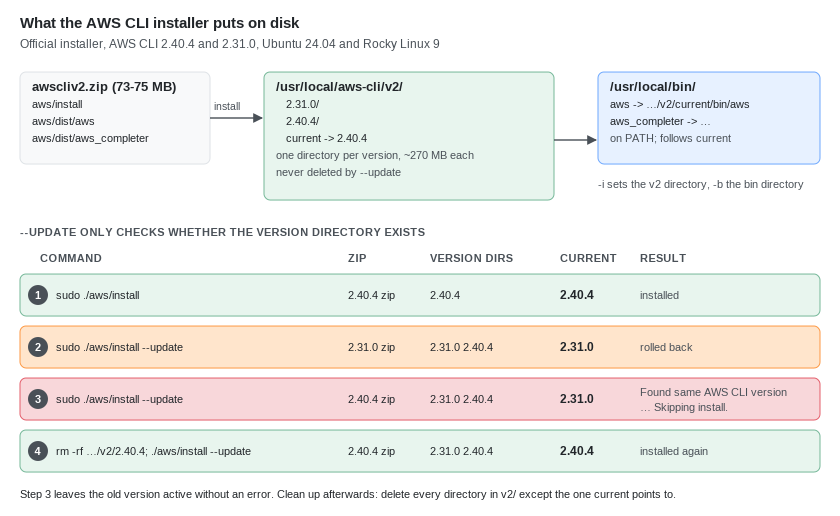
Each version gets its own directory, current points at the active one, and the two commands in /usr/local/bin point through current. That’s how an update switches versions, and why old ones can pile up:
Install Options
./aws/install --help
FLAGS:
    -u, --update              Updates the AWS CLI v2 if a different version
                              is previously installed. By default, this script
                              will not update the AWS CLI if a previous
                              installation is detected.
OPTIONS:
    -i, --install-dir <path>  The directory to install the AWS CLI v2. By
                              default, this directory is: /usr/local/aws-cli
    -b, --bin-dir <path>      ...
# Explicit paths (these are the defaults)
sudo ./aws/install -i /usr/local/aws-cli -b /usr/local/bin
Install Without Root
./aws/install -i ~/aws-cli -b ~/bin
You can now run: /home/dev/bin/aws --version
No PATH change is needed on Ubuntu or RHEL: their default login scripts add ~/bin when it exists, so the next login shell already finds it (command -v aws printed /home/dev/bin/aws). On systems that don’t, add export PATH="$HOME/bin:$PATH" to ~/.bashrc.
Verify the Download (GPG)
AWS signs every installer zip. Import the AWS CLI Team public key once (copy the key block from the AWS install guide into aws-cli.asc), then check the signature before running install:
gpg --import aws-cli.asc
gpg --fingerprint aws-cli@amazon.com

curl -o awscliv2.sig "https://awscli.amazonaws.com/awscli-exe-linux-$(uname -m).zip.sig"
gpg --verify awscliv2.sig awscliv2.zip
pub   rsa4096 2019-09-18 [SC] [expires: 2027-07-01]
      FB5D B77F D5C1 18B8 0511  ADA8 A631 0ACC 4672 475C
uid           [ unknown] AWS CLI Team <aws-cli@amazon.com>

gpg: Signature made Mon Nov 16 19:38:39 2026 UTC
gpg:                using RSA key FB5DB77FD5C118B80511ADA8A6310ACC4672475C
gpg: Good signature from "AWS CLI Team <aws-cli@amazon.com>" [unknown]
gpg: WARNING: This key is not certified with a trusted signature!
Good signature is what counts; the WARNING only says you haven’t signed the key yourself. Compare the fingerprint with the one in the AWS guide. After changing a single byte of the zip:
gpg: BAD signature from "AWS CLI Team <aws-cli@amazon.com>" [unknown]
The key has an expiry date (2027-07-01 for the one above); when it passes, import the renewed key from the guide.
Update, Pin and Roll Back
Update
Running install again on an existing installation refuses to do anything:
$ sudo ./aws/install
Found preexisting AWS CLI installation: /usr/local/aws-cli/v2/current. Please rerun install script with --update flag.
curl "https://awscli.amazonaws.com/awscli-exe-linux-$(uname -m).zip" -o awscliv2.zip
unzip -q awscliv2.zip
sudo ./aws/install --update
aws --version
rm -rf aws awscliv2.zip
When the zip holds the version you already have: Found same AWS CLI version: /usr/local/aws-cli/v2/2.40.4. Skipping install.
Install a Specific Version
Add the version to the file name:
curl "https://awscli.amazonaws.com/awscli-exe-linux-$(uname -m)-2.31.0.zip" -o awscliv2.zip
unzip -q awscliv2.zip
sudo ./aws/install --update
aws --version
You can now run: /usr/local/bin/aws --version
aws-cli/2.31.0 Python/3.13.7 Linux/6.8.0-117-generic exe/aarch64.ubuntu.24
The Rollback Trap
--update only checks whether the version’s directory exists, not what current points to. After going back to 2.31.0, the 2.40.4 directory is still there, so updating to 2.40.4 again is skipped and the old version stays active:
$ sudo ./aws/install --update
Found same AWS CLI version: /usr/local/aws-cli/v2/2.40.4. Skipping install.
$ aws --version
aws-cli/2.31.0 Python/3.13.7 Linux/6.8.0-117-generic exe/aarch64.ubuntu.24
Remove that version’s directory first; the version of an unzipped installer is in ./aws/dist/aws --version:
V=$(./aws/dist/aws --version | cut -d/ -f2 | cut -d' ' -f1)
sudo rm -rf "/usr/local/aws-cli/v2/$V"
sudo ./aws/install --update
aws --version
aws-cli/2.40.4 Python/3.14.8 Linux/6.8.0-117-generic exe/aarch64.ubuntu.24
Remove Old Versions
Updates never delete the previous version, and each one is about 270 MB. Keep only the one current points to:
ls /usr/local/aws-cli/v2/
cur=$(basename "$(readlink /usr/local/aws-cli/v2/current)")
sudo find /usr/local/aws-cli/v2 -mindepth 1 -maxdepth 1 -type d ! -name "$cur" -exec rm -rf {} +
ls /usr/local/aws-cli/v2/
2.31.0  2.40.4  current
2.40.4  current
Distribution Packages
# RHEL / Rocky / AlmaLinux 9 (AppStream)
sudo dnf install -y awscli2

# Amazon Linux 2023
sudo dnf install -y awscli-2
$ aws --version
aws-cli/2.33.0 Python/3.9.25 Linux/6.8.0-117-generic source/x86_64.rocky.9
$ command -v aws aws_completer
/usr/bin/aws
/usr/bin/aws_completer
The package lags behind the installer (2.33.0 vs 2.40.4) but updates with dnf upgrade and lives in /usr/bin. Don’t mix it with the official installer: /usr/local/bin comes first in PATH, so the installer’s copy wins and the package’s is silently unused.
Two names install the older v1: awscli in EPEL (1.29.62) and pip install awscli (1.46.3, aws-cli/1.46.3 Python/3.13.18 ... botocore/1.43.62). The aws-cli/1. prefix in aws --version tells you which one you have. Ubuntu 24.04 has no awscli package at all (Candidate: (none)).
macOS (Homebrew)
brew install awscli
aws --version
brew upgrade awscli
brew uninstall awscli
aws-cli/2.39.3 Python/3.15.2 Darwin/27.2.0 source/arm64
brew info awscli showed awscli: 2.39.3 → stable 2.40.3_1 before the upgrade, a few days behind the official installer. Homebrew also installs the completion files for bash and zsh (aws_bash_completer, aws_zsh_completer.sh, _aws).
Docker
# Run AWS CLI from Docker (no local install)
docker run --rm amazon/aws-cli --version

# With your config and credentials, and the current directory as /aws (the image's working directory)
docker run --rm -v ~/.aws:/root/.aws -v "$(pwd):/aws" amazon/aws-cli s3 ls

# Alias for convenience (-i, not -it, so it works in pipes)
alias aws='docker run --rm -i -v ~/.aws:/root/.aws -v "$(pwd):/aws" amazon/aws-cli'
aws-cli/2.40.4 Python/3.14.8 Linux/6.8.0-117-generic docker/aarch64.amzn.2023
The image is 138 MB, based on Amazon Linux 2023, with aws as the entrypoint and /aws as the working directory. Two things to know:
- With
-tthe alias breaks in pipes and scripts:docker run --rm -it amazon/aws-cli --version | catfails withcannot attach stdin to a TTY-enabled container because stdin is not a terminal. Use-i; add-tonly for interactive commands such asaws configure. - The container runs as root, so files it writes to
/aws(for exampleaws s3 cp s3://bucket/file .) are owned by root on a Linux host (-rw-r--r-- 1 0 0);chownthem afterwards.
Configure
Initial Configuration
aws configure
AWS Access Key ID [None]: AKIAIOSFODNN7EXAMPLE
AWS Secret Access Key [None]: wJalrXUtnFEMI/K7MDENG/bPxRfiCYEXAMPLEKEY
Default region name [None]: us-east-1
Default output format [None]: json
It writes two files, both readable only by you:
ls -l ~/.aws
Long-lived access keys are the simplest setup and the riskiest one. For people, IAM Identity Center (aws configure sso) gives short-lived credentials; on EC2, ECS and Lambda use the role the service provides and configure no keys at all.
Named Profiles
# Interactive
aws configure --profile production

# Or one setting at a time (scriptable)
aws configure set region eu-west-1 --profile production
aws configure set output table --profile production

# Use a profile
aws s3 ls --profile production
export AWS_PROFILE=production

# List and read profiles
aws configure list-profiles
aws configure get region --profile production
Configuration Files
# ~/.aws/credentials
[default]
aws_access_key_id = AKIAIOSFODNN7EXAMPLE
aws_secret_access_key = wJalrXUtnFEMI/K7MDENG/bPxRfiCYEXAMPLEKEY

[production]
aws_access_key_id = AKIAI44QH8DHBEXAMPLE
aws_secret_access_key = je7MtGbClwBF/2Zp9Utk/h3yCo8nvbEXAMPLEKEY
# ~/.aws/config
[default]
region = us-east-1
output = json

[profile production]
region = eu-west-1
output = table
The section names differ: [production] in credentials, but [profile production] in config. aws configure set writes the right one in each file.
Environment Variables
export AWS_ACCESS_KEY_ID=AKIAIOSFODNN7EXAMPLE
export AWS_SECRET_ACCESS_KEY=wJalrXUtnFEMI/K7MDENG/bPxRfiCYEXAMPLEKEY
export AWS_SESSION_TOKEN=...          # only for temporary credentials
export AWS_REGION=us-east-1           # wins over AWS_DEFAULT_REGION
export AWS_DEFAULT_OUTPUT=json
export AWS_PROFILE=production
export AWS_PAGER=""                   # don't pipe output through less
Which Setting Wins
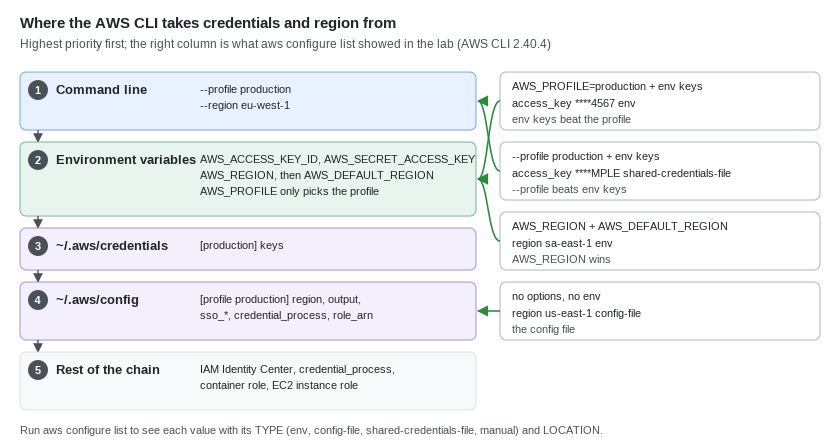
aws configure list shows each value and where it came from, which answers most “why is it using that account” questions. Results from the lab, with both profiles configured as above:
$ aws configure list
NAME       : VALUE                    : TYPE             : LOCATION
profile    : <not set>                : None             : None
access_key : ****************MPLE     : shared-credentials-file :
secret_key : ****************EKEY     : shared-credentials-file :
region     : us-east-1                : config-file      : ~/.aws/config
Environment keys beat the profile picked with AWS_PROFILE:
$ AWS_ACCESS_KEY_ID=AKIAENVEXAMPLE1234567 AWS_SECRET_ACCESS_KEY=x AWS_PROFILE=production aws configure list
profile    : production               : env              : ['AWS_PROFILE', 'AWS_DEFAULT_PROFILE']
access_key : ****************4567     : env              :
secret_key : ****************x        : env              :
region     : eu-west-1                : config-file      : ~/.aws/config
--profile on the command line beats the environment keys:
$ AWS_ACCESS_KEY_ID=AKIAENVEXAMPLE1234567 AWS_SECRET_ACCESS_KEY=x aws configure list --profile production
profile    : production               : manual           : --profile
access_key : ****************MPLE     : shared-credentials-file :
secret_key : ****************EKEY     : shared-credentials-file :
region     : eu-west-1                : config-file      : ~/.aws/config
AWS_REGION beats AWS_DEFAULT_REGION:
$ AWS_REGION=sa-east-1 AWS_DEFAULT_REGION=ap-south-1 aws configure list | grep region
region     : sa-east-1                : env              : ['AWS_REGION', 'AWS_DEFAULT_REGION']
So: command-line options, then environment variables, then the profile’s entries in credentials and config. When none of those has keys, the CLI goes on to IAM Identity Center, credential_process, and the container and instance roles; the AWS docs list the full chain.
To hand the resolved credentials to another tool:
aws configure export-credentials --profile production --format env
export AWS_ACCESS_KEY_ID=AKIAI44QH8DHBEXAMPLE
export AWS_SECRET_ACCESS_KEY=...
Verify the Installation
aws --version
aws configure list
aws configure list-profiles

# Needs working credentials: shows the account and the identity in use
aws sts get-caller-identity
aws sts get-caller-identity --query Account --output text
Without any credentials the CLI fails before sending anything:
$ aws sts get-caller-identity
Unable to locate credentials. You can configure credentials by running "aws configure".
A profile name that doesn’t exist fails too: aws configure list --profile nope prints The config profile (nope) could not be found and exits with 255.
Help Pages Need groff
aws help and aws <command> help render man pages, which minimal images can’t do:
$ aws s3 help
aws: [ERROR]: Could not find executable named "groff or mandoc"
sudo dnf install -y groff-base less     # RHEL, Rocky
sudo apt install -y groff-base less     # Ubuntu, Debian
Auto-Completion
aws_completer is installed next to aws. It reads the command line from the COMP_LINE variable, which you can use to test it without a shell:
COMP_LINE="aws s3 " COMP_POINT=7 aws_completer
ls website cp mv rm sync mb rb presign
Bash
echo 'complete -C aws_completer aws' >> ~/.bashrc
source ~/.bashrc
Zsh
bashcompinit needs zsh’s own completion system loaded first; without compinit the complete line fails with command not found: compdef:
cat >> ~/.zshrc <<'EOF'
autoload -Uz compinit && compinit
autoload -U +X bashcompinit && bashcompinit
complete -C aws_completer aws
EOF
source ~/.zshrc
Homebrew’s formula also ships its own zsh completion, _aws, in /opt/homebrew/share/zsh/site-functions.
Then aws ec2 describe-ins and Tab lists describe-instances, describe-instance-status and the other describe-instance* commands, and aws s3 ls --re completes to --recursive, --request-payer or --region.
Uninstall
# Find the installation: the symlink points into the install directory
ls -l "$(command -v aws)"

# Default locations of the official installer
sudo rm -rf /usr/local/aws-cli
sudo rm /usr/local/bin/aws /usr/local/bin/aws_completer
hash -r

# Packages
sudo dnf remove awscli2
brew uninstall awscli
Uninstalling doesn’t touch ~/.aws; delete it yourself if the keys should go too.
Install via User Data (EC2 Bootstrap)
User data runs as root at first boot, so there is no sudo. Install unzip first (unzip: command not found otherwise) and use --update so the script also works on an instance where the CLI is already there:
#!/bin/bash
# EC2 user data: runs as root at first boot, so no sudo
set -euo pipefail
if command -v dnf >/dev/null; then dnf install -y unzip; else apt-get update && apt-get install -y unzip curl; fi
cd /tmp
curl -sS "https://awscli.amazonaws.com/awscli-exe-linux-$(uname -m).zip" -o awscliv2.zip
unzip -q awscliv2.zip
./aws/install --update
rm -rf aws awscliv2.zip
aws --version
Run on Ubuntu 24.04 and Rocky Linux 9 without unzip it installed 2.40.4, and run a second time it ended with Found same AWS CLI version ... Skipping install. and exit code 0.
Troubleshooting
“aws: command not found”
command -v aws || echo "not in PATH"
ls -l /usr/local/bin/aws ~/bin/aws 2>/dev/null
echo "$PATH"
hash -r      # bash remembers old paths after an uninstall or move
Wrong account, region or profile
aws configure list                  # value and source of each setting
env | grep '^AWS_'                  # environment variables override the files
aws sts get-caller-identity         # who you really are
Old version after an update
aws --version still shows the old version after --update: see The Rollback Trap.
Quick Reference
| Task | Command |
|---|---|
| Install (Linux) | curl ... awscli-exe-linux-$(uname -m).zip, unzip, sudo ./aws/install |
| Update | sudo ./aws/install --update |
| Specific version | awscli-exe-linux-$(uname -m)-2.31.0.zip |
| Verify download | gpg --verify awscliv2.sig awscliv2.zip |
| Where it is | ls -l "$(command -v aws)" |
| Version | aws --version |
| Settings and their source | aws configure list |
| Profiles | aws configure list-profiles |
| Identity | aws sts get-caller-identity |
| Test completion | COMP_LINE="aws s3 " COMP_POINT=7 aws_completer |
| Uninstall | sudo rm -rf /usr/local/aws-cli /usr/local/bin/aws /usr/local/bin/aws_completer |