wiki@devops:~/docker$

Docker Cheatsheet

Docker 6004 words ~31 min read

Docker Cheatsheet Docker Cheatsheet: containers, images, volumes and networks. Small drawings of the container lifecycle, a terminal running docker run, image layers, a volume and a network, and icons for containers, images, volumes, networks, cleanup, security and debugging. created running exited start $ docker run -d -p 8080:80 nginx $ docker ps █ image layers volume network containers images volumes networks cleanup security debugging Docker Cheatsheet Containers, images, volumes and networks run · exec · build · volumes · networks · prune · buildx · registries · troubleshooting

Commands checked against Docker Engine 29.9.2 (containerd image store, cgroup v2) and Buildx 0.38.1. Where a command behaves differently than you might expect, a comment or note says so. Docker Compose has its own page: Docker Compose Cheatsheet.

Container Lifecycle

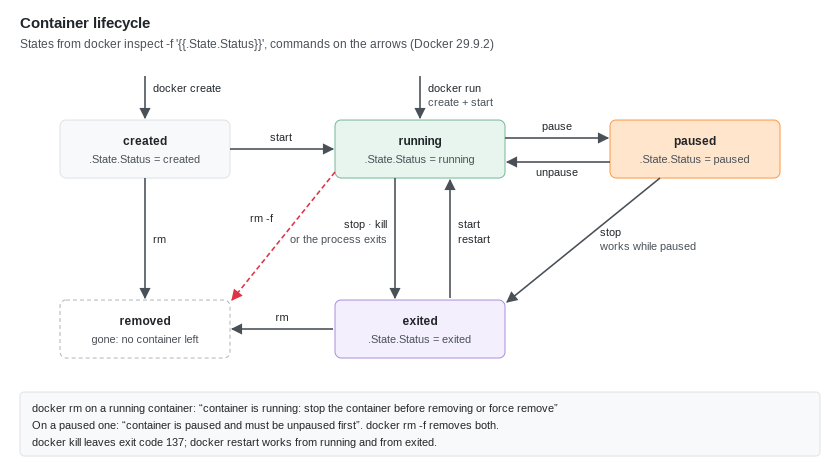
Container lifecycle: docker create gives a created container, docker run a running one; start, pause, unpause, stop and kill move it between created, running, paused and exited; docker rm removes created and exited containers, running and paused ones need docker rm -f

Command Description
docker create --name myapp nginx:latest Create a container (without starting)
docker run -d --name myapp nginx:latest Run a container (create + start)
docker run -d -p 8080:80 --name web nginx Run with port mapping
docker run -d -v /host/path:/container/path nginx Run with volume mount
docker run -d -e "DB_HOST=localhost" -e "DB_PORT=5432" myapp Run with environment variables
docker run -it ubuntu:22.04 bash Run interactively
docker run --rm -it alpine sh Run and remove on exit
docker start myapp Start a stopped container
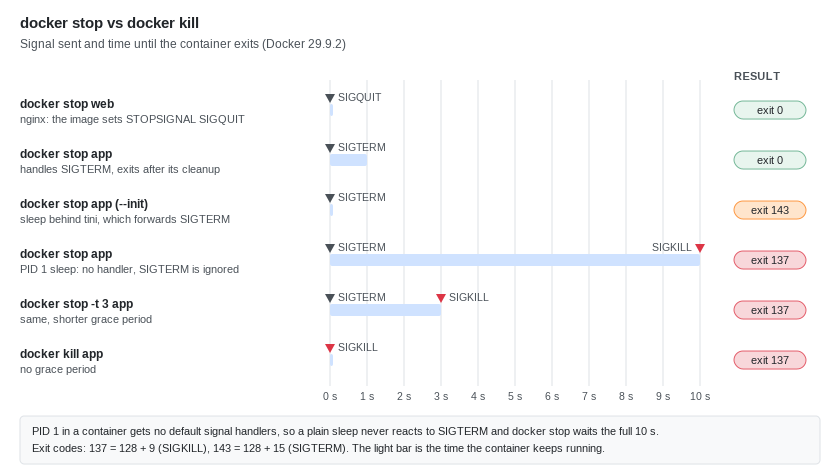
docker stop myapp Stop a container (SIGTERM, then SIGKILL after timeout)
docker stop -t 30 myapp Stop with custom timeout (seconds)
docker kill myapp Kill a container (SIGKILL immediately)
docker restart myapp Restart a container
docker pause myapp
docker unpause myapp
Pause / unpause
docker rm myapp Remove a container
docker rm -f myapp Remove a running container (force)
docker container rm --force $(docker container ls --all --quiet) Forcefully remove all containers (including running ones)
docker rename old_name new_name Rename a container

docker stop sends the stop signal and waits 10 s before SIGKILL: nginx (SIGQUIT) and a process that handles SIGTERM exit with 0, sleep behind --init with 143, a PID 1 sleep is killed after 10 s (3 s with -t 3) with 137; docker kill sends SIGKILL at once, exit code 137

Container Inspection

Command Description
docker ps List running containers
docker ps -a List all containers (including stopped)
docker ps -q List only container IDs
docker ps --no-trunc List without truncation (full IDs, commands)
docker ps -a -n 2 List last N created containers
docker ps -a -f "status=exited"
docker ps -a -f "status=running"
Filter containers by status
docker ps --format "table {{.Names}}\t{{.Status}}\t{{.Ports}}" List with custom format
docker inspect myapp Inspect container details (JSON)
docker inspect -f '{{.State.Status}}' myapp Get specific field from inspect
docker inspect -f '{{range .NetworkSettings.Networks}}{{.IPAddress}}{{end}}' myapp IP address, read per network (.NetworkSettings.IPAddress was removed in Docker 29: map has no entry for key "IPAddress")
docker stats View resource usage (live)
docker stats myapp Stats for specific container
docker stats --no-stream One-shot stats (no stream)
docker top myapp View running processes inside container
docker port myapp View port mappings
docker diff myapp View filesystem changes
docker wait myapp Wait for container to stop and get exit code

Executing Commands in Containers

Command Description
docker exec myapp ls /app Run a command in a running container
docker exec -it myapp bash (or sh in Alpine-based images) Interactive shell
docker exec -u root -it myapp bash, docker exec -u 1000:1000 -it myapp bash As a specific user
docker exec -e "DEBUG=true" myapp ./script.sh With an environment variable
docker exec -w /app myapp ls In a working directory
docker exec --privileged myapp <cmd> With extra privileges (no --cap-add on exec)

-it needs a terminal: from a script or CI job, drop -t (cannot attach stdin to a TTY-enabled container because stdin is not a terminal).

Images

Command Description
docker images
docker image ls
List local images
docker images --format "table {{.Repository}}\t{{.Tag}}\t{{.Size}}" List with specific format
docker images -f dangling=true List dangling images
docker images --digests Show image digests (the immutable content hash, not just the tag)
docker images --digests nginx Digests for one repository
docker images --digests --format "table {{.Repository}}\t{{.Tag}}\t{{.Digest}}" Show repository, tag, and digest only
docker images --digests --format '{{.Digest}}' nginx:1.27 Get just the digest of a specific image (for pinning)
docker inspect --format '{{index .RepoDigests 0}}' nginx:1.27 Get the RepoDigest via inspect (nginx@sha256:..., incl. images pulled by tag; pin deployments to it instead of a mutable tag)
docker pull nginx
docker pull nginx:1.25
docker pull nginx@sha256:abc123...
Pull an image
docker pull docker.io/library/redis:alpine Pull with full registry path
docker build -t myapp:1.0 . Build an image
docker build -f Dockerfile.prod -t myapp:prod . Build with specific Dockerfile
docker build --build-arg VERSION=1.0 -t myapp . Build with build arguments
docker build --no-cache -t myapp . Build without cache
docker build --platform linux/amd64 -t myapp . Build for specific platform
docker tag myapp:1.0 registry.example.com/myapp:1.0 Tag an image
docker build -t user/repo:tag . Tag at build time
docker tag existing-image user/repo:tag Tag an existing image
docker commit container-id user/repo:tag Image from a running container
docker push registry.example.com/myapp:1.0 Push an image
docker rmi nginx:latest Remove an image
docker save -o myapp.tar myapp:1.0 Save image to tar
docker load -i myapp.tar Load image from tar
docker export myapp > myapp-fs.tar Export container filesystem to tar
docker import myapp-fs.tar myapp:imported
cat myapp-fs.tar \| docker import - myapp:imported
Import filesystem as image (from a file or stdin)
docker history myapp:1.0 View image history (layers)
docker image inspect nginx:latest Inspect image details

Volumes

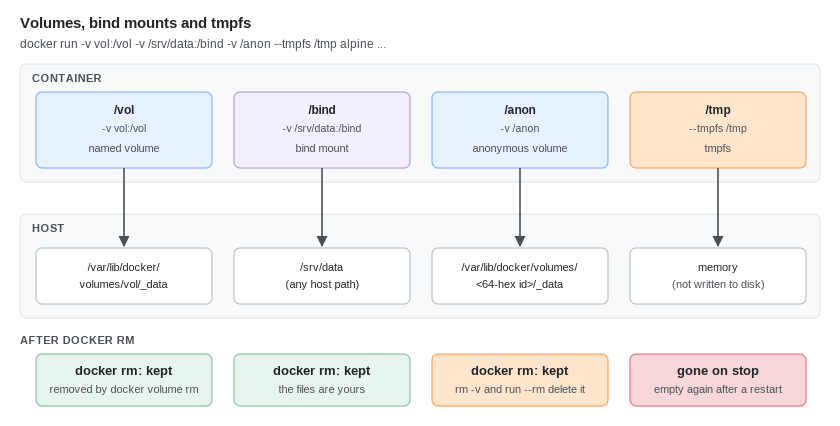
Named volume in /var/lib/docker/volumes/vol/_data and a bind mount at a host path survive docker rm; an anonymous volume survives docker rm but not docker rm -v or run --rm; tmpfs lives in memory and is empty again after a stop

Command Description
docker volume create mydata Create a volume
docker volume ls List volumes
docker volume inspect mydata Inspect a volume
docker volume rm mydata Remove a volume
docker run -d -v mydata:/app/data myapp Run with named volume
docker run -d -v /host/path:/container/path myapp Run with bind mount
docker run -d -v /host/path:/container/path:ro myapp Run with read-only mount
docker run -d --tmpfs /tmp:rw,size=100m myapp Run with tmpfs mount
docker cp file.txt myapp:/app/
docker cp myapp:/app/file.txt ./
docker cp myapp:/app/logs/ ./local-logs/
Copy files to/from container

Networks

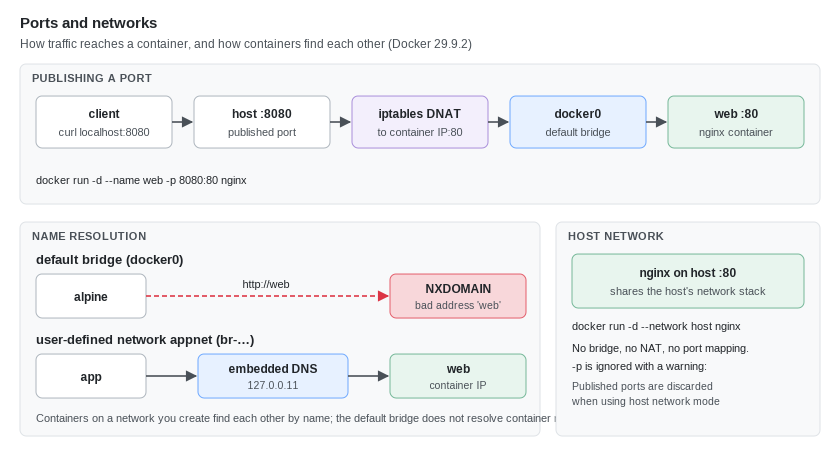
A published port goes from host port 8080 through an iptables DNAT rule and the docker0 bridge to port 80 in the container; on the default bridge the name web does not resolve, on a user-defined network the embedded DNS at 127.0.0.11 resolves it; with --network host nginx listens on the host directly

Command Description
docker network ls List networks
docker network create mynet Create a network
docker network create --driver bridge mynet Create with specific driver
docker network create --subnet=172.20.0.0/16 mynet Create with subnet
docker network inspect mynet Inspect a network
docker network connect mynet myapp Connect container to network
docker network disconnect mynet myapp Disconnect container from network
docker run -d --network mynet --name myapp nginx Run container on specific network
docker run -d --network mynet --ip 172.20.0.10 --name myapp nginx Run with static IP
docker run -d --network mynet --hostname myapp.local --name myapp nginx Run with hostname
docker network rm mynet Remove a network
docker run -d --network mynet --name db postgres
docker run -d --network mynet --name app myapp
DNS resolution: containers on the same network resolve by name (app reaches db at hostname db)

Dockerfile Reference

# Base image
FROM ubuntu:22.04

# Labels
LABEL maintainer="user@example.com"
LABEL version="1.0"

# Arguments (build-time only)
ARG DEBIAN_FRONTEND=noninteractive
ARG APP_VERSION=1.0

# Environment variables (persist at runtime)
ENV APP_HOME=/app
ENV PATH="${APP_HOME}/bin:${PATH}"

# Working directory
WORKDIR /app

# Install packages
RUN apt-get update && \
    apt-get install -y --no-install-recommends \
        curl \
        ca-certificates && \
    rm -rf /var/lib/apt/lists/*

# Copy files
COPY package.json package-lock.json ./
COPY src/ ./src/

# Add files (supports URLs and auto-extracts tarballs)
ADD https://example.com/app.tar.gz /tmp/

# Run commands (needs Node in the image; --omit=dev replaces the old --production)
RUN npm ci --omit=dev

# Expose ports (documentation only)
EXPOSE 3000

# Create non-root user
RUN useradd -r -s /bin/false appuser
USER appuser

# Health check
HEALTHCHECK --interval=30s --timeout=3s --retries=3 \
    CMD curl -f http://localhost:3000/health || exit 1

# Default command
CMD ["node", "src/index.js"]

# Alternative: entrypoint + cmd (use one or the other: with two CMD lines only the last counts,
# and the build warns "Multiple CMD instructions should not be used in the same stage")
# ENTRYPOINT ["node"]
# CMD ["src/index.js"]

Multi-stage Build

# Build stage
FROM node:20-alpine AS builder
WORKDIR /app
COPY package*.json ./
RUN npm ci
COPY . .
RUN npm run build

# Production stage
FROM node:20-alpine
WORKDIR /app
COPY --from=builder /app/dist ./dist
COPY --from=builder /app/node_modules ./node_modules
EXPOSE 3000
USER node
CMD ["node", "dist/index.js"]

Registry and Login

Command Description
docker login Login to Docker Hub
docker login registry.example.com Login to private registry
echo "$TOKEN" \| docker login registry.example.com -u user --password-stdin Login with credentials (CI/CD)
docker logout
docker logout registry.example.com
Logout
docker search nginx Search Docker Hub
docker pull registry.example.com/myapp:1.0 Pull from private registry

Gitea and Forgejo Container Registry

Gitea and Forgejo include an OCI container registry in their package registry, served on the instance’s own host name (no separate port or subdomain).

# Login to the container registry (username + access token)
docker login gitea.example.com
echo "$GITEA_TOKEN" | docker login gitea.example.com -u <username> --password-stdin

Use a personal access token (User Settings → Applications) rather than your password; with two-factor authentication a token is required. Scopes, on Gitea 28.0:

Token scope Result
write:package Login, pull and push
read:package Login and pull; push fails with 401 Unauthorized
Only repository scopes (write:repository) Login fails: unauthorized

Image naming convention: {registry}/{owner}/{image}:{tag}, where {owner} is a user or organization name:

# build an image with tag
docker build -t gitea.example.com/<owner>/<image>:<tag> .

# name an existing image with tag
docker tag <some-existing-image>:<tag> gitea.example.com/<owner>/<image>:<tag>

# Push an image
docker push gitea.example.com/<owner>/<image>:<tag>

# Pull (anonymous for public users and organizations; login needed for private ones)
docker pull gitea.example.com/<owner>/<image>:<tag>

Behaviour on Gitea 28.0:

  • Tags are case-insensitive: image:tag and image:Tag are the same image. A tag pushed as Tag was stored and listed as tag, and docker pull ...:tag fetched it. Use lowercase tags to avoid surprises.
  • Image names must be lowercase: the Docker client itself rejects gitea.example.com/owner/MyImg (repository name ... must be lowercase).
  • The owner part is required: pushing to gitea.example.com/<image>:<tag> fails with 404 Not Found, and pushing into another user’s namespace fails with 401 Unauthorized. For an organization, you need write access to its packages.
  • The first push creates the package under the owner. It isn’t linked to a repository automatically: link it under the package’s settings to show it on the repository’s Packages tab.
  • Visibility follows the owner: images of public users and organizations can be pulled without logging in.

List an owner’s container images through the API:

curl -s -u "<username>:$GITEA_TOKEN" "https://gitea.example.com/api/v1/packages/<owner>?type=container" | jq -r '.[] | "\(.name):\(.version)"'

Behind a reverse proxy, allow large request bodies, or pushing big layers fails with 413 Request Entity Too Large; in nginx: client_max_body_size 0; in the Gitea server block.

In Gitea/Forgejo Actions, log in with a personal access token stored as a secret.

System and Cleanup

docker system df          # disk usage per type
docker system df -v       # per image, container and volume
docker info               # daemon info
docker version            # client and server versions
Command Removes Keeps
docker container prune Stopped containers Running containers
docker image prune Dangling images (no tag) Tagged images
docker image prune -a All images no container uses Images used by a container
docker image prune --filter "until=72h" Dangling images older than 72 hours Newer ones
docker volume prune Unused anonymous volumes Named volumes, even unused (since Docker 23)
docker volume prune -a All unused volumes, named ones too Volumes used by a container
docker network prune Unused custom networks bridge, host, none
docker system prune Stopped containers, unused networks, dangling images, build cache Volumes
docker system prune -a The above, plus all unused images Volumes
docker system prune --volumes The above, plus unused anonymous volumes Named volumes

All of them ask for confirmation; add -f to skip it in scripts.

Run Options Reference

Flag Description
-d Detached mode (background)
-it Interactive + TTY (shell access)
--rm Remove container on exit
--name name Assign a name
-p host:container Port mapping
-P Publish all exposed ports
-v host:container Bind mount or volume
--mount type=... More explicit mount syntax
-e KEY=VALUE Set environment variable
--env-file file Load env vars from file
-w /path Working directory
-u user:group Run as user/group
--network name Connect to network
--hostname name Set container hostname
--dns 8.8.8.8 Set DNS server
--restart policy Restart policy (no/always/unless-stopped/on-failure)
--memory 512m Memory limit
--cpus 1.5 CPU limit
--gpus all GPU access
--privileged Full host access (dangerous)
--cap-add SYS_ADMIN Add Linux capability
--cap-drop ALL Drop all capabilities
--read-only Read-only filesystem
--pid host Share host PID namespace
--network host Share host network
--log-driver json-file Logging driver
--log-opt max-size=10m Log options
--entrypoint /bin/sh Override entrypoint
--init Use tini as PID 1
--platform linux/amd64 Target platform

Resource Limits

docker run -d --memory=512m --memory-swap=1g --cpus=1.5 --pids-limit 100 myapp
Flag Limits Note on cgroup v2 (current distributions)
--memory=512m Memory, hard limit  
--memory-swap=1g Memory + swap together  
--memory-reservation=256m Soft limit, reclaimed first under pressure  
--cpus=1.5 CPU time, in CPUs  
--cpu-shares=512 Relative CPU weight (default 1024)  
--cpuset-cpus="0,1" Which CPUs it may run on  
--pids-limit 100 Number of processes  
--device-read-bps /dev/sda:1mb, --device-write-bps Bytes per second on a device The device must exist: stat /dev/sda: no such file or directory
--device-read-iops /dev/sda:1000, --device-write-iops I/O operations per second on a device Same
--blkio-weight=200, --blkio-weight-device=/dev/sda:100 Relative I/O weight (10-1000) Accepted; only has an effect with an I/O scheduler that supports weights, such as BFQ
--kernel-memory=50m Kernel memory Deprecated: “no longer supported by the kernel”, ignored
--oom-kill-disable Turns off the OOM killer cgroup v1 only: “Your kernel does not support OomKillDisable”, ignored

Logging

Command Description
docker logs myapp View container logs
docker logs -f --tail 50 myapp Follow + tail
docker logs -t myapp With timestamps
docker logs --tail 100 myapp Last N lines
docker logs --since 30m myapp
docker logs --since "2024-01-01T00:00:00" myapp
Since a relative or absolute time
docker logs --since "2024-01-01T00:00:00" --until "2024-12-31T23:59:59" myapp Between two times
docker logs --details myapp With extra attributes from the logging driver
docker run -d --log-driver json-file --log-opt max-size=10m --log-opt max-file=3 myapp Configure logging driver at run time
docker inspect -f '{{.HostConfig.LogConfig}}' myapp View logging driver config

Health Checks

Command Description
HEALTHCHECK --interval=30s --timeout=3s --start-period=5s --retries=3 CMD curl -f http://localhost:8080/health \|\| exit 1 In Dockerfile
docker run -d --health-cmd="curl -f http://localhost:8080/health \|\| exit 1" --health-interval=30s --health-timeout=3s --health-retries=3 --health-start-period=5s myapp At runtime
docker run -d --no-healthcheck myapp Disable health check
docker inspect -f '{{.State.Health.Status}}' myapp
docker inspect -f '{{json .State.Health}}' myapp \| jq
Check health status
docker inspect --format='{{ .Config.Healthcheck }}' myapp
docker inspect myapp \| grep -A 10 '"Healthcheck"'
Check healthcheck config for a container or image

Multi-Platform Builds (Buildx)

Command Description
docker buildx create --name mybuilder --use Create a builder and use it
docker buildx build --platform linux/amd64,linux/arm64 -t myapp:1.0 --push . Build for several platforms and push
docker buildx build --platform linux/amd64 -t myapp:1.0 --load . Build one platform into the local image store
docker buildx ls List builders
docker buildx inspect mybuilder Inspect a builder
docker buildx use default, docker buildx rm mybuilder Switch back to the default builder, remove one

Security

Command Description
docker run -d -u 1000:1000 myapp Run as non-root user
docker run -d --cap-drop ALL --cap-add NET_BIND_SERVICE myapp Drop all capabilities and add only needed ones
docker exec myapp capsh --print Show capabilities inside a container (image needs capsh)
docker run -d --read-only --tmpfs /tmp myapp Read-only filesystem
docker run -d --security-opt no-new-privileges myapp No new privileges
docker scout cves myapp:1.0
docker scout quickview myapp:1.0
Scan image for vulnerabilities (docker scout is a plugin: included with Docker Desktop, installed separately on Docker Engine, where plain Engine answers unknown command: docker scout)
docker scout provenance myapp:1.0 View image provenance

Use specific image tags in production: FROM node:20.11.0-alpine, not FROM node:latest.

Troubleshooting

Command Description
docker inspect -f '{{.State.ExitCode}}' myapp View container exit code (137 = killed)
docker inspect -f '{{.State.OOMKilled}}' myapp View OOM kill status
docker logs myapp 2>&1 \| tail -20 Check why a container exited
docker events
docker events --filter "container=myapp"
docker events --filter "event=die"
View events (real-time Docker daemon events)
docker exec myapp ls -la /app Inspect container filesystem
docker export myapp \| tar -tf - \| head -50 Export filesystem for analysis
docker build --progress=plain --target builder -t debug-stage .
docker run -it --rm debug-stage sh
Debug a failed build: BuildKit keeps no intermediate images, so build up to a stage and look inside, with the full output of every step
docker inspect -f '{{json .Mounts}}' myapp \| jq View container mounts

Useful One-Liners

Command Description
docker stop $(docker ps -q) Stop all running containers
docker rm $(docker ps -aq) Remove all containers that aren’t running (running ones fail with container is running; docker container prune does the same without errors)
docker rmi $(docker images -q) Remove all images
docker kill $(docker ps -q) Kill all running containers
docker inspect -f '{{.Id}}' myapp Get container ID by name
docker ps -s List containers by size
docker cp myapp:/app/. ./backup/ Copy all files from container to host
docker run --rm alpine cat /etc/os-release Quick one-off command (no leftover container)
docker events --format '{{.Time}} {{.Actor.Attributes.name}} {{.Action}}' Monitor container events
docker info \| grep Logging Find logging driver type
journalctl -fu docker.service View Docker daemon logs (systemd)
usermod -aG docker $USER Add user to docker group (avoids sudo)
docker ps --filter volume=<volume-name-or-id> Find container by volume ID
kill -9 $(docker inspect --format '{{.State.Pid}}' myapp) Kill container’s PID 1 from host (force stop without docker stop)
docker inspect -f '{{range .Config.Env}}{{println .}}{{end}}' myapp List all environment variables of a container
docker exec myapp sh -c 'printf "%s\n" "$MY_VAR"' Check a specific env var in a running container
docker inspect myapp \| jq '.[].Mounts'
docker inspect -f '{{range .Mounts}}{{.Type}}:{{.Source}}:{{.Destination}}{{println}}{{end}}' myapp
docker inspect myapp \| grep -A3 -e "Volumes\":"
List volumes for a specific container
docker volume ls -qf dangling=true List dangling volumes
docker volume rm $(docker volume ls -qf dangling=true) Remove dangling volumes
docker ps -a --format '{{ .ID }}' \| xargs -I {} docker inspect -f '{{ .Name }}{{ printf "\n" }}{{ range .Mounts }}{{ printf "\n\t" }}{{ .Type }} {{ if eq .Type "bind" }}{{ .Source }}{{ end }}{{ .Name }} => {{ .Destination }}{{ end }}{{ printf "\n" }}' {} List all container volumes (detailed)
docker ps \| grep -E ":80\|:443" Find containers listening on specific ports
docker ps \| grep -E "(traefik\|nginx\|caddy\|envoy\|haproxy)" Find reverse proxy containers
docker inspect --format '{{.Config.Image}}' myapp Check container image name
docker ps -a --format 'table {{.Names}}\t{{.ID}}\t{{.Image}}\t{{.Status}}' > containers.txt
docker images --format 'table {{.Repository}}\t{{.Tag}}\t{{.ID}}\t{{.Size}}' > images.txt
docker volume ls --format 'table {{.Name}}\t{{.Driver}}' > volumes.txt
Export container/image lists to files

Loops:

# Check all containers for specific labels (e.g., Traefik)
for container in $(docker ps -q); do
    name=$(docker inspect --format '{{.Name}}' $container | sed 's/\///')
    echo "=== $name ==="
    docker inspect $container | grep -i traefik | head
done

# Find images by layer hash
for I in $(docker image ls --format '{{.ID}}'); do
    F=$(docker image inspect $I | grep "<hash>")
    if [ -n "$F" ]; then echo $I; fi
done

# Find volumes by ID/hash
for I in $(docker volume ls | grep -v DRIVER | awk '{print $2}' | sort | uniq); do
    F=$(docker volume inspect $I | grep "${ID}")
    if [ -n "$F" ]; then echo $I; fi
done

# Find containers by ID/hash
for I in $(docker container ls --no-trunc | grep -v CONTAINER | awk '{print $1}' | sort | uniq); do
    F=$(docker container inspect $I | grep "${ID}")
    if [ -n "$F" ]; then echo $I; fi
done

Restart Policies

--restart Restarts the container
no Never (default)
on-failure When it exits with a non-zero code
on-failure:3 The same, at most 3 times
always Always, also when the daemon starts; a manual docker stop holds until the daemon restarts
unless-stopped Like always, but not after a manual docker stop, even across daemon restarts
docker run -d --restart unless-stopped myapp
docker update --restart on-failure:3 myapp      # change it on an existing container

Development Patterns

Command Description
docker run -v $(pwd):/app -p 3000:3000 myapp:dev Hot reload with volume mounting (source code changes reflect immediately)
docker run -it --entrypoint /bin/sh myapp Override the entrypoint and get a shell (ignores CMD; /bin/bash if the image has it)
docker run --rm -d -p 5432:5432 -e POSTGRES_PASSWORD=dev postgres:16
docker run --rm -d -p 6379:6379 redis:alpine
docker run --rm -d -p 3306:3306 -e MYSQL_ROOT_PASSWORD=dev mysql:8
Quick development database

Production Patterns

# Run with restart policy and health check
docker run -d \
    --restart unless-stopped \
    --health-cmd="curl -f http://localhost:8080/health || exit 1" \
    --health-interval=30s \
    -p 80:8080 \
    myapp:prod

# Resource-limited production container
docker run -d \
    --restart unless-stopped \
    --memory=512m \
    --cpus=1.0 \
    --read-only \
    --tmpfs /tmp \
    --cap-drop ALL \
    --security-opt no-new-privileges \
    -p 8080:8080 \
    myapp:prod

Aliases

Add to ~/.bashrc or ~/.zshrc:

alias dps='docker ps'
alias dpsa='docker ps -a'
alias dimg='docker images'
alias dlog='docker logs -f'
alias dstart='docker start $(docker ps -aq)'
alias dstop='docker stop $(docker ps -aq)'
alias drm='docker rm $(docker ps -aq)'
alias dri='docker rmi $(docker images -q)'
alias dprune='docker system prune -af --volumes'

dbash Function

dbash() {
    docker exec -it $(docker ps -aqf "name=$1") bash
}
# Usage: dbash mycontainer

Important Files and Directories

Path Description
/var/lib/docker/ Docker root directory (images, containers, volumes)
/var/lib/docker/containers/[ID]/[ID]-json.log Container log file (json-file driver)
/var/lib/docker/volumes/ Named volumes
/var/lib/docker/overlay2/ Image layers (overlay2 storage driver)
/etc/docker/daemon.json Docker daemon configuration
/lib/systemd/system/docker.service Docker systemd service file (Ubuntu/Debian; /usr/lib/systemd/system/docker.service on RHEL)
~/.docker/config.json User Docker config (auth, plugins)
/etc/sysconfig/docker Docker daemon startup options (RHEL/CentOS 7 docker package only; Docker CE uses daemon.json)
/etc/sysconfig/docker-storage Storage config (RHEL/CentOS, auto-managed)
/etc/sysconfig/docker-storage-setup Storage config override (RHEL/CentOS)
/usr/share/container-storage-setup/container-storage-setup Default storage setup config (RHEL/CentOS)
# Find Docker root directory
docker info --format '{{ .DockerRootDir }}'

# View daemon configuration
cat /etc/docker/daemon.json

# Example daemon.json
# {
#   "log-driver": "json-file",
#   "log-opts": { "max-size": "10m", "max-file": "3" },
#   "storage-driver": "overlay2",
#   "default-address-pools": [{ "base": "172.17.0.0/12", "size": 24 }]
# }

Advanced Networking

Network Drivers

Command Description
docker network create --driver overlay my_overlay Overlay network (needs docker swarm init first, or “This node is not a swarm manager”)
docker network create -d macvlan --subnet=192.168.1.0/24 --gateway=192.168.1.1 -o parent=eth0 my_macvlan macvlan: containers get addresses on the physical network
docker network create --opt com.docker.network.driver.mtu=1500 my_network Custom MTU

DNS and Service Discovery

Command Description
docker run -d --dns 8.8.8.8 --dns-search example.com nginx Custom DNS server and search domain
docker exec myapp nslookup db Check name resolution (image needs nslookup)
docker run -d -h myhost --name web nginx Set the hostname

Containers on the same user-defined network resolve each other by container name; the default bridge network doesn’t.

Port Mapping Advanced

Command Description
docker run -d -P nginx (then docker port <container>) Random host ports for all exposed ports
docker run -d -p 192.168.1.10:8080:80 nginx Bind to one interface
docker run -d -p 127.0.0.1:8080:80 nginx Only on localhost
docker run -d -p 0.0.0.0:8080:80 nginx All interfaces, explicitly
docker run -d -p 80:80 -p 443:443 -p 8000:8000 myapp Several ports
docker run -d --link web:web nginx, use a network instead Links (legacy, prints “Links on the default bridge network are deprecated”)

Network Debugging

Most application images (nginx included) have no ping, netstat, ip or nslookup (exec: "ping": executable file not found in $PATH). Run a tools container in the same network namespace instead:

Command Description
docker run --rm -it --network container:myapp nicolaka/netshoot Debug container sharing myapp’s network (same IP, same ports)
docker run --rm --network container:myapp nicolaka/netshoot ss -tlnp Listening sockets
docker run --rm --network container:myapp nicolaka/netshoot ip addr Interfaces and addresses
docker run --rm --network container:myapp nicolaka/netshoot ping -c 3 8.8.8.8 Ping
docker run --rm --network container:myapp nicolaka/netshoot nslookup google.com DNS lookup
docker run --rm --network container:myapp nicolaka/netshoot traceroute google.com Traceroute
docker run --rm --network container:myapp --cap-add NET_ADMIN nicolaka/netshoot iptables -L iptables rules (needs NET_ADMIN)
docker exec myapp ping -c 3 8.8.8.8 If the image has the tools

Volume Backup and Restore

Command Description
docker run --rm -v my_volume:/data -v $(pwd):/backup alpine tar czf /backup/volume_backup.tar.gz /data Backup a named volume to a tar.gz
docker run --rm -v my_volume:/data -v $(pwd):/backup alpine tar xzf /backup/volume_backup.tar.gz -C / Restore a volume from backup
docker rm -v myapp Remove volume when removing container
docker run -d -v /data nginx Anonymous volume (Docker-managed, no name)

Advanced Security

Content Trust (Image Signing)

Docker Content Trust (Notary v1) is gone from the Docker 29 CLI: docker trust answers unknown command: docker trust, and DOCKER_CONTENT_TRUST=1 no longer stopped a pull of an unsigned image. For signing and verifying images, use Sigstore cosign or Notary v2 notation instead.

AppArmor and Seccomp

Command Description
docker run -d --security-opt apparmor=docker-default nginx Default AppArmor profile (Ubuntu/Debian hosts)
docker run -d --security-opt apparmor=unconfined nginx No AppArmor
docker run -d --security-opt seccomp=unconfined nginx No seccomp (debugging only)
docker run -d --security-opt seccomp=custom-profile.json nginx Custom seccomp profile (the file must exist, or “opening seccomp profile … failed”)

Secrets Management (Docker Swarm)

Command Description
docker swarm init (--advertise-addr <ip> if the host has several addresses) Secrets need Swarm mode
echo "my_secret_value" \| docker secret create my_secret - Create a secret
docker secret create my_cert ./server.crt Create from file
docker secret ls List secrets
docker service create --secret my_secret nginx Use secret in a service
docker secret rm my_secret Remove secret

In Compose, secrets are mounted at /run/secrets/<name>.

Registry Credentials

Command Description
cat ~/.docker/config.json See where credentials are stored
echo "$TOKEN" \| docker login registry.example.com -u user --password-stdin Log in with a token (CI/CD)

Without a credential helper, docker login stores the credentials base64-encoded in config.json and warns Your credentials are stored unencrypted.

Image Optimization

Build with Multiple Tags

docker build -t myapp:latest -t myapp:v1.0 -t myapp:$(git rev-parse --short HEAD) .

Layer Analysis

Command Description
docker inspect --format='{{json .RootFS.Layers}}' myimage:tag \| jq List an image’s layers (DiffIDs)
docker history myimage:tag Layer sizes per instruction
docker save myimage:tag \| gzip > myimage.tar.gz Save compressed
docker load < myimage.tar.gz Load it back (gzip is detected)

.dockerignore

# .dockerignore — exclude from build context
.git
.gitignore
node_modules
npm-debug.log
.env
.DS_Store
*.md
docker-compose*.yml
Dockerfile*

Advanced Container Management

Namespace Options

Flag Shares with the host Example use
--pid=host Process list: the container sees and can signal host processes Monitoring agents, debugging tools
--ipc=host Shared memory and semaphores Apps exchanging shared memory with host processes
--uts=host Hostname and domain name Software that must report the host’s name
--network=host Network stack, no port mapping Network tools, high packet rates
docker run -d --pid=host --ipc=host --uts=host nginx

Attach and Detach

Command Description
docker attach myapp Attach to a running container’s output and input
Ctrl+P, Ctrl+Q Detach without stopping it
docker attach --no-stdin myapp Attach output only, without STDIN
docker attach --sig-proxy=false myapp Don’t forward signals (Ctrl+C doesn’t stop the container)

Advanced Debugging

strace Inside Container

Command Description
docker run -it --cap-add SYS_PTRACE --security-opt seccomp=unconfined myapp strace -c ls Run a command under strace
docker run --rm -it --pid=container:myapp --cap-add SYS_PTRACE nicolaka/netshoot strace -p 1 Trace a running container’s PID 1 from a tools container
docker exec --privileged myapp strace -p 1 Same, from inside (image needs strace)

docker exec has no --cap-add (unknown flag: --cap-add).

Container Stats Formatting

Command Description
docker stats --format "table {{.Container}}\t{{.CPUPerc}}\t{{.MemUsage}}" Table with chosen columns
docker stats --format "{{.Container}}\t{{.MemUsage}}" Memory only
docker stats --no-stream --format "{{json .}}" JSON, one sample

Containers by Exit Code

Command Description
docker ps -a --filter "exited=1" Exited with code 1
docker ps -a --filter "exited=0" Exited successfully

Performance Tuning

Storage Driver

Command Description
docker info --format '{{.Driver}} {{.DriverStatus}}' Show the driver
Image store docker info shows
containerd image store (default for new installs) overlayfs [[driver-type io.containerd.snapshotter.v1]]
Classic store overlay2 (also btrfs, zfs, vfs, fuse-overlayfs; aufs and devicemapper were removed)

Network Performance

Command Description
docker run -d --network host nginx Host network: no NAT, no port mapping (Linux only)
docker network create --opt com.docker.network.bridge.enable_icc=false isolated_net Network without container-to-container traffic

Startup Optimization

Do Instead of Why
docker run -d nginx docker run -dit nginx No TTY unless you need one
ENTRYPOINT ["nginx", "-g", "daemon off;"] ENTRYPOINT nginx -g "daemon off;" Exec form: no /bin/sh in between, the process gets the signals
docker run -d --init myapp docker run -d myapp (for apps that don’t reap children) A tiny init as PID 1 forwards signals and reaps zombie processes

Production Checklist

  • Use specific base image tags (not latest)
  • Run as non-root user
  • Drop unnecessary capabilities (--cap-drop ALL)
  • Set memory limits (--memory)
  • Set CPU limits (--cpus)
  • Configure health checks
  • Use restart policies (--restart unless-stopped)
  • Mount volumes for persistent data
  • Configure log rotation (--log-opt max-size=10m --log-opt max-file=3)
  • Use secrets for sensitive data
  • Enable read-only filesystem where possible (--read-only)
  • Use --init for proper PID 1 behavior
  • Scan images for vulnerabilities before deploying
  • Regularly prune unused resources

Testing Pattern

# Run tests in a disposable container
docker run --rm \
    -v $(pwd):/app \
    -w /app \
    node:20 \
    npm test

# Run with specific env
docker run --rm \
    -v $(pwd):/app \
    -w /app \
    -e CI=true \
    -e NODE_ENV=test \
    node:20 \
    npm run test:coverage

Tools

  • dry — terminal UI for Docker containers and images
  • dockcheck — check for Docker image updates
  • watchtower — automatically update running containers when images change
  • lazydocker — terminal UI for Docker and Docker Compose
  • ctop — top-like interface for container metrics
  • dive — explore Docker image layers and optimize size