EC2 Placement Groups: Cluster, Partition, Spread and Precision Time
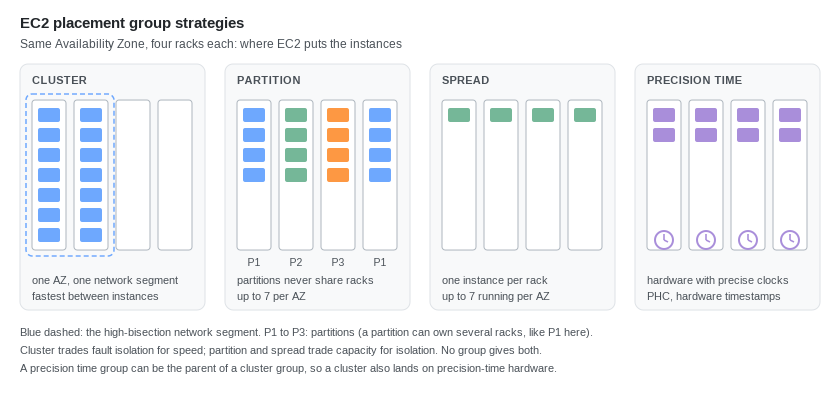
A placement group tells EC2 where on the AWS hardware to put a set of instances. You choose a strategy: pack them close together for network speed (cluster), keep them on separate racks in groups for big distributed systems (partition), keep a few critical instances on separate hardware one by one (spread), or put them on hardware with precise clocks (precision time). There is no placement group that gives you both the fastest network and the best fault isolation, because those two goals pull in opposite directions.
This article explains the rules, the limits and the capacity errors that surprise people, and shows the commands for each strategy.
The facts come from the Amazon EC2 User Guide pages on placement groups, placement strategies, changing an instance’s placement, shared placement groups, Capacity Reservations in placement groups and EFA, and from the EC2 API reference (November 2026). The commands were checked with AWS CLI 2.39.3, the boot script in section 4 against an IMDSv2 endpoint, and the Terraform with Terraform 1.17.1. Names, IDs, ARNs and account IDs are placeholders.
1. The Short Version
| Strategy | Goal | Where instances land | Main limit |
|---|---|---|---|
| Cluster | Lowest latency and highest throughput between instances | Close together in one Availability Zone, in the same high-bisection network segment | One AZ only, and a higher risk of capacity errors |
| Partition | Contain failures of big replicated systems (HDFS, HBase, Cassandra, Kafka) | Instances divided into partitions, each partition on its own racks. Several AZs allowed | 7 partitions per AZ |
| Spread | Keep a few critical instances apart | Each instance on distinct hardware (a different rack) | 7 running instances per AZ per group |
| Precision time | Microsecond-accurate clocks | Hardware with access to high-precision time sources | Supported instance families only |
Quick rules:
- Speed between instances: cluster.
- Fault isolation for a big distributed system: partition.
- Fault isolation for a handful of important servers: spread.
- Clock accuracy for transaction ordering or financial timestamps: precision time.
- A placement group is free to create (precision time included), but a restrictive group can make it harder to get capacity.
2. Choosing a Strategy
| Your workload | Pick | Why |
|---|---|---|
| HPC, tightly coupled MPI, ML training with EFA | Cluster | Needs low latency and high per-flow throughput between nodes |
| A latency-sensitive trading or matching system | Cluster (add precision time if clock accuracy matters) | Network proximity, plus accurate time |
| Cassandra, HDFS, HBase, Kafka, Elasticsearch-style clusters | Partition | Replicas can be kept on different racks, and topology-aware software can read the partition of each node |
| Primary and standby database, leader and followers, a quorum of 3 or 5 | Spread | Each member on separate hardware, so one rack failure takes out one member |
| Stateless web servers behind a load balancer | None, or spread across Availability Zones | Auto Scaling already spreads across zones. A placement group adds capacity risk for little gain |
| Anything where you cannot predict capacity | None | Placement groups can only reduce your chance of getting capacity |
A placement group spreads or packs instances within a Region. It is not a substitute for using multiple Availability Zones: a cluster group lives in one AZ, and a rack failure is not an AZ failure.
3. Cluster Placement Groups
A cluster group places instances in a single Availability Zone, close together on the same high-bisection-bandwidth part of the network. Instances are not isolated to a single rack, and the group can span peered VPCs in the same Region.
What you get:
- Higher per-flow throughput. For instances with enhanced networking, single-flow traffic inside the group can reach 10 Gbps, against 5 Gbps outside a cluster group.
- Traffic to and from S3 in the same Region (public IP or a VPC endpoint) can use the whole instance bandwidth.
- Traffic to the internet and over Direct Connect to on-premises is limited to 5 Gbps for a cluster group.
- The speed between two instances is limited by the slower of the two.
- For the best latency and packets per second, use an instance type with enhanced networking.
Rules and limitations:
- Supported: current-generation instance types except burstable (T2 and the like), Mac1 and M7i-flex, plus the previous-generation A1, C3, C4, I2, M4, R3 and R4.
- A cluster group cannot span multiple Availability Zones.
- Capacity Blocks for ML do not support placement groups.
- Zonal Reserved Instances cannot reserve capacity in a placement group. Use an On-Demand Capacity Reservation created in the group (section 10).
- You can optionally set a parent precision time group when creating the cluster group (section 6).
How to launch (the part that decides whether it works):
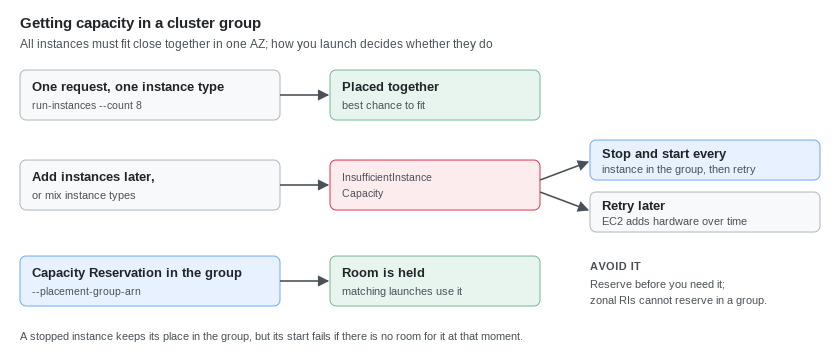
- Launch all the instances you need in one request, and use the same instance type for all of them. Adding instances later, or mixing types, raises the chance of an insufficient capacity error.
- A stopped and restarted instance still runs in the group, but the start can fail if there is no capacity for it.
- If you get a capacity error while launching into a group that already has running instances, stop and start all instances in the group and try again. Starting them may move them to hardware that has room for all of them.
EFA for MPI and ML training
The usual base for tightly coupled HPC is a cluster group of instances with an Elastic Fabric Adapter. EFA is set on the network interface at launch,
so the subnet and security groups go inside --network-interfaces; the security group must allow all inbound and outbound traffic to and from
itself:
aws ec2 run-instances --image-id <efa-ami-id> --instance-type c6i.32xlarge --count 4 \
  --placement GroupName=<cluster-pg> \
  --network-interfaces "NetworkCardIndex=0,DeviceIndex=0,Groups=<efa-sg-id>,SubnetId=<subnet-id>,InterfaceType=efa"
EFA does not strictly need a cluster group, but AWS recommends one for the low latency, and a Capacity Reservation in the group to keep room as the job scales. The AMI needs the EFA software and an MPI library (the EC2 User Guide walks through building one).
4. Partition Placement Groups
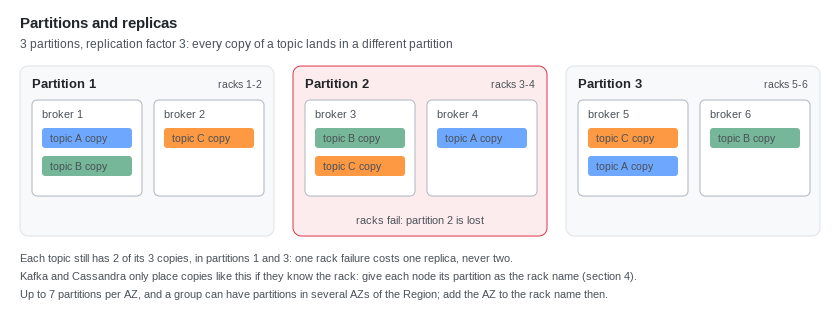
EC2 divides the group into partitions, and each partition has its own set of racks, each rack with its own network and power source. No two partitions share racks, so a hardware failure only affects the instances in one partition.
- Up to 7 partitions per Availability Zone, and a group can have partitions in several AZs of the same Region.
- The number of instances is limited only by your account limits.
- EC2 tries to spread instances evenly across partitions when you launch without a target, but does not guarantee an even distribution. You can launch into a specific partition with
PartitionNumber. - You can see which instance is in which partition (the partition number is in the instance’s placement data), and topology-aware software such as HDFS, HBase and Cassandra can use it to place replicas.
- A group used with Dedicated Instances can have at most 2 partitions.
- Capacity Reservations do not reserve capacity in a partition placement group.
- If there is not enough distinct hardware, the request fails, and you can retry later because EC2 adds distinct hardware over time.
- Tip from AWS: match the number of partitions to your replication factor. A Hadoop cluster with replication factor 3 should use 3 partitions.
Which partition am I in?
From inside the instance, the Instance Metadata Service has the group and the partition:
TOKEN=$(curl -s -X PUT http://169.254.169.254/latest/api/token -H "X-aws-ec2-metadata-token-ttl-seconds: 300")
curl -s -H "X-aws-ec2-metadata-token: $TOKEN" http://169.254.169.254/latest/meta-data/placement/group-name
curl -s -H "X-aws-ec2-metadata-token: $TOKEN" http://169.254.169.254/latest/meta-data/placement/partition-number
curl -s -H "X-aws-ec2-metadata-token: $TOKEN" http://169.254.169.254/latest/meta-data/placement/availability-zone-id
kafka-pg
2
euw1-az3
From outside, filter describe-instances by group and partition:
aws ec2 describe-instances \
  --filters Name=placement-group-name,Values=kafka-pg Name=placement-partition-number,Values=2 \
  --query 'Reservations[].Instances[].InstanceId' --output text
Rack awareness for Kafka and Cassandra
The partition only helps if the software knows about it. This boot script turns the AZ and partition into a rack name and writes it where Kafka
(broker.rack) and Cassandra (GossipingPropertyFileSnitch) read it:
#!/bin/bash
# /usr/local/bin/set-rack.sh: run at boot, before Kafka or Cassandra starts
set -euo pipefail
IMDS=${IMDS:-http://169.254.169.254}
TOKEN=$(curl -sf -X PUT "$IMDS/latest/api/token" -H "X-aws-ec2-metadata-token-ttl-seconds: 300")
md() { curl -sf -H "X-aws-ec2-metadata-token: $TOKEN" "$IMDS/latest/meta-data/$1"; }

GROUP=$(md placement/group-name)
PART=$(md placement/partition-number)
AZ=$(md placement/availability-zone)
REGION=$(md placement/region)
RACK="${AZ}-p${PART}"             # eu-west-1a-p2: unique across AZs too

# Kafka: one broker.rack line in server.properties
KAFKA=/opt/kafka/config/server.properties
sed -i "/^broker.rack=/d" "$KAFKA"
echo "broker.rack=${RACK}" >> "$KAFKA"

# Cassandra with GossipingPropertyFileSnitch
printf "dc=%s\nrack=%s\n" "$REGION" "$RACK" > /etc/cassandra/cassandra-rackdc.properties

echo "group=${GROUP} partition=${PART} rack=${RACK}"
group=kafka-pg partition=2 rack=eu-west-1a-p2
# server.properties after two runs: one line, not two
broker.id=1
log.dirs=/var/lib/kafka
broker.rack=eu-west-1a-p2

# cassandra-rackdc.properties
dc=eu-west-1
rack=eu-west-1a-p2
- The rack name includes the AZ, so a partition group over several AZs still gives every rack a unique name.
- Run it before the first start (a systemd unit ordered before Kafka or Cassandra, or user data). Cassandra refuses to start if a node’s rack changes after it has joined, so do not change the naming scheme on a running cluster.
- With
broker.rackset, Kafka places a topic’s replicas on different racks, which here means different partitions: one rack failure costs one replica.
5. Spread Placement Groups
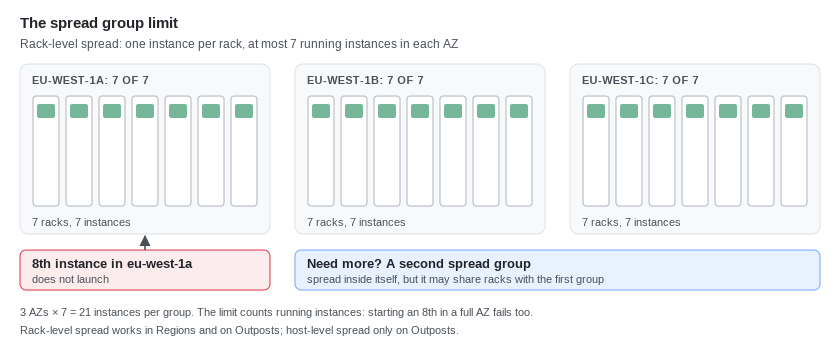
Each instance goes on distinct hardware, and in a rack-level spread group each instance is on a different rack, with its own network and power source.
- A rack-level spread group can span multiple AZs in a Region, but holds at most 7 running instances per AZ. In a Region with three AZs, that is 21 instances in total. Starting an eighth instance in an AZ that already has seven does not launch.
- Need more than seven in an AZ? Use several spread groups. They do not guarantee that instances are spread across groups, only within each group.
- Host-level spread is supported only on AWS Outposts. Rack-level spread works in Regions and on Outposts.
- Good for mixing instance types and launching over time, because it does not need the instances to sit next to each other.
- If there is not enough distinct hardware, the request fails, and a retry later may work.
- Dedicated Instances are not supported in spread groups, and Capacity Reservations do not reserve capacity in them.
- For
modify-instance-placement, an instance in a spread group must have tenancydefault. For cluster and partition groups, tenancydefaultordedicatedis allowed.
6. Precision Time Placement Groups
A precision time group places instances on hardware that has direct access to high-precision time sources in AWS infrastructure. Instances can use the enhanced Amazon Time Sync Service:
- A better local NTP source for all supported operating systems, with no extra configuration.
- A PTP Hardware Clock (PHC) device for microsecond-accurate synchronization (Linux only).
- Hardware packet timestamping for nanosecond-resolution network measurements (Linux only).
Use it for distributed databases that order transactions, financial timestamping, and systems that order events by local clock. Rules:
- Only supported instance families can be used (see the Amazon Time Sync Service page).
- If there is not enough hardware, the launch fails: retry later or try another AZ.
- You cannot delete a precision time group that is the parent of a cluster group.
- No additional charge.
To combine speed and time accuracy, create the precision time group first, then create a cluster group with --parent-group-id pointing at it.
7. Limits at a Glance
| Cluster | Partition | Spread (rack) | Precision time | |
|---|---|---|---|---|
| Availability Zones | 1 | Several | Several | See the time sync page |
| Instance cap | Account limits | Account limits | 7 per AZ | Hardware available |
| Partitions | n/a | 7 per AZ (2 with Dedicated Instances) | n/a (no Dedicated Instances) | n/a |
| Mixed instance types | Allowed but not advised | Allowed | Allowed and suited | Supported families only |
| Burstable (T) instances | No | No restriction listed | No restriction listed | Supported families only |
| Capacity Reservations | Yes (On-Demand Capacity Reservation in the group) | No | No | Mentioned (a placement group ARN is returned for them) |
| Capacity Blocks for ML | No | No | No | No |
| Sharing with AWS RAM | Yes | Yes (limits unchanged) | Yes (limits unchanged) | Not covered in the sharing docs |
Other points from the EC2 User Guide and API reference:
- At most 500 placement groups per Region, and a name must be unique within your account in the Region.
- An instance can be in one placement group at a time, and you cannot merge two placement groups.
- Capacity Blocks for ML do not support placement groups at all.
- Dedicated Hosts cannot be launched into placement groups.
- A Spot Instance set to stop or hibernate on interruption cannot be launched into a placement group (one that terminates can).
- An On-Demand Capacity Reservation or zonal Reserved Instance that matches an instance launched into a group is used automatically, as anywhere else.
8. Creating Groups and Launching Instances
# Create the groups
aws ec2 create-placement-group --group-name <cluster-pg> --strategy cluster
aws ec2 create-placement-group --group-name <partition-pg> --strategy partition --partition-count 3
aws ec2 create-placement-group --group-name <spread-pg> --strategy spread --spread-level rack
aws ec2 create-placement-group --group-name <ptp-pg> --strategy precision-time

# A cluster group whose instances should also get precision time hardware
aws ec2 create-placement-group --group-name <cluster-pg> --strategy cluster --parent-group-id <precision-time-group-id>

# Tag it
aws ec2 create-placement-group --group-name <cluster-pg> --strategy cluster \
  --tag-specifications 'ResourceType=placement-group,Tags=[{Key=Name,Value=<cluster-pg>}]'

# Launch ALL instances in one request, one instance type (cluster)
aws ec2 run-instances --image-id <ami-id> --instance-type c6i.32xlarge --count 4 \
  --placement GroupName=<cluster-pg> --subnet-id <subnet-id>

# Partition: let EC2 spread them, or pick a partition
aws ec2 run-instances --image-id <ami-id> --instance-type m6i.large --count 6 --placement GroupName=<partition-pg>
aws ec2 run-instances --image-id <ami-id> --instance-type m6i.large --placement GroupName=<partition-pg>,PartitionNumber=2

# A placement group shared with you: use the ID, not the name
aws ec2 run-instances --image-id <ami-id> --instance-type m6i.large --placement GroupId=<placement-group-id>

# Look at groups and where instances are
aws ec2 describe-placement-groups
aws ec2 describe-placement-groups --group-names <partition-pg>
aws ec2 describe-placement-groups --filters Name=strategy,Values=partition
aws ec2 describe-instances --filters Name=placement-group-name,Values=<partition-pg> \
  --query 'Reservations[].Instances[].[InstanceId,Placement.PartitionNumber,Placement.AvailabilityZone]' --output table

# Delete (the group must be empty)
aws ec2 delete-placement-group --group-name <cluster-pg>
describe-placement-groups filters on group-name, group-arn, strategy, state, spread-level and tags; describe-instances has
placement-group-name and placement-partition-number. A group can be deleted only when it has no instances (terminate them, move them or remove
them from the group), and a precision time group only when it is not the parent of a cluster group: delete the cluster groups first.
The CLI checks types but not values: --partition-count three fails locally with invalid literal for int() with base 10: 'three', while
--strategy clustre or --partition-count 8 are sent to EC2, which rejects them.
9. Moving an Instance In, Out or Between Groups
An instance can be added to, moved between and removed from placement groups, but only while it is in the stopped state.
aws ec2 stop-instances --instance-ids <instance-id>

# Add to, or move into, a group (for a partition group you can also pick the partition)
aws ec2 modify-instance-placement --instance-id <instance-id> --group-name <partition-pg> --partition-number 1

# Remove it from any group (an empty string)
aws ec2 modify-instance-placement --instance-id <instance-id> --group-name ""

aws ec2 start-instances --instance-ids <instance-id>
Notes:
- The start can fail for lack of capacity, because the instance now has to fit the group’s rules. Moving instances one at a time into a cluster group is a common way to hit this.
- Use
--group-idinstead of the name for a shared placement group. - Rules for tenancy as in section 5 apply.
- For existing cluster instances that hit capacity errors, stop and start the whole set, as in section 3.
10. Capacity: Reservations and Errors
- Insufficient capacity is the most common placement group problem. Cluster groups are the most exposed, because all instances must fit in one AZ close together.
- Reduce the risk: launch everything at once, use one instance type, keep your subnets and AZs flexible across retries, and try again later (EC2 adds hardware over time).
- On-Demand Capacity Reservations can be created in a cluster placement group, and AWS recommends doing so to hold the capacity. Create one with
--placement-group-arn. - Partition groups do not support Capacity Reservations, and zonal Reserved Instances cannot reserve capacity in a group.
- You can share a Capacity Reservation in a placement group alone (consumers never see the group) or share the group together with the reservation (consumers can launch into the group and create their own reservations in it).
aws ec2 create-capacity-reservation --instance-type c6i.32xlarge --instance-platform Linux/UNIX \
  --availability-zone <az> --instance-count 4 \
  --placement-group-arn arn:aws:ec2:<region>:<account-id>:placement-group/<cluster-pg>
For the full procedure, including launching into a reservation in a group, see Use Capacity Reservations with placement groups.
Purchasing options and placement groups
A placement group is free; what you pay depends on how you buy the instances in it. The options differ in whether they can run in a group at all, and whether they hold capacity there:
| Purchasing option | Can it run in a placement group? | Holds capacity in the group? |
|---|---|---|
| On-Demand | Yes | No |
| Savings Plans | Yes, the discount applies | No (billing only) |
| Regional Reserved Instances | Yes, the discount applies | No |
| Zonal Reserved Instances | Yes, the discount applies | No: they cannot reserve capacity in a group |
| On-Demand Capacity Reservations | Yes | Yes, in cluster groups only (not partition or spread) |
| Capacity Blocks for ML | No: you cannot specify a group when launching into a Capacity Block | Not needed (see below) |
| Spot Instances | Yes, unless set to stop or hibernate on interruption | No |
| Dedicated Instances | Cluster yes, partition with at most 2 partitions, spread no | Not documented |
| Dedicated Hosts | No | Not applicable |
- Capacity plus a discount: a Capacity Reservation in the cluster group holds the room but has no billing discount of its own. Combine it with a Savings Plan or regional Reserved Instances, which AWS documents as the way to get both.
- Capacity Blocks replace the cluster group for GPU training: they are carved out of EC2 UltraClusters with low-latency, high-throughput networking built in, up to 64 instances per block, so there is no cluster group to manage. Launches must target the Capacity Block’s reservation ID.
11. Sharing a Placement Group
You can share a placement group with other accounts, or with an organization or OU, through AWS Resource Access Manager (AWS RAM).
- Only the owner can share it, and you cannot re-share a group shared with you.
- For an organization or OU, sharing with AWS Organizations must be enabled.
- Group limits do not change when shared: a shared partition group still has 7 partitions per AZ, a shared spread group 7 instances per AZ.
- In the CLI you must launch into a shared group by ID, not by name (the name only works for the owner).
- Each account manages its own instances in the group, and cannot see or change other accounts’ instances or reservations.
- A group’s ARN contains the owner account ID.
- For a shared cluster group, remember that Availability Zone names map to different physical zones in different accounts. Use the AZ ID (for example
euw1-az3) to find the same physical zone in both accounts.
12. With Auto Scaling, Launch Templates, Containers and EFA
- Launch template: put the group name in the template’s placement section, so every launch uses it.
- Auto Scaling group:
--placement-group <name>oncreate-auto-scaling-group. A cluster group is in one AZ, so you cannot specify several AZs with a cluster placement group. See Amazon EC2 Auto Scaling Groups. - Karpenter: an
EC2NodeClasscan name one placement group (by name or ID) and supports cluster, partition and spread groups. The Karpenter role needsec2:DescribePlacementGroupsandec2:RunInstancesorec2:CreateFleet. See the KarpenterEC2NodeClassdocs. - Kubernetes topology: Karpenter exposes the partition number as a label (
karpenter.k8s.aws/placement-group-partition), so pods can usetopologySpreadConstraintsacross partitions. - HPC, MPI and ML training: a cluster group is the usual base for Elastic Fabric Adapter (EFA) nodes (section 3), for example in AWS Batch with a cluster group in a Region that supports EFA.
13. Terraform
The three strategies, a launch template and Auto Scaling group for the cluster group (one subnet, so one AZ), and three Kafka brokers pinned to partitions 1 to 3:
terraform {
  required_providers {
    aws = {
      source  = "hashicorp/aws"
      version = "~> 6.0"
    }
  }
}

provider "aws" {
  region = "eu-west-1"
}

variable "ami_id" {}
variable "subnet_id" {
  description = "One subnet: a cluster group lives in one Availability Zone"
}

resource "aws_placement_group" "hpc" {
  name     = "hpc-cluster"
  strategy = "cluster"
}

resource "aws_placement_group" "kafka" {
  name            = "kafka-pg"
  strategy        = "partition"
  partition_count = 3 # match the replication factor
}

resource "aws_placement_group" "db" {
  name         = "db-spread"
  strategy     = "spread"
  spread_level = "rack"
}

resource "aws_launch_template" "hpc" {
  name          = "hpc-nodes"
  image_id      = var.ami_id
  instance_type = "c6i.32xlarge" # one instance type for the whole group

  placement {
    group_name = aws_placement_group.hpc.name
  }

  metadata_options {
    http_tokens = "required"
  }
}

resource "aws_autoscaling_group" "hpc" {
  name                = "hpc"
  min_size            = 4
  max_size            = 4
  desired_capacity    = 4
  vpc_zone_identifier = [var.subnet_id]
  placement_group     = aws_placement_group.hpc.id

  launch_template {
    id      = aws_launch_template.hpc.id
    version = "$Latest"
  }
}

# One broker per partition, pinned with partition_number
resource "aws_instance" "kafka" {
  count         = 3
  ami           = var.ami_id
  instance_type = "m6i.large"
  subnet_id     = var.subnet_id

  placement_group            = aws_placement_group.kafka.id
  placement_partition_number = count.index + 1

  tags = { Name = "kafka-${count.index + 1}" }
}
  # aws_autoscaling_group.hpc will be created
  # aws_instance.kafka[0] will be created
      + placement_partition_number           = 1
  # aws_instance.kafka[1] will be created
      + placement_partition_number           = 2
  # aws_instance.kafka[2] will be created
      + placement_partition_number           = 3
  # aws_launch_template.hpc will be created
  # aws_placement_group.db will be created
  # aws_placement_group.hpc will be created
  # aws_placement_group.kafka will be created
Plan: 8 to add, 0 to change, 0 to destroy.
partition_countonly applies topartition, andspread_levelonly tospread.- The Auto Scaling group gets one subnet: a cluster group cannot span AZs.
- Changing
strategyorpartition_countreplaces the group, and a group with instances cannot be deleted, so plan that change together with the instances.
Checked with Terraform 1.17.1 and AWS provider 6.71.0 (terraform fmt, validate and plan).
14. Troubleshooting
| Symptom | Likely cause and fix |
|---|---|
InsufficientInstanceCapacity launching into a cluster group |
Not enough room close together. Launch all instances in one request with one instance type, retry later, or stop and start all instances in the group |
| An instance will not start after a stop | The group has no capacity for it right now. Try again, or stop and start the whole group |
| The eighth instance in a spread group will not launch | Rack-level spread allows 7 running instances per AZ. Use another AZ or another group |
| Partition request fails | Not enough distinct hardware. Retry later |
modify-instance-placement fails |
The instance is not stopped, or its tenancy does not fit (spread needs default) |
| Cannot use a shared group by name | Shared groups must be used by ID from the CLI |
| Cannot delete a precision time group | It is the parent of a cluster group |
| ASG will not take a cluster group with several AZs | A cluster group lives in one AZ, so use one AZ |
No T3 or T2 in a cluster group |
Burstable instance types are not supported in cluster groups |
| No capacity reserved in a partition group | Capacity Reservations are not supported there |
15. Tips and Gotchas
- Do not use a placement group “just in case”. It can only make capacity harder to get.
- For cluster groups: one request, one instance type, and reserve capacity with an On-Demand Capacity Reservation when it matters.
- For databases and quorum systems, spread and several AZs together beat either alone.
- Match partition count to the replication factor, and let the application read the partition information.
- A spread group is a small-group tool: the 7-per-AZ cap is firm.
- Moving instances needs a stop, so plan downtime.
- Before you depend on the 10 Gbps single-flow figure, check the instance type’s own network limits, as the slower of two instances sets the speed. See Amazon EC2 instance network bandwidth.
See Also
- Placement groups for your Amazon EC2 instances
- Placement strategies
- Change the placement for an EC2 instance
- Shared placement groups
- Use Capacity Reservations with placement groups
- Reserve compute capacity with On-Demand Capacity Reservations
- Capacity Blocks for ML
- Get started with EFA and MPI
- Amazon EC2 instance network bandwidth
- Amazon EC2 Auto Scaling Groups