Connecting to EC2: SSH vs EC2 Instance Connect vs Instance Connect Endpoint vs Session Manager vs Serial Console
There are five ways to get a shell on an EC2 instance, plus bastion hosts and VPN or Direct Connect paths that only change the network route. They differ in what they need (a public IP, an open port, an agent, a key), how they authenticate (key file or IAM), whether you can audit them, and whether they work when the network or the OS is broken. This article compares them in a table, explains each, shows the commands, and ends with a decision guide.
About the name “direct connect”: two different things use it. AWS Direct Connect is a dedicated network link from your data center to AWS (see
What is Direct Connect?). It is a network path, not a way to open a shell.
What you most likely mean is EC2 Instance Connect, which has a --connection-type direct mode (over a public IP) next to its eice mode (over an endpoint).
Both are covered below.
The facts come from the Amazon EC2 User Guide, the AWS Systems Manager User Guide and pricing page, the AWS Compute Blog and Knowledge Center pages (November 2026). The commands, IAM policies and SSH configs were checked with AWS CLI 2.39.3 and OpenSSH 10.0; instance IDs, key names, account IDs and addresses are placeholders.
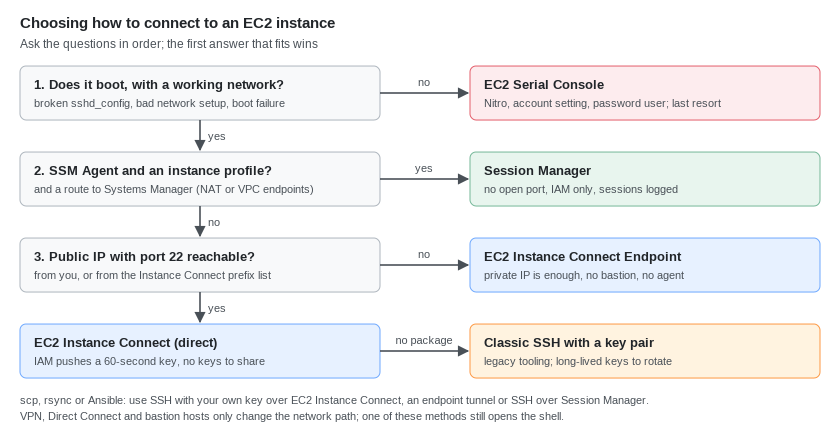
1. The Comparison Table
| SSH (classic) | EC2 Instance Connect (direct) | EC2 Instance Connect Endpoint | Session Manager (SSM) | EC2 Serial Console | |
|---|---|---|---|---|---|
| What you get | A shell over SSH | A shell over SSH with a temporary key | A shell (or RDP) tunneled to a private instance | A shell in the console or CLI, or a tunnel | The instance’s serial port (a console cable) |
| Authentication | SSH key pair you manage | IAM permission pushes a public key for 60 seconds | IAM permission opens the tunnel, then SSH or RDP login | IAM only | IAM, then an OS password user |
| Public IP needed | Yes (or another route in) | Yes, for the direct type | No, private IP is enough | No | No (independent of the VPC network) |
| Inbound port open | Yes, TCP 22 from your IP | Yes, TCP 22 from the Instance Connect service range | Yes, 22 from the endpoint only | None | None |
| Internet gateway needed in VPC | Yes (for a public path) | Yes | No | No, but it needs a route to the SSM endpoints (NAT or VPC endpoints) | No |
| Agent or software on the instance | None (sshd) | EC2 Instance Connect package | EC2 Instance Connect package, or your own key and no agent | SSM Agent plus an instance profile | None, but a password-based OS user is needed |
| Key files to manage | Yes, long-lived | No | No (or your own key) | No | No |
| Audit | Server auth logs only | CloudTrail records connection requests | CloudTrail logs all attempts, successful or not | CloudTrail, and optional session logs to S3 or CloudWatch Logs | CloudTrail logs the SendSerialConsoleSSHPublicKey calls |
| Works when the OS network is broken | No | No | No | No | Yes |
| Cost | Free | Free | Free (cross-AZ data transfer is charged) | No charge on EC2 (hybrid and multicloud nodes are priced separately) | No additional cost |
| Windows | No (Linux only, RDP is separate) | Linux | Linux (SSH) and Windows (RDP) | Linux, Windows and macOS | Linux and Windows |
| Best for | Simple setups, legacy tooling | Quick access to public instances without sharing keys | Private instances without a bastion or NAT | Production fleets with strict IAM control and no open ports | Fixing boot, network and sshd problems |
All five are free in themselves; you pay for what they run over (public IPv4 addresses, NAT gateways or VPC endpoints for SSM, cross-AZ transfer for the endpoint).
What the Path Costs
eu-west-1 prices from the AWS Price List files of 4 November 2026, 730 hours a month, before data:
| Path | What you pay for | Per month |
|---|---|---|
| SSH or EC2 Instance Connect over a public IP | One public IPv4 address per instance ($0.005 an hour) | $3.65 per instance |
| Bastion host | A t3.micro ($0.0114 an hour) plus its public IPv4, plus its EBS volume |
About $11.97 |
| EC2 Instance Connect Endpoint | Nothing; cross-AZ traffic $0.01 per GB each way | $0 |
| Session Manager through a NAT gateway | $0.048 an hour per gateway, plus $0.048 per GB | $35.04 per AZ |
| Session Manager through interface endpoints | ssm, ssmmessages (and ec2messages) at $0.011 an hour each, per AZ, plus $0.01 per GB |
2 endpoints in 2 AZs: $32.12; 3 in 2 AZs: $48.18 |
| EC2 Serial Console | Nothing | $0 |
A NAT gateway usually exists anyway for software updates, which makes Session Manager free at the margin; in an isolated subnet with no NAT, the endpoints are the cost of Session Manager, and EC2 Instance Connect Endpoint is the free alternative.
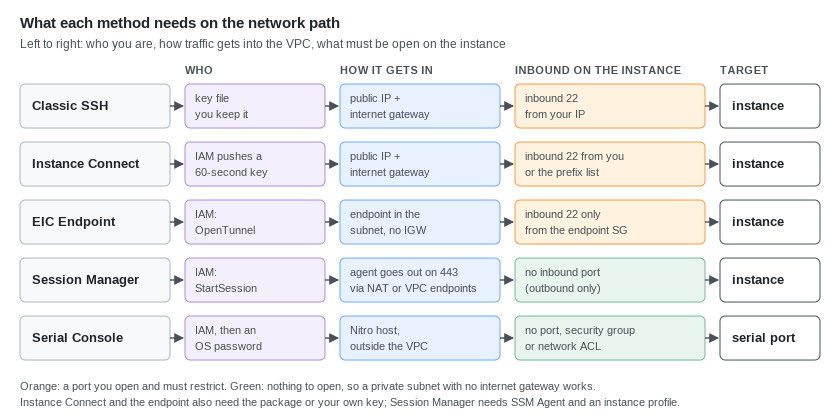
2. Classic SSH
You connect with an SSH client, the private key of the key pair chosen at launch, the OS user name and the instance’s public DNS or IPv6 address:
ssh -i /path/key-pair-name.pem <instance-user-name>@<instance-public-dns-name>
Prerequisites from the EC2 User Guide: the instance passed its status checks, the security group allows inbound SSH from your IP, you hold the private key with the right permissions, and you have an SSH client (OpenSSH on Windows Server 2019 or later, or WSL).
| Pros | Cons |
|---|---|
| Works with every tool (scp, rsync, Ansible, ProxyJump) | A public path (public IP or VPN, bastion) and an open port |
| No AWS service dependency at connection time | Long-lived keys to distribute, rotate and revoke |
| Familiar | No central audit and no IAM control over who connects |
Typical fixes for the key problem are EC2 Instance Connect or Session Manager. The two errors you meet first:
$ ssh -i key-pair-name.pem ec2-user@ec2-203-0-113-10.eu-west-1.compute.amazonaws.com
@@@@@@@@@@@@@@@@@@@@@@@@@@@@@@@@@@@@@@@@@@@@@@@@@@@@@@@@@@@
@         WARNING: UNPROTECTED PRIVATE KEY FILE!          @
@@@@@@@@@@@@@@@@@@@@@@@@@@@@@@@@@@@@@@@@@@@@@@@@@@@@@@@@@@@
Permissions 0644 for 'key-pair-name.pem' are too open.
It is required that your private key files are NOT accessible by others.
This private key will be ignored.
Fix it with chmod 400 key-pair-name.pem. The second one is the wrong user name (or key) for the AMI:
ubuntu@ec2-203-0-113-10.eu-west-1.compute.amazonaws.com: Permission denied (publickey).
The default user depends on the AMI: ec2-user on Amazon Linux, ubuntu on Ubuntu, admin on Debian, centos on CentOS. The list in brackets
shows the methods the server allows, so it can be longer (publickey,gssapi-keyex,gssapi-with-mic).
3. EC2 Instance Connect (Public IP, “Direct”)
EC2 Instance Connect uses IAM policies and principals to control SSH access, removing the need to share and manage SSH keys, and every connection request
is logged to CloudTrail. How it works, from the EC2 User Guide: the service pushes a public key to the instance metadata, where it stays for 60 seconds.
An IAM policy on your user authorizes the push. The SSH daemon looks the key up through AuthorizedKeysCommand and AuthorizedKeysCommandUser, which are
configured when the EC2 Instance Connect package is installed.
# Let EC2 Instance Connect choose the path (public IPv4 first, then private over an endpoint)
aws ec2-instance-connect ssh --instance-id <instance-id>

# Force the public-IP path
aws ec2-instance-connect ssh --instance-id <instance-id> --connection-type direct
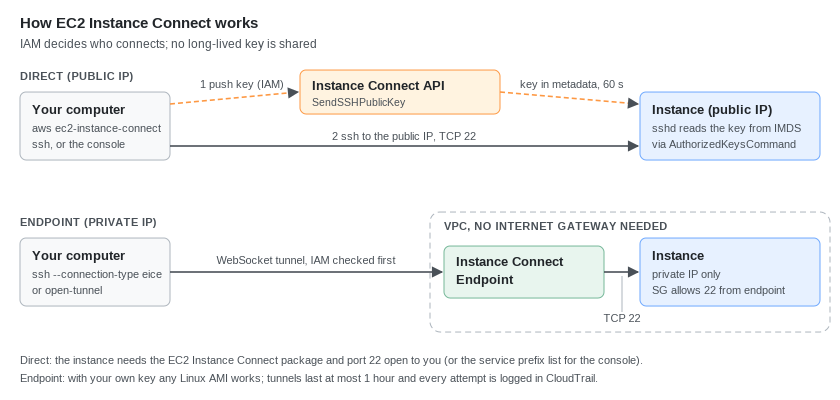
The CLI makes a temporary key pair, pushes the public key with SendSSHPublicKey, and then starts your local ssh with the private key, so an SSH
client must be installed. With --debug you can see the command it runs:
Invoking SSH command: ['/usr/bin/ssh', '-o', 'ServerAliveInterval=5', '-p', '22', '-i', '/tmp/tmpd38ohcuk/private-key', '-v', 'ec2-user@10.0.1.4']
It logs in as ec2-user unless you pass --os-user (for example --os-user ubuntu); --ssh-port, --private-key-file (use your own key) and
--instance-ip are the other options. In that run the instance had no public IP, so direct fell back to the private address, as the table below says.
Connection types of aws ec2-instance-connect ssh (from the docs):
--connection-type |
Order it tries |
|---|---|
auto (default) |
Public IPv4 (direct), then private IPv4 (eice), then IPv6 (direct). The docs warn this behavior might change, so set direct or eice explicitly |
direct |
Public IPv4, then IPv6, then private IPv4 (but not over an endpoint) |
eice |
Private IPv4 over an EC2 Instance Connect Endpoint |
Requirements and limits:
- The instance needs the EC2 Instance Connect package (included in some AMIs, installable on others), and the security group must allow SSH on port 22
from the
com.amazonaws.<region>.ec2-instance-connectprefix list (Knowledge Center). - Your IAM user needs
ec2-instance-connect:SendSSHPublicKey(Knowledge Center). - It is free, available in all Regions except the AWS European Sovereign Cloud (Germany), and not supported in Local Zones.
- If you already configured
AuthorizedKeysCommandyourself, you cannot use EC2 Instance Connect. The console option needs an IPv4 address. - You can also use it with your own key and a standard SSH client, so scp and other tools keep working.
Install the EC2 Instance Connect package
It is already installed on the AL2023 standard AMI, Amazon Linux 2 2.0.20190618 or later, Ubuntu 20.04 or later and recent macOS AMIs. Elsewhere:
sudo dnf install ec2-instance-connect      # AL2023 (minimal AMIs)
sudo yum install ec2-instance-connect      # Amazon Linux 2
sudo apt-get install ec2-instance-connect  # Ubuntu
On AL2023 the package (here ec2-instance-connect-1.1-19.amzn2023) adds three scripts to /opt/aws/bin/ (eic_curl_authorized_keys,
eic_parse_authorized_keys, eic_run_authorized_keys) and two lines to /etc/ssh/sshd_config, which sshd -T confirms:
$ sudo sshd -T | grep -i ^authorizedkeyscommand
authorizedkeyscommand /opt/aws/bin/eic_run_authorized_keys %u %f
authorizedkeyscommanduser ec2-instance-connect
On Ubuntu (package 1.1.17-0ubuntu1 on 24.04) the settings are not in sshd_config: a systemd drop-in passes them on the sshd command line, so
sshd -T run by hand still prints none. Check the drop-in instead:
$ grep AuthorizedKeysCommand /lib/systemd/system/ssh.service.d/ec2-instance-connect.conf
ExecStart=/usr/sbin/sshd -D -o "AuthorizedKeysCommand /usr/share/ec2-instance-connect/eic_run_authorized_keys %%u %%f" -o "AuthorizedKeysCommandUser ec2-instance-connect" $SSHD_OPTS
If AuthorizedKeysCommand was already set to something else, the package does not change it, and EC2 Instance Connect does not work on that instance.
IAM policy. Without a condition, anyone with SendSSHPublicKey can push a key to every instance. Limit it by instance tag and by the OS user the key is
for (ec2:osuser); ec2:DescribeInstances is needed by the console and the CLI wrapper:
{
  "Version": "2012-10-17",
  "Statement": [
    {
      "Sid": "PushKeyToTaggedInstances",
      "Effect": "Allow",
      "Action": "ec2-instance-connect:SendSSHPublicKey",
      "Resource": "arn:aws:ec2:eu-west-1:123456789012:instance/*",
      "Condition": {
        "StringEquals": {
          "aws:ResourceTag/team": "web",
          "ec2:osuser": "ec2-user"
        }
      }
    },
    {
      "Sid": "FindInstances",
      "Effect": "Allow",
      "Action": "ec2:DescribeInstances",
      "Resource": "*"
    }
  ]
}
Security group. The console connects from the EC2 Instance Connect service range, which AWS publishes as a managed prefix list; the CLI and your own SSH client connect from your computer’s address, so for them allow your IP instead:
# Find the prefix list of the Region
aws ec2 describe-managed-prefix-lists \
  --filters Name=prefix-list-name,Values=com.amazonaws.eu-west-1.ec2-instance-connect \
  --query 'PrefixLists[].[PrefixListId,PrefixListName]' --output text

# Allow SSH from it
aws ec2 authorize-security-group-ingress --group-id <instance-sg-id> \
  --ip-permissions 'IpProtocol=tcp,FromPort=22,ToPort=22,PrefixListIds=[{PrefixListId=<pl-id>,Description=EC2 Instance Connect}]'
4. EC2 Instance Connect Endpoint (Private Instances)
An EC2 Instance Connect Endpoint (EICE) lets you reach an instance from the internet without a public IP, without an internet gateway on the VPC, and without a bastion host (EC2 User Guide). It is an identity-aware TCP proxy: the service builds a private tunnel from your computer to the endpoint using your IAM credentials, and traffic is authenticated and authorized before it reaches your VPC. The AWS Compute Blog adds that no agent is needed on the target, so it also works for resources that cannot run agents, such as third-party appliances.
# SSH to a private instance through the endpoint
aws ec2-instance-connect ssh --instance-id <instance-id> --connection-type eice

# Or open a tunnel and use any client against localhost (leave this running in one terminal)
aws ec2-instance-connect open-tunnel --instance-id <instance-id> --remote-port 22 --local-port 2222
# then, in another terminal:
ssh -i <key-pair-name>.pem -p 2222 <instance-user-name>@127.0.0.1

# Or let SSH start a single-connection tunnel itself (the form shown in the EC2 User Guide)
ssh -i <key-pair-name>.pem <instance-user-name>@<instance-id> \
  -o ProxyCommand='aws ec2-instance-connect open-tunnel --instance-id %h'
open-tunnel defaults to remote port 22, a tunnel lifetime of 3,600 seconds (--max-tunnel-duration) and at most 10 WebSocket connections when
--local-port is used (--max-websocket-connections). With --instance-id, both open-tunnel and ssh --connection-type eice first call
DescribeInstances and then DescribeInstanceConnectEndpoints to find the endpoint, so the caller needs ec2:DescribeInstances and
ec2:DescribeInstanceConnectEndpoints as well as ec2-instance-connect:OpenTunnel. To skip the lookups, pass --instance-connect-endpoint-id (and
--instance-connect-endpoint-dns-name) with --private-ip-address.
The two ssh forms behave as written: with the tunnel listening on 2222, ssh -p 2222 ... @127.0.0.1 logs in to the instance, and in the
ProxyCommand form SSH replaces %h with the instance ID, so the CLI receives open-tunnel --instance-id i-0abc123def4567890. Since the host name is
the instance ID, SSH stores the instance’s host key under that ID in known_hosts.
Create the endpoint with:
aws ec2 create-instance-connect-endpoint --subnet-id <subnet-id> --security-group-ids <sg-id>
--subnet-id is required.
Security groups. Traffic into the endpoint comes from the EC2 Instance Connect Endpoint service and is allowed whatever the endpoint group’s inbound rules say (IAM decides who connects). What you set is the path from the endpoint to the instances:
# Instance group: SSH only from the endpoint's group
aws ec2 authorize-security-group-ingress --group-id <instance-sg-id> --protocol tcp --port 22 --source-group <endpoint-sg-id>

# Endpoint group: outbound SSH to the instance group (or to the VPC CIDR)
aws ec2 authorize-security-group-egress --group-id <endpoint-sg-id> \
  --ip-permissions 'IpProtocol=tcp,FromPort=22,ToPort=22,UserIdGroupPairs=[{GroupId=<instance-sg-id>}]'
False	tcp	22	sg-f9b6d4de560f7bfca
True	tcp	22	sg-5951f65f8b94d9726
(The --query 'SecurityGroupRules[].[IsEgress,IpProtocol,FromPort,ReferencedGroupInfo.GroupId]' output of the two commands: an inbound rule that references
the endpoint group, and an outbound rule that references the instance group. Add 3389 the same way for RDP.)
IAM policy. OpenTunnel has three condition keys of its own: ec2-instance-connect:remotePort, ec2-instance-connect:privateIpAddress (an address or a
CIDR) and ec2-instance-connect:maxTunnelDuration (1 to 3,600 seconds). This one allows SSH only, to one subnet, for at most 15 minutes:
{
  "Version": "2012-10-17",
  "Statement": [
    {
      "Sid": "TunnelToSshOnly",
      "Effect": "Allow",
      "Action": "ec2-instance-connect:OpenTunnel",
      "Resource": "arn:aws:ec2:eu-west-1:123456789012:instance-connect-endpoint/eice-0123456789abcdef0",
      "Condition": {
        "NumericEquals": {
          "ec2-instance-connect:remotePort": "22"
        },
        "IpAddress": {
          "ec2-instance-connect:privateIpAddress": "10.0.1.0/24"
        },
        "NumericLessThanEquals": {
          "ec2-instance-connect:maxTunnelDuration": "900"
        }
      }
    },
    {
      "Sid": "FindInstancesAndEndpoints",
      "Effect": "Allow",
      "Action": [
        "ec2:DescribeInstances",
        "ec2:DescribeInstanceConnectEndpoints"
      ],
      "Resource": "*"
    }
  ]
}
With a maxTunnelDuration below 3,600 in the policy, the client must ask for it, or the call fails with AccessDeniedException:
aws ec2-instance-connect open-tunnel --instance-id <instance-id> --max-tunnel-duration 900
Facts from the EC2 User Guide:
| Fact | Detail |
|---|---|
| Cost | No additional charge, except cross-AZ data transfer if you connect to an instance in another AZ |
| Audit | All attempts, successful and unsuccessful, are logged to CloudTrail |
| Intended use | Management traffic. High-volume data transfer is throttled |
| Limits | 1 endpoint per VPC and per subnet, 20 concurrent connections per endpoint, a TCP connection lasts at most 1 hour (3,600 seconds), which you can lower in an IAM policy |
| Credentials | The connection continues after your IAM credentials expire, until the maximum duration ends |
| Security group | The instance’s group must allow inbound SSH (or RDP) from the endpoint. The endpoint’s own group must allow outbound to the instances |
| Client IP | Optional client IP preservation (IPv4 endpoints only), and some old instance types (C1, CG1, CG2, G1, HI1, M1, M2, M3, T1) do not support it |
| Key choice | With your own key pair any Linux AMI works. Otherwise the instance needs the EC2 Instance Connect package |
| Address types | ipv4, dualstack or ipv6, matching the instance and subnet |
| Service-linked role | Created automatically so EC2 can provision the endpoint’s network interfaces |
RDP to a private Windows instance
aws ec2-instance-connect open-tunnel --instance-id <instance-id> --remote-port 3389 --local-port 13389
Leave it running, then point the RDP client at localhost:13389 and log in with the decrypted Administrator password. --remote-port must be 3389 (the RDP
port on the instance); the local port is any free one. The instance group must allow 3389 from the endpoint group.
5. Session Manager (SSM)
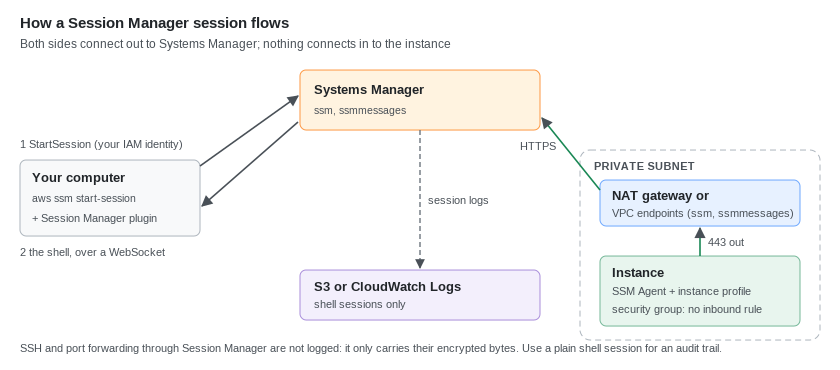
Session Manager is a Systems Manager capability. From the Systems Manager User Guide: it gives secure node management without opening inbound ports, maintaining bastion hosts, or managing SSH keys, through the browser-based shell or the AWS CLI, with access controlled only by IAM policies. It covers EC2 instances, edge devices and on-premises or multicloud machines, on Windows, Linux and macOS.
What it needs (from the SSM documentation, see installing SSM Agent and instance permissions for Systems Manager):
- SSM Agent running on the instance.
- An instance profile with
AmazonSSMManagedInstanceCore(orAmazonSSMManagedEC2InstanceDefaultPolicy, or equivalent permissions). No Service Control Policy may deny those. - Outbound connectivity to the Systems Manager service: NAT or internet access, or VPC interface endpoints for
ssm,ssmmessagesandec2messages(for ec2messages, only Regions launched before 2024 use it). See VPC endpoints for Systems Manager. - The Session Manager plugin on your computer if you use the AWS CLI (CLI 1.16.12 or later).
aws ssm start-session --target <instance-id>
Features:
- Logging: CloudTrail records the API calls. You can send session data to S3 or CloudWatch Logs (with optional KMS encryption) and use EventBridge and SNS to be told when a session starts or ends.
- Port forwarding: redirect a port inside the instance to a local port on your computer.
- SSH over Session Manager: with a documented setup the AWS CLI and SSM Agent carry real SSH (and scp) inside a TLS WebSocket, still with no inbound port.
- Configurable shell profiles and customer key encryption for log data.
Important limitation (from the docs): logging is not available for sessions that use port forwarding or SSH, because SSH encrypts all session data inside the tunnel and Session Manager only carries it. So for full command logging use a normal Session Manager shell, not an SSH-over-SSM session.
The legacy Session Manager console page is documented as deprecated on December 31, 2026, because the capabilities moved into the Systems Manager unified console.
No instance profile: Default Host Management Configuration
Instead of attaching an instance profile to every instance, you can turn on Default Host Management Configuration (DHMC) once per Region: Systems Manager then manages every instance that uses IMDSv2 and runs SSM Agent 3.2.582.0 or later, with a role you choose.
# trust-policy.json: {"Version":"2012-10-17","Statement":[{"Effect":"Allow","Principal":{"Service":"ssm.amazonaws.com"},"Action":"sts:AssumeRole"}]}
aws iam create-role --role-name AWSSystemsManagerDefaultEC2InstanceManagementRole --path /service-role/ \
  --assume-role-policy-document file://trust-policy.json
aws iam attach-role-policy --role-name AWSSystemsManagerDefaultEC2InstanceManagementRole \
  --policy-arn arn:aws:iam::aws:policy/AmazonSSMManagedEC2InstanceDefaultPolicy

aws ssm update-service-setting \
  --setting-id arn:aws:ssm:eu-west-1:123456789012:servicesetting/ssm/managed-instance/default-ec2-instance-management-role \
  --setting-value service-role/AWSSystemsManagerDefaultEC2InstanceManagementRole
aws ssm get-service-setting \
  --setting-id arn:aws:ssm:eu-west-1:123456789012:servicesetting/ssm/managed-instance/default-ec2-instance-management-role
update-service-settingprints nothing when it succeeds. Instances can take up to 30 minutes to pick up the role.- IMDSv1 is not supported: only instances that use IMDSv2 are managed this way.
- An instance profile wins: if the instance’s own profile allows
ssm:UpdateInstanceInformation, the agent uses the profile, not DHMC. - The agent stores its registration in
/lib/amazon/ssm(C:\ProgramData\Amazonon Windows); deleting it breaks DHMC on that instance.
Private subnet, no NAT: VPC endpoints
Without a NAT gateway the agent needs interface endpoints for ssm and ssmmessages, with private DNS so the normal service names resolve to them. Keep
ec2messages for agents older than 3.3.40.0, which still use it (newer agents use ssmmessages when it is available). The endpoints’ security group must
allow HTTPS in from the instances:
# Private DNS needs DNS support and DNS hostnames on the VPC
aws ec2 modify-vpc-attribute --vpc-id <vpc-id> --enable-dns-support '{"Value":true}'
aws ec2 modify-vpc-attribute --vpc-id <vpc-id> --enable-dns-hostnames '{"Value":true}'

aws ec2 authorize-security-group-ingress --group-id <endpoint-sg-id> --protocol tcp --port 443 --cidr 10.0.0.0/16

for svc in ssm ssmmessages ec2messages; do
  aws ec2 create-vpc-endpoint --vpc-id <vpc-id> --vpc-endpoint-type Interface \
    --service-name com.amazonaws.eu-west-1.$svc --subnet-ids <subnet-id> \
    --security-group-ids <endpoint-sg-id> --private-dns-enabled \
    --query 'VpcEndpoint.[ServiceName,VpcEndpointType,PrivateDnsEnabled,State]' --output text
done
Add logs for session logs to CloudWatch Logs, kms for KMS-encrypted sessions, and an S3 gateway endpoint for agent updates and session logs to S3. If
you run your own DNS server, forward amazonaws.com queries to the VPC resolver, or private DNS does not work. Interface endpoints are billed per hour
and per GB, in each AZ you put them in.
Session logging and timeouts
The Region’s session preferences live in a Session document named SSM-SessionManagerRunShell. This one sends every shell session to S3 and streams it to
CloudWatch Logs, encrypts the session with a KMS key, ends idle sessions after 20 minutes and every session after 2 hours:
{
  "schemaVersion": "1.0",
  "description": "Session Manager preferences for the Region",
  "sessionType": "Standard_Stream",
  "inputs": {
    "s3BucketName": "my-session-logs",
    "s3KeyPrefix": "sessions/",
    "s3EncryptionEnabled": true,
    "cloudWatchLogGroupName": "/ssm/sessions",
    "cloudWatchEncryptionEnabled": true,
    "cloudWatchStreamingEnabled": true,
    "kmsKeyId": "alias/session-manager",
    "runAsEnabled": false,
    "runAsDefaultUser": "",
    "idleSessionTimeout": "20",
    "maxSessionDuration": "120",
    "shellProfile": {
      "windows": "",
      "linux": "cd ~ && exec bash"
    }
  }
}
# First time (the console creates the document when you first save preferences there)
aws ssm create-document --name SSM-SessionManagerRunShell --document-type Session \
  --document-format JSON --content file://SessionManagerRunShell.json

# Later changes
aws ssm update-document --name SSM-SessionManagerRunShell \
  --content file://SessionManagerRunShell.json --document-version '$LATEST'
- Sending the same content again fails with
DuplicateDocumentContent: The content of the association document matches another document; change something first. idleSessionTimeoutandmaxSessionDurationare minutes.shellProfile.linuxruns at the start of every Linux session.- The instance writes the logs, so the instance profile (or the DHMC role) needs
s3:PutObjecton the bucket, the CloudWatch Logs write actions andkms:Decrypton the key; users needkms:GenerateDataKeyon the key to start sessions. - These logs cover shell sessions only: SSH and port forwarding through Session Manager are not logged (see the diagram).
SSH and scp over Session Manager
With SSM Agent 2.3.672.0 or later on the instance and the Session Manager plugin on your computer, this block in ~/.ssh/config sends any host named
like an instance ID through Session Manager:
# SSH over Session Manager
Host i-* mi-*
    ProxyCommand sh -c "aws ssm start-session --target %h --document-name AWS-StartSSHSession --parameters 'portNumber=%p'"
    User ec2-user
    IdentityFile ~/my-key-pair.pem
ssh i-0abc123def4567890
scp report.txt i-0abc123def4567890:~
SSH fills in %h and %p, so the call it makes is aws ssm start-session --target i-0abc123def4567890 --document-name AWS-StartSSHSession --parameters
portNumber=22; scp makes the same call for its own connection. You log in with the key pair’s user (ec2-user), not ssm-user, and the instance still
needs your public key: the security group needs no port 22, but SSH still authenticates with your key. Ansible works the same way with the instance ID as
the host name.
Port forwarding
# A port on the instance (here a web app on 80) to localhost:8080
aws ssm start-session --target <instance-id> --document-name AWS-StartPortForwardingSession \
  --parameters '{"portNumber":["80"],"localPortNumber":["8080"]}'

# A host the instance can reach (a private RDS database) to localhost:5432; needs SSM Agent 3.1.1374.0 or later
aws ssm start-session --target <instance-id> --document-name AWS-StartPortForwardingSessionToRemoteHost \
  --parameters '{"host":["mydb.cluster-abc123.eu-west-1.rds.amazonaws.com"],"portNumber":["5432"],"localPortNumber":["5432"]}'
Then psql -h localhost -p 5432 reaches the database, which never needs a public endpoint. Without portNumber the remote port is 80. On Windows cmd,
write the parameters as portNumber="3389",localPortNumber="56789".
IAM policies for Session Manager
Allow sessions only to instances tagged team=web, with the default shell document, and let users end or resume only their own sessions:
{
  "Version": "2012-10-17",
  "Statement": [
    {
      "Sid": "SessionsToTaggedInstances",
      "Effect": "Allow",
      "Action": "ssm:StartSession",
      "Resource": "arn:aws:ec2:eu-west-1:123456789012:instance/*",
      "Condition": {
        "StringEquals": {
          "ssm:resourceTag/team": "web"
        }
      }
    },
    {
      "Sid": "ShellDocument",
      "Effect": "Allow",
      "Action": "ssm:StartSession",
      "Resource": "arn:aws:ssm:eu-west-1:123456789012:document/SSM-SessionManagerRunShell"
    },
    {
      "Sid": "DataChannel",
      "Effect": "Allow",
      "Action": "ssmmessages:OpenDataChannel",
      "Resource": "arn:aws:ssm:*:*:session/${aws:userid}-*"
    },
    {
      "Sid": "OwnSessionsOnly",
      "Effect": "Allow",
      "Action": [
        "ssm:TerminateSession",
        "ssm:ResumeSession"
      ],
      "Resource": "arn:aws:ssm:*:*:session/${aws:userid}-*"
    }
  ]
}
To keep every session a logged shell, deny the SSH and port-forwarding documents (the docs show the SSH half of this):
{
  "Version": "2012-10-17",
  "Statement": [
    {
      "Sid": "NoUnloggedSessions",
      "Effect": "Deny",
      "Action": "ssm:StartSession",
      "Resource": [
        "arn:aws:ssm:*:*:document/AWS-StartSSHSession",
        "arn:aws:ssm:*:*:document/AWS-StartPortForwardingSession*"
      ]
    }
  ]
}
Run Sessions as a Named OS User
By default every session runs as ssm-user, which the agent creates and puts in /etc/sudoers.d/ssm-agent-users with passwordless sudo, so the
instance’s own logs cannot tell people apart. With Run As (Linux and macOS), each IAM identity gets its own OS account:
# 1. In the session preferences document: "runAsEnabled": true, "runAsDefaultUser": "" (see the JSON above)
# 2. Tag each IAM user or role with the OS user it may log in as
aws iam tag-role --role-name ops-alice --tags Key=SSMSessionRunAs,Value=alice
aws iam tag-user --user-name bob --tags Key=SSMSessionRunAs,Value=bob
- The OS user must exist on the instance, or the session does not start; there is no fallback to
ssm-useronce Run As is on, androotis not allowed. - For federated users sharing one role, pass
SSMSessionRunAsas a session tag from the identity provider. - To drop sudo from
ssm-userwithout Run As, comment out its line in/etc/sudoers.d/ssm-agent-users.
Just-in-Time Node Access
Instead of a standing ssm:StartSession permission, users request access with a reason; an approval policy either approves it automatically or
asks named approvers (by email, Slack or Teams). Once approved, the user can open sessions to that node for the access window the policy sets. It is
set up in the unified Systems Manager console, for the accounts and Regions of an organization.
# Ask for access
aws ssm start-access-request --reason "Investigating disk full on app server" \
  --targets Key=InstanceIds,Values=i-0abc123def4567890

# After approval: temporary credentials for the session, then connect with them
read -r AWS_ACCESS_KEY_ID AWS_SECRET_ACCESS_KEY AWS_SESSION_TOKEN < <(aws ssm get-access-token \
  --access-request-id oi-1a2b3c4d5e6f --query 'Credentials.[AccessKeyId,SecretAccessKey,SessionToken]' --output text)
export AWS_ACCESS_KEY_ID AWS_SECRET_ACCESS_KEY AWS_SESSION_TOKEN
aws ssm start-session --target i-0abc123def4567890
- Remove
ssm:StartSessionfrom the users’ policies, or they keep connecting with plain Session Manager and never request anything. - Only
AssumeRoletemporary credentials are supported, so users must work through a role (IAM Identity Center works). - Requests, approvals and sessions are logged in CloudTrail, and RDP sessions to Windows can be recorded.
RDP in the Browser: Fleet Manager
Fleet Manager Remote Desktop opens an RDP session to a Windows Server managed node in the Systems Manager console, over the same agent channel as Session Manager: no port 3389, no public IP, no RDP client. You log in with a Windows user and password, the key pair (it decrypts the Administrator password), or single sign-on through IAM Identity Center.
- Console only: there is no CLI form. Up to four connections in one browser window.
- A connection lasts 60 minutes by default; Renew session in the Actions menu resets the timer.
- Needs the same SSM Agent, instance profile and network path as Session Manager, plus
ssm-guiconnectpermissions for the user.
6. EC2 Serial Console
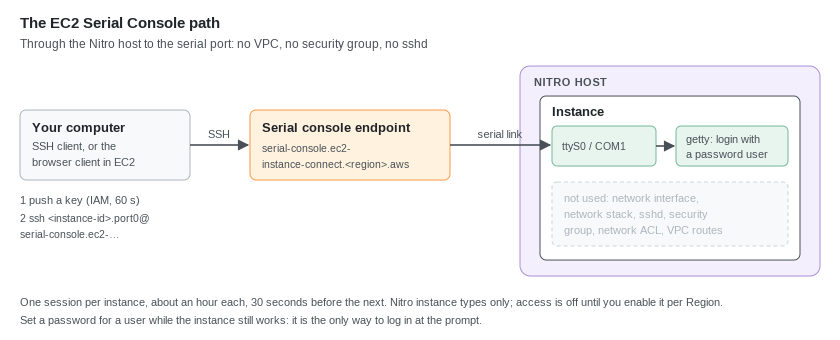
The serial console gives a virtual serial port connection, independent of the VPC network. From the EC2 User Guide it is for troubleshooting boot failures, network configuration and SSH configuration problems, and it does not use the instance’s security group or the subnet network ACL.
- Setup: grant access at the account level (per Region:
aws ec2 enable-serial-console-access, check withaws ec2 get-serial-console-access-status), add IAM policies for users, and for Linux set up a password-based OS user on each instance. - Instances: supported only on Nitro System instances.
- Limits: one active connection per instance, about one hour per session, and a 30-second teardown before the next. Ports
ttyS0(Linux) andCOM1(Windows). - Connect: the browser client in the EC2 console, or push a key and use SSH. The SSH username format is
<instance-id>.port0, and the pushed public key is removed after 60 seconds.
End to end, with SSH:
# 1. Once per account and Region
aws ec2 enable-serial-console-access
aws ec2 get-serial-console-access-status

# 2. Once per instance, while you can still log in: a user that can log in with a password
sudo passwd ec2-user

# 3. When you need it: push a key (starts the session), then connect within 60 seconds
aws ec2-instance-connect send-serial-console-ssh-public-key \
  --instance-id <instance-id> --serial-port 0 --ssh-public-key file://my_key.pub
ssh -i my_key <instance-id>.port0@serial-console.ec2-instance-connect.eu-west-1.aws
Press Enter at the black screen to get the login: prompt, then log in with that user and password. The endpoint name changes with the Region, and the
first connection shows the service’s host key fingerprint, which the EC2 User Guide lists per Region. Users need
ec2-instance-connect:SendSerialConsoleSSHPublicKey, limited by tag like the other policies:
{
  "Version": "2012-10-17",
  "Statement": [
    {
      "Sid": "SerialConsoleForTaggedInstances",
      "Effect": "Allow",
      "Action": "ec2-instance-connect:SendSerialConsoleSSHPublicKey",
      "Resource": "arn:aws:ec2:eu-west-1:123456789012:instance/*",
      "Condition": {
        "StringEquals": {
          "aws:ResourceTag/team": "web"
        }
      }
    },
    {
      "Sid": "SeeTheSetting",
      "Effect": "Allow",
      "Action": [
        "ec2:GetSerialConsoleAccessStatus",
        "ec2:DescribeInstances",
        "ec2:DescribeInstanceTypes"
      ],
      "Resource": "*"
    }
  ]
}
timeout 3600 ssh ... ends the SSH client after an hour; processes you started keep running on the instance. After you disconnect, a new session can start
30 seconds later.
Use it as the last resort when everything else is unreachable. A broken sshd_config or a bad network setting is the classic case.
7. Bastion Hosts, VPN and Direct Connect (Network Paths)
These do not give you a shell by themselves. They decide how your SSH packets reach a private instance:
| Path | What it is | Note |
|---|---|---|
| Bastion host (jump box) | A hardened instance with a public IP that you SSH to first, then hop on | You patch and secure it. EC2 Instance Connect Endpoint and Session Manager replace most uses |
| Site-to-site or client VPN | An encrypted tunnel into the VPC | Then SSH to private IPs |
| AWS Direct Connect | A dedicated private link from your site to AWS | Faster and steadier than a VPN. You still SSH over it |
| Transit Gateway or peering | Connects VPCs to each other | Reaches instances in other VPCs |
The security group, the key or IAM method and the audit story still come from the five methods above.
Bastion With ProxyJump
If you keep a bastion, let SSH do the hop: ssh -J ec2-user@203.0.113.10 ec2-user@10.0.1.4 for one connection, or once in ~/.ssh/config:
# Bastion with a public IP
Host bastion
    HostName 203.0.113.10
    User ec2-user
    IdentityFile ~/.ssh/bastion.pem

# Everything in the VPC goes through it
Host 10.0.*
    User ec2-user
    IdentityFile ~/.ssh/app.pem
    ProxyJump bastion
ssh -G prints the settings SSH would use, and -v shows the hop:
$ ssh -G 10.0.1.4 | grep -E "^(hostname|user|proxyjump|identityfile) "
user ec2-user
hostname 10.0.1.4
identityfile ~/.ssh/app.pem
proxyjump bastion
$ ssh -v 10.0.1.4
debug1: Setting implicit ProxyCommand from ProxyJump: ssh -v -W '[%h]:%p' bastion
debug1: Executing proxy command: exec ssh -v -W '[10.0.1.4]:22' bastion
- The private key for
10.0.1.4stays on your computer; the bastion only forwards the TCP stream (-W). Do not copy keys to the bastion, and do not useForwardAgentto it. - The instance’s security group allows 22 from the bastion’s security group, and the bastion’s allows 22 from your IP only.
scp,rsyncand Ansible use the same config.
CloudShell in the VPC
AWS CloudShell can start a VPC environment: a browser shell with an interface in a subnet and security groups you choose, so ssh, psql or curl
reach private addresses with no bastion, VPN or public IP. Create it in the CloudShell console (Actions, Create VPC environment); there is no CLI
command for it.
- Up to two VPC environments per IAM principal and five security groups each.
- Storage is not persistent: the home directory is deleted when the session ends, and file upload and download are disabled.
- It reaches the internet only from a private subnet with a NAT gateway; in a public subnet it gets no public IP.
- Your IAM permissions are the CloudShell user’s, and the instance still needs a key or EC2 Instance Connect: CloudShell gives you a network position, not a login.
8. Which One to Choose
| Situation | Choose |
|---|---|
| Public instance, quick access, no key sharing | EC2 Instance Connect |
| Private instance, no bastion, no NAT, no agent | EC2 Instance Connect Endpoint |
| Production fleet, no open ports, every session audited and logged | Session Manager |
| Windows or macOS managed node, or on-premises server | Session Manager |
| Need scp, rsync, Ansible or ProxyJump | SSH over EC2 Instance Connect (own key), an endpoint tunnel, or SSH over Session Manager |
| Instance will not boot or has no network | EC2 Serial Console |
| Your on-premises network must reach private instances | VPN or Direct Connect, then SSH or Session Manager |
A common modern setup: Session Manager for daily shells, EC2 Instance Connect Endpoint as a backup for private instances, and Serial Console for emergencies, with port 22 closed on the security groups.
Enforce It: No SSH Keys
Once IAM-based access works, a service control policy on the organization (or an OU) stops long-lived keys from coming back: no key pair at launch, no new key pairs, and EC2 Instance Connect only to instances tagged for it:
{
  "Version": "2012-10-17",
  "Statement": [
    {
      "Sid": "NoKeyPairAtLaunch",
      "Effect": "Deny",
      "Action": "ec2:RunInstances",
      "Resource": "arn:aws:ec2:*:*:key-pair/*"
    },
    {
      "Sid": "NoNewKeyPairs",
      "Effect": "Deny",
      "Action": [
        "ec2:CreateKeyPair",
        "ec2:ImportKeyPair"
      ],
      "Resource": "*"
    },
    {
      "Sid": "InstanceConnectOnlyWhenTagged",
      "Effect": "Deny",
      "Action": "ec2-instance-connect:SendSSHPublicKey",
      "Resource": "arn:aws:ec2:*:*:instance/*",
      "Condition": {
        "StringNotEquals": {
          "aws:ResourceTag/remote-access": "instance-connect"
        }
      }
    }
  ]
}
aws organizations create-policy --type SERVICE_CONTROL_POLICY --name no-ssh-keys \
  --description "No EC2 key pairs; Instance Connect only to tagged instances" \
  --content file://scp-no-ssh-keys.json --query 'Policy.PolicySummary.Id' --output text
aws organizations attach-policy --policy-id <policy-id> --target-id <ou-id>
RunInstancestouches akey-pairresource only when a key is given (directly or in a launch template), so launches without one are unaffected.- Existing instances keep their
authorized_keys; the SCP stops new ones. AMIs with baked-in keys are not covered. - SCPs do not apply to the management account. Test on one OU first: Auto Scaling groups and pipelines that still pass a
KeyNamewill start failing withUnauthorizedOperation.
9. Troubleshooting
| Method | Symptom | Likely cause | Fix |
|---|---|---|---|
| SSH | Permission denied (publickey) |
Wrong user for the AMI, or wrong key | Use the AMI’s default user (ec2-user, ubuntu, …) and the key pair chosen at launch |
| SSH | UNPROTECTED PRIVATE KEY FILE! |
Key file readable by others | chmod 400 key.pem |
| SSH, Instance Connect | Connection timed out | Security group, network ACL or route table does not let port 22 in from where you are | Allow 22 from your IP (CLI) or the ec2-instance-connect prefix list (console) |
| Instance Connect | Key pushed, still Permission denied |
EC2 Instance Connect package missing, a custom AuthorizedKeysCommand, or ec2:osuser in the policy does not match the user |
Install the package, or use your own key; match --os-user and the policy |
| Instance Connect, Endpoint | InvalidInstanceID.NotFound on DescribeInstances |
Wrong Region or instance ID: the CLI looks the instance up first | Set --region, check the ID |
| Endpoint | AccessDeniedException on OpenTunnel |
No ec2-instance-connect:OpenTunnel, a condition (port, IP, tag) does not match, or the policy sets maxTunnelDuration and the client did not |
Fix the policy, or pass --max-tunnel-duration |
| Endpoint | Tunnel opens, SSH hangs | Instance group has no rule from the endpoint group, or the endpoint group has no outbound rule | Add the two rules from section 4 |
| Session Manager | TargetNotConnected |
The instance is not an online managed node: no SSM Agent, no instance profile, no route to ssm and ssmmessages, an SCP deny, or the wrong Region or account |
aws ssm describe-instance-information must list it with PingStatus Online |
| Session Manager | SessionManagerPlugin is not found. Please refer to SessionManager Documentation here: ... |
StartSession worked, but the plugin that carries the session is not installed on your computer |
Install the Session Manager plugin |
| Serial Console | SerialConsoleAccessDisabledException |
Account-level access is off in that Region | aws ec2 enable-serial-console-access |
| Serial Console | SerialConsoleSessionLimitExceededException |
A session is already open (one per instance) | Disconnect it, wait 30 seconds |
| Serial Console | SerialConsoleSessionUnsupportedException |
Not a Nitro instance type | Use a Nitro type, or a rescue instance |
| Serial Console | Black screen, no prompt | Nothing written to the port yet, or getty not running | Press Enter; restart serial-getty@ttyS0, or reboot |
# Is the instance a managed node, and online?
aws ssm describe-instance-information \
  --query 'InstanceInformationList[].[InstanceId,PingStatus,AgentVersion]' --output table
The Serial Console exception names are from the ec2-instance-connect API model of AWS CLI 2.39.3; TargetNotConnected is the Systems Manager one.
10. Who Connected: CloudTrail
Every method except classic SSH leaves an API call in CloudTrail, with the IAM identity, source IP and target:
| Method | Event | Event source | Useful request parameters |
|---|---|---|---|
| EC2 Instance Connect | SendSSHPublicKey |
ec2-instance-connect.amazonaws.com |
instanceId, osUser |
| Instance Connect Endpoint | OpenTunnel |
ec2-instance-connect.amazonaws.com |
instanceConnectEndpointId, privateIpAddress, remotePort, maxTunnelDuration |
| Session Manager | StartSession |
ssm.amazonaws.com |
target, documentName |
| Serial Console | SendSerialConsoleSSHPublicKey |
ec2-instance-connect.amazonaws.com |
instanceId, serialPort |
# Who opened endpoint tunnels this month
aws cloudtrail lookup-events --lookup-attributes AttributeKey=EventName,AttributeValue=OpenTunnel \
  --start-time 2026-11-01T00:00:00Z --query 'Events[].[EventTime,Username,EventName]' --output text

# Every Instance Connect event, one line each: time, event, who, from where, target, user or port
aws cloudtrail lookup-events \
  --lookup-attributes AttributeKey=EventSource,AttributeValue=ec2-instance-connect.amazonaws.com \
  --query 'Events[].CloudTrailEvent' --output text \
  | jq -r '[.eventTime, .eventName, .userIdentity.arn, .sourceIPAddress,
            (.requestParameters.instanceId // .requestParameters.privateIpAddress // .requestParameters.target),
            (.requestParameters.osUser // .requestParameters.remotePort // "")] | @tsv'
On the example events from the EC2 User Guide that filter prints:
2023-04-11T23:50:40Z	OpenTunnel	arn:aws:iam::123456789012:user/IAM-friendly-name	1.2.3.4	10.0.1.1	22
2019-06-21T13:58:32Z	SendSSHPublicKey	arn:aws:iam::1234567890:user/x	34.204.194.237	i-0989ec3292613a4f9	ec2-user
lookup-events reads the CloudTrail Event history, which keeps 90 days of management events in the Region; for longer, or for a whole organization,
send a trail to S3 and query it with Athena. These events show who got in, not what they typed: for commands, use Session Manager shell logging
(section 5). For classic SSH all you have is the instance’s own auth log.
11. When Nothing Works
If no method gets in (broken sshd_config, lost key, a firewall rule on the instance) and the serial console was never set up, fix the disk from another
instance. The steps from the AWS Knowledge Center:
# 0. Note the root device name and AZ (the rescue instance must be in the same AZ); snapshot first
aws ec2 describe-instances --instance-ids <broken-id> \
  --query 'Reservations[0].Instances[0].[RootDeviceName,Placement.AvailabilityZone]' --output text
aws ec2 create-snapshot --volume-id <root-volume-id> --description "before rescue"

# 1. Stop the broken instance and move its root volume to the rescue instance
aws ec2 stop-instances --instance-ids <broken-id>
aws ec2 wait instance-stopped --instance-ids <broken-id>
aws ec2 detach-volume --volume-id <root-volume-id>
aws ec2 wait volume-available --volume-ids <root-volume-id>
aws ec2 attach-volume --volume-id <root-volume-id> --instance-id <rescue-id> --device /dev/sdf
On the rescue instance, lsblk shows the new disk (an NVMe name such as nvme1n1 on Nitro); mount its root partition, fix the file, unmount:
sudo mount /dev/nvme1n1p1 /mnt        # add -o nouuid for XFS if both disks come from the same AMI
sudo vi /mnt/etc/ssh/sshd_config      # or append your public key to /mnt/home/ec2-user/.ssh/authorized_keys
sudo umount /mnt
# 2. Give the volume back under the root device name from step 0, and start
aws ec2 detach-volume --volume-id <root-volume-id>
aws ec2 wait volume-available --volume-ids <root-volume-id>
aws ec2 attach-volume --volume-id <root-volume-id> --instance-id <broken-id> --device /dev/xvda
aws ec2 start-instances --instance-ids <broken-id>
Stopping loses instance store data and changes the public IP unless it is an Elastic IP.
Automated version for a lost key: the AWSSupport-ResetAccess runbook does the same for you (stop, back up to an AMI, attach the root volume to a
helper instance, run EC2Rescue, put it back, start). On Linux it injects a new SSH key and stores the private key, encrypted, in Parameter Store:
aws ssm start-automation-execution --document-name AWSSupport-ResetAccess \
  --parameters InstanceId=<instance-id>,SubnetId=SelectedInstanceSubnet

aws ssm get-parameter --name /ec2rl/openssh/<instance-id>/key --with-decryption \
  --query Parameter.Value --output text > recovered-key.pem && chmod 400 recovered-key.pem
Without SubnetId it creates a temporary VPC for the helper instance; SelectedInstanceSubnet uses the instance’s own subnet, which must reach the SSM
endpoints. The backup AMI stays in the account until you delete it.
12. Terraform: Private Access Without a Bastion
An EC2 Instance Connect Endpoint with its two security groups, and an instance that has an instance profile for Session Manager, no public IP and no inbound rule except SSH from the endpoint:
terraform {
  required_providers {
    aws = {
      source  = "hashicorp/aws"
      version = "~> 6.0"
    }
  }
}

provider "aws" {
  region = "eu-west-1"
}

variable "vpc_id" {}
variable "subnet_id" {}
variable "ami_id" {}

# Endpoint: outbound SSH to the instances only
resource "aws_security_group" "eice" {
  name   = "eice"
  vpc_id = var.vpc_id
}

# Instances: SSH only from the endpoint, nothing else inbound
resource "aws_security_group" "app" {
  name   = "app"
  vpc_id = var.vpc_id
}

resource "aws_vpc_security_group_egress_rule" "eice_to_app" {
  security_group_id            = aws_security_group.eice.id
  referenced_security_group_id = aws_security_group.app.id
  ip_protocol                  = "tcp"
  from_port                    = 22
  to_port                      = 22
}

resource "aws_vpc_security_group_ingress_rule" "app_from_eice" {
  security_group_id            = aws_security_group.app.id
  referenced_security_group_id = aws_security_group.eice.id
  ip_protocol                  = "tcp"
  from_port                    = 22
  to_port                      = 22
}

# SSM Agent needs to reach Systems Manager (here through a NAT gateway or VPC endpoints)
resource "aws_vpc_security_group_egress_rule" "app_https_out" {
  security_group_id = aws_security_group.app.id
  cidr_ipv4         = "0.0.0.0/0"
  ip_protocol       = "tcp"
  from_port         = 443
  to_port           = 443
}

resource "aws_ec2_instance_connect_endpoint" "this" {
  subnet_id          = var.subnet_id
  security_group_ids = [aws_security_group.eice.id]
  preserve_client_ip = false
}

# Instance profile for Session Manager
resource "aws_iam_role" "ssm" {
  name = "ec2-ssm"
  assume_role_policy = jsonencode({
    Version = "2012-10-17"
    Statement = [{
      Effect    = "Allow"
      Principal = { Service = "ec2.amazonaws.com" }
      Action    = "sts:AssumeRole"
    }]
  })
}

resource "aws_iam_role_policy_attachment" "ssm_core" {
  role       = aws_iam_role.ssm.name
  policy_arn = "arn:aws:iam::aws:policy/AmazonSSMManagedInstanceCore"
}

resource "aws_iam_instance_profile" "ssm" {
  name = "ec2-ssm"
  role = aws_iam_role.ssm.name
}

resource "aws_instance" "app" {
  ami                    = var.ami_id
  instance_type          = "t3.micro"
  subnet_id              = var.subnet_id
  vpc_security_group_ids = [aws_security_group.app.id]
  iam_instance_profile   = aws_iam_instance_profile.ssm.name

  metadata_options {
    http_tokens = "required" # IMDSv2, also needed for Default Host Management
  }

  tags = { Name = "app", team = "web" }
}

output "connect" {
  value = "aws ec2-instance-connect ssh --instance-id ${aws_instance.app.id} --connection-type eice"
}

output "ssm" {
  value = "aws ssm start-session --target ${aws_instance.app.id}"
}
- The separate
aws_vpc_security_group_*_ruleresources keep each rule its own resource, so the two groups can reference each other without a cycle. preserve_client_ip = falsemeans the instance sees the endpoint’s private address as the source; withtrueit sees your IP (IPv4 endpoints only).http_tokens = "required"turns on IMDSv2, which is also what Default Host Management Configuration needs if you drop the instance profile.- The subnet still needs a route to Systems Manager (NAT gateway or the VPC endpoints above) for Session Manager.
Checked with Terraform 1.17.1 and AWS provider 6.71.0 (terraform fmt, validate and plan).
13. Tips and Gotchas
- Close port 22 where you can. Session Manager needs none, and EICE needs it only from the endpoint.
- Set
--connection-typeexplicitly. Theautobehavior may change (documented). - SSM needs a route to the service. A private instance with no NAT and no VPC endpoints will never become a managed node.
- An instance profile is not optional for SSM. Missing
AmazonSSMManagedInstanceCoreis the most common reason an instance does not appear. - SSM Agent can take about an hour to lose access after you remove
ssmmessages:OpenControlChannel(documented). - EICE tunnels end after one hour, even if your credentials last longer. Reconnect.
- EC2 Instance Connect keys last 60 seconds. After you connect the key is gone, which is fine because the session is already open.
- SSH over Session Manager hides commands from session logging. Use a normal session if you need an audit trail of commands.
- Public IPv4 addresses cost money (documented in the EICE page), another reason to prefer private instances with EICE or SSM.
- Test the break-glass path before you need it, especially the serial console password user and the account-level setting.
- Turn on Run As so the instance’s own logs show who ran what, instead of
ssm-userwith passwordless sudo. - Interface endpoints are billed per AZ: two endpoints in two AZs cost about $32 a month; EICE costs nothing.
- Never copy keys to a bastion or forward your agent to it:
ProxyJumpkeeps the key on your computer. - Use IAM conditions to limit who can connect to which instances: tags on
SendSSHPublicKey,SendSerialConsoleSSHPublicKeyandssm:StartSession, and port, private IP and duration onOpenTunnel(sections 3 to 6).
See Also
- Connect using EC2 Instance Connect
- Connect using EC2 Instance Connect Endpoint
- AWS Systems Manager Session Manager
- SSH connections through Session Manager
- EC2 Serial Console
- Permissions for EC2 Instance Connect Endpoint
- Start a Session Manager session (SSH, port forwarding)
- What is Direct Connect?
- Run As support for Linux and macOS managed nodes
- Just-in-time node access
- Fleet Manager Remote Desktop
- Using AWS CloudShell in Amazon VPC
- AWS Auto Scaling Groups guide
- AWS IAM concepts