$ cat kubernetes/k9s-cheatsheet.md
k9s Cheatsheet
Kubernetes
2054 words
~11 min read
k9s Cheatsheet
k9s Cheatsheet: The Kubernetes terminal UI, key by key. pods, logs, filters, namespaces, xray, pulse, port-forward, skins, hotkeys, aliases. Small drawings: :pod, l, logs; a terminal running k9s -c pod and k9s --readonly; pods, logs, xray; icons for :pod, logs, filters, xray, pulse, port-forward, skins.
:pod l logs $ k9s -c pod $ k9s --readonly █ pods logs xray :pod logs filters xray pulse port-forward skins pods(demo)[3] k9s Cheatsheet
The Kubernetes terminal UI, key by key
pods · logs · filters · namespaces · xray · pulse · port-forward · skins · hotkeys · aliases
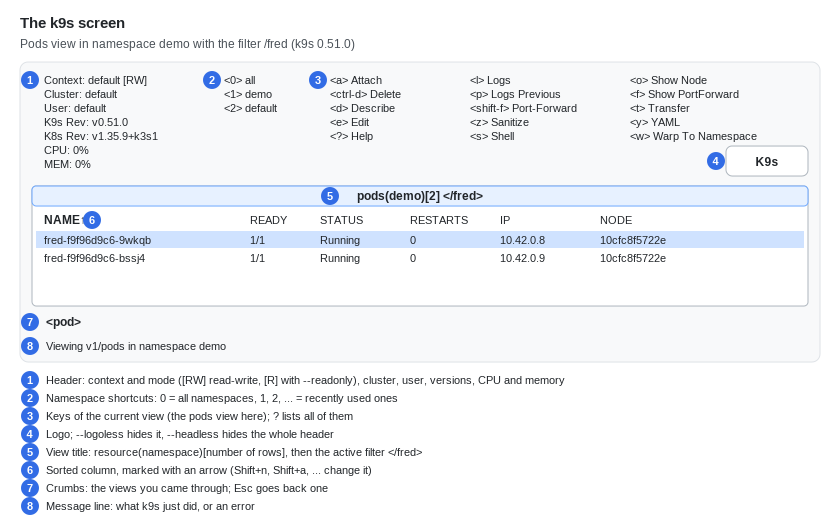
k9s is a terminal UI for Kubernetes: launch flags, resource commands, keys for pods and logs, filters, namespaces, cluster views and configuration. Everything below was checked on k9s 0.51.0 against a k3s v1.35.9 cluster. Keys can differ between versions: ? in any view lists the keys that view really has.
Installation
Platform
Package Manager
Command
macOS / Linux
Homebrew
brew install k9s (or brew install derailed/k9s/k9s from the k9s tap)
Linux (Snap)
Snap
sudo snap install k9s --devmode
Arch Linux
pacman
sudo pacman -S k9s
Windows
winget / Scoop / Chocolatey
winget install k9s, scoop install k9s, choco install k9s
Go
go install
go install github.com/derailed/k9s@latest
Any
Binary
Download from GitHub Releases
Verify Installation
Launch & General
Command
Details
k9sStart k9s (current context)
k9s -n <namespace>Start in a specific namespace
k9s -AStart in all namespaces
k9s --context <ctx>Start with a specific kubeconfig context
k9s --kubeconfig <path>Use a specific kubeconfig file
k9s -c <resource>Start directly in a resource view (e.g. k9s -c pod)
k9s --readonlyRead-only mode: the header shows [R], and delete, edit, kill, shell and attach are gone
k9s --writeWrite mode, overriding readOnly in the config
k9s --headlessStart without the header
k9s --logolessStart without the logo
k9s --crumbslessStart without the crumbs
k9s --splashlessStart without the splash screen
k9s -r <seconds>Refresh rate (default 2)
k9s --screen-dump-dir <dir>Where Ctrl+s saves files
k9s infoShow the config, skins, logs and screen dump paths
:q / Ctrl+cQuit k9s
?Show help / keys of the current view
Ctrl+a / :aliasesShow all resource aliases (92 on a plain k3s cluster)
Navigation
Resource Commands
k9s accepts the singular, plural, short name or alias of any resource:
Command
Details
:podJump to Pods view
:pod ns-xView pods in namespace ns-x
:pod /fredView pods filtered by fred
:pod app=fred,env=devView pods matching labels app=fred and env=dev
:pod @ctx1View pods in context ctx1 (switches context)
-Repeat the last command
[ / ]Back / forward in command history
Core Resources
Command
Details
:podPods
:svcServices
:deployDeployments
:nsNamespaces
:nodeNodes
:secSecrets
:cmConfigMaps
:ingIngresses
:epEndpoints
:rsReplicaSets
Workloads
Command
Details
:cjCronJobs
:jobJobs
:dsDaemonSets
:stsStatefulSets
:rcReplicationControllers
Storage
Command
Details
:pvPersistentVolumes
:pvcPersistentVolumeClaims
:scStorageClasses
RBAC & Security
Command
Details
:saServiceAccounts
:rbRoleBindings
:crbClusterRoleBindings
:roleRoles
:crClusterRoles
:npNetworkPolicies
Scaling & Config
Command
Details
:hpaHorizontalPodAutoscalers
:eventsEvents
:limitsLimitRanges
:quotaResourceQuotas
Custom Resources
Command
Details
:crdCustomResourceDefinitions
:<crd-short-name>Any custom resource by its short name or full name
Pod Keys
The keys of the pods view, from its ? help:
Key
Details
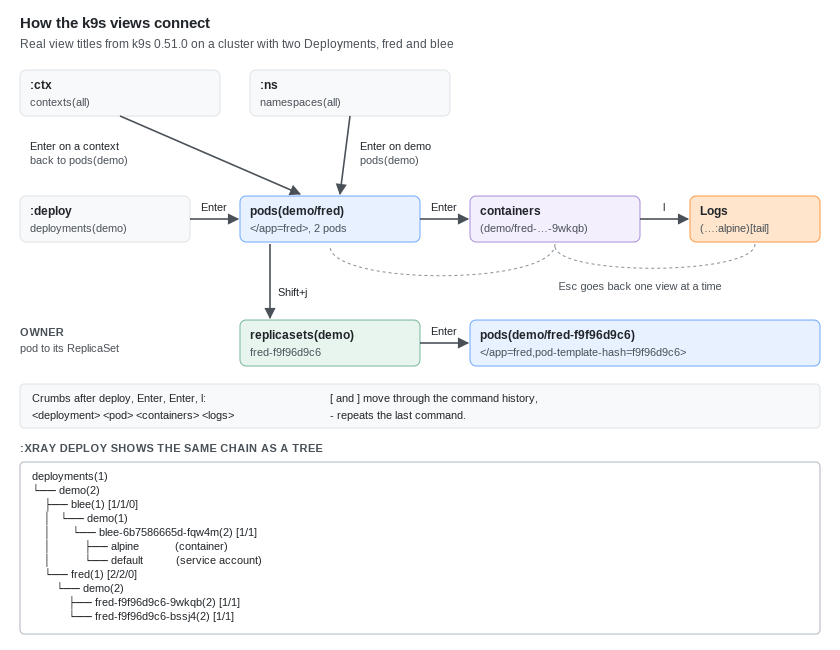
EnterView the pod’s containers
dDescribe
yYAML
eEdit (opens in $EDITOR)
Ctrl+dDelete: a dialog with Propagation, Force, and Cancel / OK
Ctrl+kKill the pod at once, no confirmation
lLogs
pLogs of the previous container instance
sShell into a container
aAttach to a container
Shift+fPort-forward
fShow the port-forward of the pod
Shift+jJump to the owner (ReplicaSet, Job, …)
oShow the node the pod runs on
tTransfer files (copy to or from a container)
iSet image
wWarp to the pod’s namespace
zSanitize (remove completed and failed pods)
c / nCopy the name / copy the namespace
Ctrl+zShow only pods with problems (toggle faults)
Ctrl+rRefresh
Ctrl+sSave the table as CSV (in the screen dump directory)
SpaceMark a row (actions apply to all marked rows)
Ctrl+s in a YAML view saves the YAML instead (demo-blee-…--yaml). :screendump (:sd) lists the saved files.
Logs View
Key
Details
0Tail (follow the log)
1Head (from the start)
2Last 1 minute
3Last 5 minutes
4Last 15 minutes
5Last 30 minutes
6Last 1 hour
tToggle timestamps
wToggle line wrap
sToggle auto-scroll
fToggle fullscreen
Shift+lToggle column lock
cCopy
mMark a line
Shift+cClear the view
Ctrl+sSave the logs to a file
Esc / qBack to the previous view
The status line shows the current state: Autoscroll:On ColumnLock:Off FullScreen:Off Timestamps:Off Wrap:Off.
Filtering & Searching
Key
Details
/Filter by name (regex, e.g. fred\|blee)
/!<term>Inverse filter (exclude matches)
/-l <label>=<value>Filter by label selector
/-f <term>Fuzzy find (/-f frd finds fred)
EscClear the filter
Sorting & Display
Key
Details
Shift+n / Shift+a / Shift+sSort by name / age / status (pods)
Shift+→ / Shift+← then Shift+oSelect a column, then sort by it
Ctrl+eToggle the header
Ctrl+gToggle the crumbs
Ctrl+wToggle wide view
Namespace
Key
Details
:nsNamespaces view
0All namespaces
1, 2, …Recently used namespaces, shown at the top left (<1> demo, <2> default)
Cluster Views
Command
Details
:pulse / :puCluster pulse (overview dashboard)
:xray <resource> [namespace]Resource tree, e.g. :xray deploy, :xray svc ns-x, :xray po
:popeye is gone: k9s 0.51.0 answers Ruroh? `popeye` command not found. Run the Popeye CLI on its own instead.
Context & Cluster
Key
Details
:ctxContexts view
:ctx <context-name>Switch directly to a context
:screendump / :sdSaved files (Ctrl+s)
:aliasesAll resource aliases
:dir <path>Browse a directory
Configuration
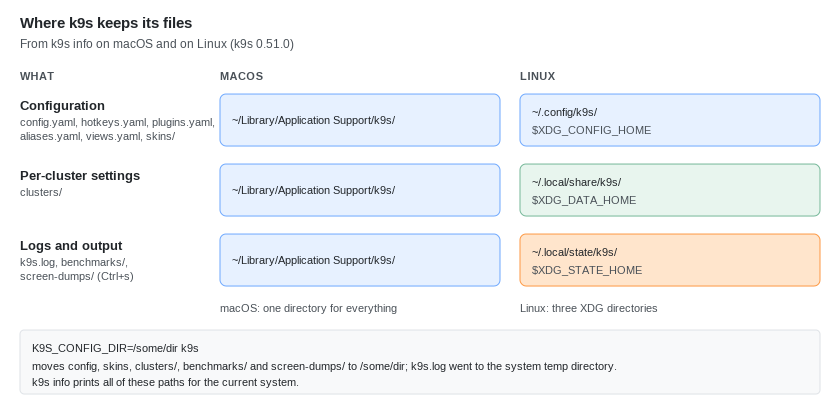
k9s info shows the paths on your system:
File
macOS
Linux
config.yaml, hotkeys.yaml, plugins.yaml, aliases.yaml, views.yaml~/Library/Application Support/k9s/~/.config/k9s/ ($XDG_CONFIG_HOME/k9s)
skins/~/Library/Application Support/k9s/skins/~/.config/k9s/skins/
clusters/ (per-context settings)~/Library/Application Support/k9s/clusters/~/.local/share/k9s/clusters/ ($XDG_DATA_HOME)
k9s.log, benchmarks/, screen-dumps/~/Library/Application Support/k9s/~/.local/state/k9s/ ($XDG_STATE_HOME)
K9S_CONFIG_DIR moves the configuration (including skins and screen dumps, but not the log) to another directory, which is handy for testing a config without touching your own.
File
Details
config.yamlMain k9s configuration
skins/Skin (theme) files
hotkeys.yamlCustom hotkeys
plugins.yamlPlugin definitions
aliases.yamlCustom resource aliases
views.yamlCustom columns per resource
Custom Hotkeys Example
hotkeys.yaml in the config directory:
hotKeys :
shift-1 :
shortCut : Shift-1
description : View pods
command : pods
shift-2 :
shortCut : Shift-2
description : View deployments
command : deploy
shift-3 :
shortCut : Shift-3
description : View services
command : svc
Shift+1 then opens the pods view and Shift+2 the deployments view from anywhere.
Custom Alias Example
aliases.yaml in the config directory:
aliases :
pp : v1/pods
dd : apps/v1/deployments
ss : v1/services
:dd then opens deployments and :ss services.
Themes / Skins
k9s supports color themes via skin files. The community skins are in k9s/skins .
Setup
Step
Details
Find the skins directory
k9s info, line Skins
Download a skin
Copy a .yaml skin file into that directory
Activate it
Set skin in config.yaml (below)
Apply
Restart k9s
# config.yaml
k9s :
ui :
skin : dracula
With skins/dracula.yaml in place, the k9s log shows Loading global skin skin=dracula at startup.
# macOS
SKINS_DIR = " $HOME /Library/Application Support/k9s/skins"
# Linux
SKINS_DIR = " $HOME /.config/k9s/skins"
mkdir -p " $SKINS_DIR " && curl -sL "https://api.github.com/repos/derailed/k9s/contents/skins" | grep '"download_url"' | cut -d '"' -f 4 | while read url; do curl -sL -o " $SKINS_DIR / $( basename " $url " ) " " $url " ; done
Popular Skins
Skin
Description
draculaDark theme based on the Dracula palette
monokaiMonokai-inspired dark theme
gruvbox-darkRetro groove dark color scheme
gruvbox-lightRetro groove light color scheme
nordArctic, north-bluish palette
one-darkAtom One Dark inspired theme
solarized-darkSolarized dark
solarized-lightSolarized light
rose-pineRosé Pine dark theme (also rose-pine-moon, rose-pine-dawn)
kanagawaTheme inspired by Hokusai’s wave painting
everforest-darkGreen-based, low-contrast dark theme
transparentTransparent background (uses the terminal’s colors)
The repository has 44 skins; the API call above lists them all.
Tips
Tip
Details
?List the keys of the current view (Esc to close)
:xray deployDeployment tree (ReplicaSets, Pods, containers)
:pulseQuick cluster overview
Ctrl+aAll available resource aliases
0All namespaces; 1, 2, … the recent ones
Shift+jFrom a pod to its owner
Ctrl+zOnly the pods with problems
Ctrl+sSave a table (CSV) or a YAML view to the screen dump directory
k9s --readonlySafe browsing: no delete, edit, kill or shell
Plugins
Extend k9s with custom commands via plugins.yaml
Resources