Amazon EC2 Billing and Purchasing Options: On-Demand, Savings Plans, Reserved Instances, Spot, Dedicated and Capacity Reservations
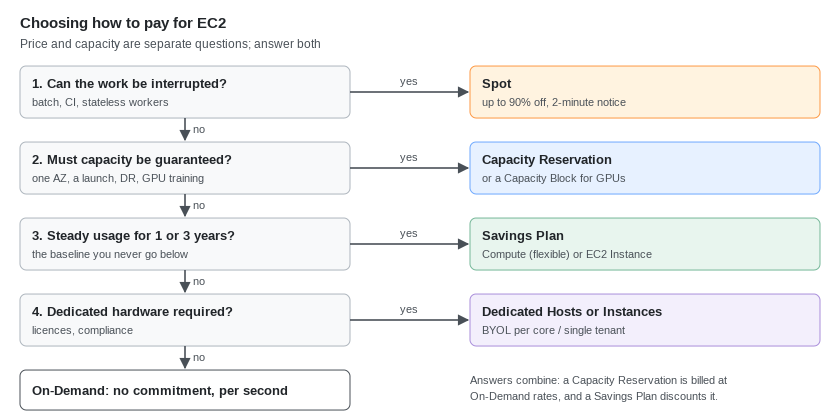
You can pay for the same EC2 instance in seven ways. They answer two different questions, and mixing them up is the usual mistake:
- How much do I pay? On-Demand, Savings Plans, Reserved Instances and Spot change the price.
- Will the capacity be there? Capacity Reservations, zonal Reserved Instances and Capacity Blocks hold capacity. Only zonal Reserved Instances do both.
- Dedicated Hosts and Dedicated Instances are about isolation and licences, not price.
This article puts real prices for one instance type side by side, explains how EC2 counts the seconds, which discount applies first, and gives the commands for each option. The facts come from the Amazon EC2 User Guide, the Savings Plans User Guide and the EC2 pricing pages; the prices are from the AWS Price List files published on 4 November 2026. The commands were checked with AWS CLI 2.39.3. IDs and account numbers are placeholders.
1. The Short Version
| Option | You commit to | Discount vs On-Demand | Holds capacity? | Can be interrupted? | Best for |
|---|---|---|---|---|---|
| On-Demand | Nothing | – | No | No | Short, irregular, unpredictable workloads |
| Compute Savings Plan | $/hour for 1 or 3 years, any family, size, Region, OS, tenancy; also Fargate and Lambda | Up to 66% | No | No | Steady spend that may change shape |
| EC2 Instance Savings Plan | $/hour for 1 or 3 years, one family in one Region | Up to 72% | No | No | Steady use of one family |
| Reserved Instance (regional) | An instance type, Region, OS and tenancy for 1 or 3 years | Up to 72% (same as EC2 Instance SP) | No | No | Legacy commitments; AWS now recommends Savings Plans |
| Reserved Instance (zonal) | Same, in one Availability Zone | Same price | Yes, in that AZ | No | Discount and capacity together |
| Spot | Nothing | Up to 90%, varies | No | Yes, 2-minute notice | Fault-tolerant, flexible work |
| Dedicated Instances | Nothing (or RIs/SPs on top) | None: costs more, plus a Region fee | No | No | Single-tenant hardware for compliance |
| Dedicated Hosts | A whole physical server, per host | Host Reservations or Savings Plans | The host is yours | No | Per-socket, per-core or per-VM licences (BYOL) |
| Capacity Reservation | Nothing (future-dated ones have a minimum term) | None, but Savings Plans and regional RIs apply | Yes, in one AZ | No | Capacity you must have: launches, DR, events |
| Capacity Blocks for ML | A fixed block of GPU instances, paid upfront | Price set by supply and demand | Yes, for 1 day to weeks | Ends at the block’s end time | GPU training and experiments |
2. How EC2 Counts Time
- Per second, 60-second minimum for Amazon Linux, Windows (with or without SQL Server), RHEL, Ubuntu and Ubuntu Pro, in all Regions, for every purchasing option. SUSE Linux Enterprise Server is billed per full hour.
- You pay only in the
runningstate.pending,stopping,stopped,shutting-downandterminatedare not billed, with one exception: a hibernating instance is billed while it isstopping. - Every start counts again: each stop and start begins a new 60-second minimum.
- Still billed when the instance is stopped: EBS volumes (including the RAM image of a hibernated instance), Elastic IP and public IPv4 addresses, snapshots. A stopped instance is not free.
- Still billed when the instance is terminated: Reserved Instances and Savings Plans run to the end of their term, used or not.
- Quotas are in vCPUs, not instances: a new account can run 5 vCPUs of Standard (A, C, D, H, I, M, R, T, Z) On-Demand instances per Region by default, and 0 for P, G, Trn and the other accelerated families. Capacity Reservations count against this quota even when unused.
3. Real Prices, One Instance Type
m7i.large (2 vCPUs, 8 GiB), Linux, shared tenancy, eu-west-1, from the EC2 and Savings Plans price list files of 4 November 2026. The effective hourly
rate spreads any upfront payment over the term (8,760 hours a year), and “per month” is 730 hours:
| How you pay | Effective $/hour | Per month | Saving |
|---|---|---|---|
| On-Demand | $0.11235 | $82.02 | – |
| Compute Savings Plan, 1 year, No Upfront | $0.08528 | $62.25 | 24.1% |
| Compute Savings Plan, 1 year, All Upfront | $0.07960 | $58.11 | 29.1% |
| EC2 Instance Savings Plan or Standard RI, 1 year, No Upfront | $0.07432 | $54.25 | 33.8% |
| EC2 Instance Savings Plan, 1 year, All Upfront | $0.06936 | $50.63 | 38.3% |
| Compute Savings Plan, 3 years, All Upfront | $0.05356 | $39.10 | 52.3% |
| EC2 Instance Savings Plan or Standard RI, 3 years, No Upfront | $0.05096 | $37.20 | 54.6% |
| EC2 Instance Savings Plan, 3 years, All Upfront | $0.04436 | $32.38 | 60.5% |
| Spot, lowest in the Region at 08:27 on 4 Nov 2026 | $0.0674 | $49.20 | 40.0% |
| Dedicated Instance, On-Demand | $0.12359 | $90.22 | +10%, plus $2/hour per Region |
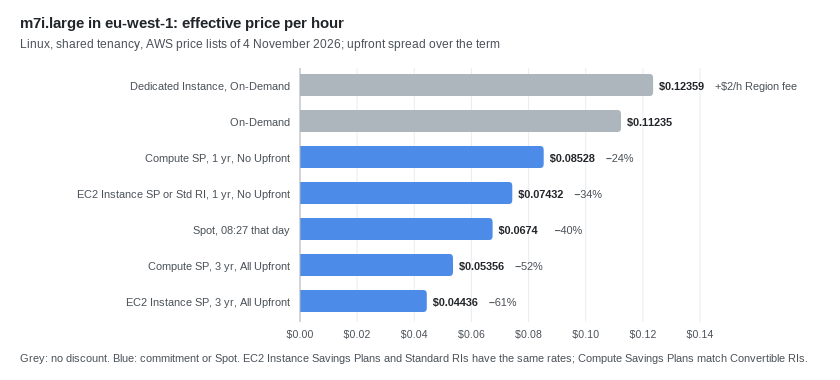
What the numbers show:
- The two commitment products cost the same. EC2 Instance Savings Plans match Standard RIs to the cent ($0.07432 both, 1 year No Upfront), and Compute Savings Plans match Convertible RIs ($0.08528 both). What differs is flexibility: a Savings Plan follows your usage across sizes (and, for Compute, families and Regions); an RI is tied to its attributes.
- Upfront buys a few points: 33.8% to 38.3% over one year, 54.6% to 60.5% over three.
- Three years roughly doubles the discount of one year, which is why the 3-year plans need the most confidence in your forecast.
- Spot was cheaper than a 1-year plan that morning, but it is a moving price: the Spot Instance Advisor listed
m7i.largein eu-west-1 at about 40% savings with an interruption frequency above 20%, its highest band. - The 72% and 90% headlines are maximums across all types and Regions. For a general-purpose type like this one, expect the figures above.
The Processor and the OS Move the Price Too
Before choosing how to pay, check what you run. Same file, same Region, On-Demand, shared tenancy:
m7i.large (Intel) |
m7g.large (Graviton) |
|
|---|---|---|
| Linux | $0.11235 ($82.02 a month) | $0.0910 ($66.43), 19% less |
| Ubuntu Pro | $0.11585 ($84.57) | $0.0945 ($68.98) |
| RHEL | $0.14115 ($103.04) | $0.1198 ($87.45) |
| SUSE | $0.16865 ($123.11) | $0.1473 ($107.53) |
| RHEL with HA | $0.17615 ($128.59) | $0.1548 ($113.00) |
| Windows (licence included) | $0.20435 ($149.18) | Not available |
- Graviton is the cheapest change you can make if the software runs on Arm64: 19% off before any commitment, and the Savings Plans and Spot discounts apply on top. Containers need multi-architecture images; interpreted languages usually just work.
- The OS licence is part of the hourly rate. Windows costs 82% more than Linux on the same hardware, SUSE 50%, RHEL 26%. Bring-your-own-licence Windows is billed at the Linux rate ($0.11235) and needs dedicated hardware (section 8).
To get the same numbers for your type, stream the Region’s price list file (about 280 MB of CSV) and keep only its rows:
curl -s https://pricing.us-east-1.amazonaws.com/offers/v1.0/aws/AmazonEC2/current/eu-west-1/index.csv \
  | awk 'NR<=6 || /"m7i\.large"/' > ec2-eu-west-1-m7i.large.csv
Or ask the Price List API (its endpoint is in us-east-1, whatever Region you price):
aws pricing get-products --region us-east-1 --service-code AmazonEC2 --filters \
  Type=TERM_MATCH,Field=instanceType,Value=m7i.large Type=TERM_MATCH,Field=regionCode,Value=eu-west-1 \
  Type=TERM_MATCH,Field=operatingSystem,Value=Linux Type=TERM_MATCH,Field=tenancy,Value=Shared \
  Type=TERM_MATCH,Field=preInstalledSw,Value=NA Type=TERM_MATCH,Field=capacitystatus,Value=Used
4. On-Demand
No commitment, a fixed price per second, and you decide when the instance starts and stops. It is the default and the reference every discount is measured against. Use it for short or unpredictable work, for the part of a steady workload above your commitments, and while you learn what your baseline is.
If capacity is not available when you launch, you get an insufficient capacity error: On-Demand is a price, not a promise of capacity.
5. Savings Plans
You commit to a dollar amount per hour (for example $10/hour) for 1 or 3 years. Every hour, eligible usage up to that amount is billed at the plan’s lower rates; usage above it is On-Demand.
| Compute Savings Plan | EC2 Instance Savings Plan | |
|---|---|---|
| Discount | Up to 66% | Up to 72% |
| Applies to | Any EC2 family, size, AZ, Region, OS, tenancy; Fargate and Lambda | One instance family in one Region, any size, OS and tenancy |
| You can change | Anything: m7i in Ireland today, c8g in Frankfurt tomorrow, or Fargate | Size, OS and tenancy within the family |
- Payment: All Upfront, Partial Upfront or No Upfront. A year is 365 days, three years 1,095 days.
- Use it or lose it, per hour. An hour’s commitment covers only that hour; unused commitment is not carried over.
- The commitment cannot be changed after purchase. You can buy more plans as usage grows.
- Not for Spot. Spot usage gets no extra discount and does not consume your Compute Savings Plan commitment.
- Not for the Dedicated Instance fee of $2/hour per Region, though the Dedicated Instances themselves are covered.
- Also covers the EC2 instances behind EMR, EKS and ECS (not the EKS cluster fee).
# What AWS would recommend, from the last 30 days of your usage
aws ce get-savings-plans-purchase-recommendation --savings-plans-type COMPUTE_SP --term-in-years ONE_YEAR \
  --payment-option NO_UPFRONT --lookback-period-in-days THIRTY_DAYS

# The rates for one instance type
aws savingsplans describe-savings-plans-offering-rates --savings-plan-types Compute --products EC2 \
  --filters name=instanceType,values=m7i.large name=region,values=eu-west-1 \
            name=productDescription,values=Linux/UNIX name=tenancy,values=shared

# Your plans, and how well they are used
aws savingsplans describe-savings-plans --states active
aws ce get-savings-plans-utilization --time-period Start=2026-10-01,End=2026-11-01
aws ce get-savings-plans-coverage --time-period Start=2026-10-01,End=2026-11-01 --granularity MONTHLY
Utilization tells you how much of the commitment you used (below 100% means you bought too much); coverage tells you how much of your eligible usage the plans covered (low coverage means room for another plan).
Returning a Savings Plan
A plan with an hourly commitment of $100 or less, bought in the last 7 days and in the same calendar month (UTC), can be returned for a full refund of any upfront payment; the usage it covered is billed On-Demand instead. After the month ends, it is yours for the term.
aws savingsplans describe-savings-plans --states active \
  --query 'savingsPlans[].[savingsPlanId,savingsPlanType,commitment,start]' --output text
aws savingsplans return-savings-plan --savings-plan-id <savings-plan-id>
The console shows Return Savings Plan only when a plan qualifies, and the number of returns per account is limited.
6. Reserved Instances
A Reserved Instance is not an instance: it is a billing discount applied to running instances that match its instance type, Region, tenancy and platform. AWS now recommends Savings Plans over RIs for the discount, but RIs still matter for two things: the RI Marketplace and zonal capacity.
| Regional RI | Zonal RI | |
|---|---|---|
| Reserves capacity | No | Yes, in the chosen AZ |
| AZ flexibility | Any AZ in the Region | That AZ only |
| Size flexibility | Any size in the family (Linux/Unix, default tenancy only) | That exact size only |
| Queue a future purchase | Yes | No |
| Price | Same | Same |
| Standard | Convertible | |
|---|---|---|
| Discount | Bigger | Smaller |
| Change it | Modify only (AZ, scope, size within the family) | Modify, or exchange for another Convertible RI with different attributes |
| Sell on the RI Marketplace | Yes | No |
- Payment: All Upfront (no hourly charge), Partial Upfront (upfront plus a lower hourly rate) or No Upfront (hourly for the whole term; needs a billing history). Partial and No Upfront are charged every hour of the term, whether or not a matching instance runs.
- You cannot cancel a purchase. You can modify, exchange (Convertible) or sell it (Standard).
- RIs do not renew. When the term ends, the same instance keeps running at On-Demand rates.
# Offerings for one type: 1 year (31,536,000 seconds), Standard, No Upfront
aws ec2 describe-reserved-instances-offerings --instance-type m7i.large --product-description "Linux/UNIX" \
  --offering-class standard --offering-type "No Upfront" --instance-tenancy default \
  --filters Name=duration,Values=31536000 \
  --query 'ReservedInstancesOfferings[].[ReservedInstancesOfferingId,Duration,FixedPrice,RecurringCharges[0].Amount,Scope]' --output text

# Buy (this is a commitment: it starts billing immediately and cannot be cancelled)
aws ec2 purchase-reserved-instances-offering --reserved-instances-offering-id <offering-id> --instance-count 2

# What you own, and when it ends
aws ec2 describe-reserved-instances --filters Name=state,Values=active \
  --query 'ReservedInstances[].[InstanceType,InstanceCount,Scope,OfferingClass,End]' --output table

# What Cost Explorer would buy
aws ce get-reservation-purchase-recommendation --service "Amazon Elastic Compute Cloud - Compute" \
  --term-in-years ONE_YEAR --payment-option NO_UPFRONT --lookback-period-in-days SIXTY_DAYS
Exchanging and Selling
You cannot cancel an RI, but you have two ways out.
Exchange a Convertible RI for another Convertible RI with a different family, OS, tenancy or payment option, in the same Region. The new one must be worth the same or more (upfront plus the remaining hourly payments); you pay the difference (the true-up), and the end date stays the same. Ask for a quote first, then accept it with the same arguments:
aws ec2 get-reserved-instances-exchange-quote --reserved-instance-ids <ri-id> \
  --target-configurations OfferingId=<convertible-offering-id>,InstanceCount=2 \
  --query '[IsValidExchange,PaymentDue,CurrencyCode,OutputReservedInstancesWillExpireAt,ValidationFailureReason]' --output text
aws ec2 accept-reserved-instances-exchange-quote --reserved-instance-ids <ri-id> \
  --target-configurations OfferingId=<convertible-offering-id>,InstanceCount=2
The RI must be active, not in another exchange, and have at least 24 hours left. Several RIs can go into one exchange; the result is always one RI.
Sell a Standard RI on the Reserved Instance Marketplace. You set only the upfront price (by months left); AWS keeps a 12% fee of it:
aws ec2 create-reserved-instances-listing --reserved-instances-id <ri-id> --instance-count 1 \
  --price-schedules CurrencyCode=USD,Price=300,Term=10 CurrencyCode=USD,Price=150,Term=5 \
  --client-token "$(date +%s)"
aws ec2 describe-reserved-instances-listings --query 'ReservedInstancesListings[].[ReservedInstancesListingId,Status,StatusMessage]' --output text
aws ec2 cancel-reserved-instances-listing --reserved-instances-listing-id <listing-id>
- You must register as a seller with a US bank account, and the RI must have been active for 30 days with at least one month left.
- Convertible RIs, RIs bought with a volume discount and RIs of other services cannot be sold.
- The price schedule lowers the price as the term runs out: here $300 from 10 months left down to 6, then $150 for the last 5.
- The listing cannot be edited; cancel it and list again. You keep the discount until a buyer takes it.
7. Spot Instances
Spot Instances run on spare EC2 capacity at a price that EC2 sets per instance type and AZ (a Spot capacity pool) and changes gradually with long-term supply and demand. There is no bidding: you pay the current Spot price. The catch is that EC2 can take the instance back when it needs the capacity.
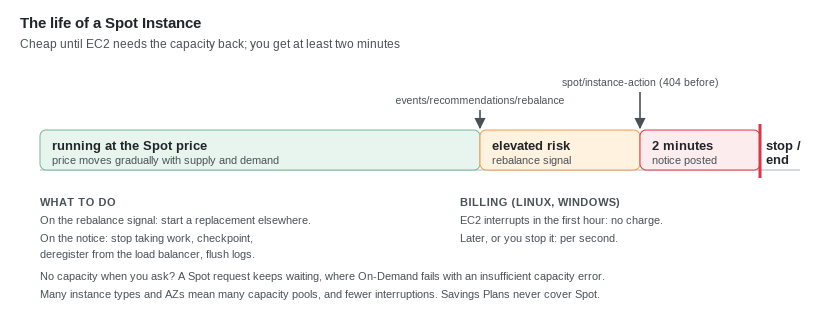
- Interruption notice: two minutes before EC2 stops, hibernates or terminates the instance. A rebalance recommendation can come earlier, when the instance is at elevated risk.
- Billing when interrupted (Linux and Windows): if EC2 interrupts in the first hour, no charge; after that, per second. If you stop or terminate it, per second as usual. SUSE is billed in full hours, except the hour EC2 interrupts.
- No capacity, no error: a Spot request keeps trying until capacity appears, where On-Demand would fail with an insufficient capacity error.
- Diversify: many instance types and AZs mean many pools, so fewer interruptions. Auto Scaling groups and EC2 Fleet can mix types and On-Demand.
# Spot price history for one type over the last day
aws ec2 describe-spot-price-history --instance-types m7i.large --product-descriptions "Linux/UNIX" \
  --start-time 2026-11-03T00:00:00Z --query 'SpotPriceHistory[].[AvailabilityZone,SpotPrice,Timestamp]' --output text

# Where are you most likely to get 10 instances? (scores from 1 to 10)
aws ec2 get-spot-placement-scores --instance-types m7i.large m6i.large m7a.large --target-capacity 10 \
  --region-names eu-west-1 eu-central-1 --single-availability-zone

# Launch one Spot Instance
aws ec2 run-instances --image-id <ami-id> --instance-type m7i.large \
  --instance-market-options 'MarketType=spot,SpotOptions={SpotInstanceType=one-time,InstanceInterruptionBehavior=terminate}'
Inside the instance, the notice appears in the Instance Metadata Service. Until an interruption is scheduled spot/instance-action returns 404; then:
$ curl -s -H "X-aws-ec2-metadata-token: $TOKEN" http://169.254.169.254/latest/meta-data/spot/instance-action
{
	"action": "terminate",
	"time": "2026-11-04T06:31:56Z"
}
$ curl -s -H "X-aws-ec2-metadata-token: $TOKEN" http://169.254.169.254/latest/meta-data/events/recommendations/rebalance
{
	"noticeTime": "2026-11-04T06:29:56Z"
}
A small watcher that drains the instance when the notice arrives:
#!/bin/bash
# spot-watch.sh: poll for the two-minute Spot interruption notice, then drain
IMDS=${IMDS:-http://169.254.169.254}
while true; do
  TOKEN=$(curl -s -X PUT "$IMDS/latest/api/token" -H "X-aws-ec2-metadata-token-ttl-seconds: 300")
  code=$(curl -s -o /tmp/action.json -w "%{http_code}" \
    -H "X-aws-ec2-metadata-token: $TOKEN" "$IMDS/latest/meta-data/spot/instance-action")
  if [ "$code" = 200 ]; then                 # 404 until an interruption is scheduled
    echo "interruption: $(tr -d " \n\t" < /tmp/action.json)"
    systemctl stop my-worker 2>/dev/null || true   # stop taking work, checkpoint, deregister
    break
  fi
  sleep 5
done
interruption: {"action":"terminate","time":"2026-11-04T06:32:09Z"}
In practice an EventBridge rule on EC2 Spot Instance Interruption Warning, the Auto Scaling capacity rebalancing feature or the Kubernetes node termination
handler does the same job for a fleet.
8. Dedicated Instances and Dedicated Hosts
Both run your instances on hardware that no other AWS account uses. There is no performance or security difference between them; the difference is control and licensing.
| Dedicated Instances | Dedicated Hosts | |
|---|---|---|
| Billing | Per instance, at a higher rate than shared tenancy, plus $2/hour per Region while at least one runs | Per host, whatever runs on it |
| Visibility of sockets and cores | No | Yes |
| Host affinity, targeted placement | No | Yes |
| BYOL | Partial (SQL Server with License Mobility, Windows VDA) | Full: per-socket, per-core or per-VM licences |
| Capacity Reservations | Supported | Not supported |
| Discounts | RIs, Savings Plans (not the $2 fee) | Host Reservations, Savings Plans |
# A Dedicated Instance in a default-tenancy VPC
aws ec2 run-instances --image-id <ami-id> --instance-type m7i.large --placement Tenancy=dedicated

# A Dedicated Host for the m7i family, and an instance on it
aws ec2 allocate-hosts --instance-family m7i --availability-zone eu-west-1a --quantity 1 --auto-placement on
aws ec2 run-instances --image-id <ami-id> --instance-type m7i.large --placement Tenancy=host,HostId=<host-id>
Dedicated Hosts have no Free Tier, do not run RDS, cannot go into placement groups, and need your own AMIs for RHEL and SUSE.
9. Capacity Reservations
An On-Demand Capacity Reservation holds capacity for a number of instances of one type, platform and tenancy in one AZ. It is billed at the On-Demand rate from the moment it is provisioned, used or not: reserve 20, run 15, and you pay for 15 instances and 5 unused reservations. Running an instance in it costs nothing extra.
- Per second, 60-second minimum. No commitment for immediate reservations; future-dated ones have a minimum duration and a cancellation charge.
- Savings Plans and regional RIs apply to it, first to the running instances and then to the unused part. Zonal RIs do not.
- It counts against your On-Demand vCPU quota even when empty.
- It is the only way to reserve capacity in a cluster placement group.
aws ec2 create-capacity-reservation --instance-type m7i.large --instance-platform Linux/UNIX \
  --availability-zone eu-west-1a --instance-count 5 --end-date-type limited --end-date 2026-12-31T23:59:59Z

aws ec2 describe-capacity-reservations \
  --query 'CapacityReservations[].[CapacityReservationId,InstanceType,TotalInstanceCount,AvailableInstanceCount,State]' --output table
Watch AvailableInstanceCount: anything above 0 is capacity you pay for and do not use.
10. Capacity Blocks for ML
A Capacity Block reserves GPU instances (P5, P6, Trn and others) for a fixed period that starts on a future date, up to 8 weeks ahead. The instances are placed close together in an EC2 UltraCluster, so you get the low-latency network without a cluster placement group.
- Up to 64 instances per block, 256 across blocks (and 256 per day across an Organization).
- Paid upfront, at a price that depends on supply and demand when you buy; the price does not change afterwards. While running you pay only for a premium OS.
- Savings Plans and RI discounts do not apply. Cancellations are not allowed.
- A block ends at 11:30 UTC, and EC2 starts terminating its instances at 11:00 UTC on the last day: checkpoint before that.
- Launches must target the block’s reservation ID.
aws ec2 describe-capacity-block-offerings --instance-type p5.48xlarge --instance-count 4 --capacity-duration-hours 48
aws ec2 purchase-capacity-block --capacity-block-offering-id <offering-id> --instance-platform Linux/UNIX
11. Which Discount Applies First
All discounts are applied every hour, automatically, in this order:
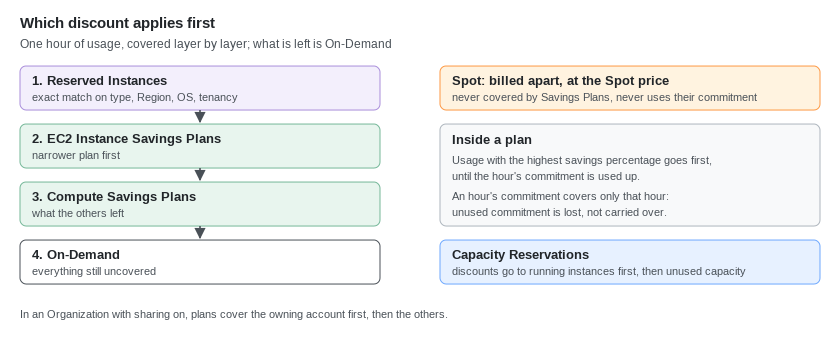
- Reserved Instances that match the usage.
- EC2 Instance Savings Plans, then Compute Savings Plans (the narrower plan first).
- Inside a plan, the usage with the highest savings percentage first, until the hour’s commitment is used up.
- The rest at On-Demand rates.
In an AWS Organization with sharing turned on, plans cover the owning account’s usage first, then the other accounts’.
Two consequences: a Compute Savings Plan bought on top of RIs only covers what the RIs leave; and a Savings Plan applies to the instances with the deepest discount first, which may not be the ones you had in mind.
12. Putting It Together
A common shape for a steady production workload:
| Layer | What it covers | Option |
|---|---|---|
| Baseline that runs all year | The minimum you are sure of | Compute Savings Plan, or an EC2 Instance Savings Plan if the family will not change |
| Capacity you must not lose | A launch, a DR site, a cluster group | Capacity Reservation, with the Savings Plan discount on top |
| Daily peaks | Scaling above the baseline | On-Demand, or Spot where the work can be interrupted |
| Batch, CI, analytics | Anything that can restart | Spot, diversified across types and AZs |
Commit to the lowest usage you see over the last months, not the average: an unused commitment is pure loss, while usage above it costs only the On-Demand difference. Buy in steps and watch utilization.
13. Costs Around the Instance
The instance price is rarely the whole bill. Three charges that come with it, with eu-west-1 prices from the same price list files:
| Charge | Price | Per month |
|---|---|---|
| Public IPv4 address, in use or idle (Elastic IP or auto-assigned) | $0.005 per hour | $3.65 per address |
| Data between AZs in the Region (and over public or Elastic IPs inside it) | $0.01 per GB in each direction | 1 TB across AZs: $20.48 |
| Data out to the internet | First 100 GB a month free (all Regions together), then $0.09 per GB for the next 10 TB | 1 TB: $83.16 |
| NAT gateway | $0.048 per hour, plus $0.048 per GB processed | $35.04 per gateway before data |
| T-instance surplus CPU credits (Linux) | $0.05 per vCPU-hour (t4g: $0.04, Windows T3: $0.096) | See below |
# Every public IPv4 address in the Region, and what it is attached to
aws ec2 describe-network-interfaces --filters Name=association.public-ip,Values='*' \
  --query 'NetworkInterfaces[].[Association.PublicIp,InterfaceType,Attachment.InstanceId,Description]' --output text
Data inside one AZ over private addresses is free, so chatty services (a database and its clients, Kafka brokers and consumers) cost less in one AZ, traded against availability.
T Instances in Unlimited Mode
T3, T3a and T4g instances start in unlimited mode. Each one earns CPU credits at its baseline (10% of each vCPU for a t3.micro); if the average
CPU stays above the baseline, the extra is billed as surplus credits, with no throttling to warn you. A t3.micro (2 vCPUs, $0.0114 an hour) at 100%
all month:
| vCPU-hours | Cost | |
|---|---|---|
| Instance, 730 hours | $8.32 | |
| Surplus: 2 vCPUs − 0.2 baseline = 1.8 vCPU-hours each hour × 730 | 1,314 | $65.70 |
| Total | $74.02, almost the $82.02 of an m7i.large that does not throttle |
# Which mode each T instance is in, and switch one to standard (throttled, never surplus charges)
aws ec2 describe-instance-credit-specifications --instance-ids <instance-id>
aws ec2 modify-instance-credit-specification --instance-credit-specifications InstanceId=<instance-id>,CpuCredits=standard

# Default for new instances of a family in this Region
aws ec2 modify-default-credit-specification --instance-family t3 --cpu-credits standard
Watch the CloudWatch metric CPUSurplusCreditsCharged: anything above zero means a T instance that should be a bigger T or an M.
14. Watching the Bill
# EC2 cost last month by purchase type (On-Demand, Savings Plans, Spot, Reserved)
aws ce get-cost-and-usage --time-period Start=2026-10-01,End=2026-11-01 --granularity MONTHLY \
  --metrics UnblendedCost --group-by Type=DIMENSION,Key=PURCHASE_TYPE \
  --filter '{"Dimensions": {"Key": "SERVICE", "Values": ["Amazon Elastic Compute Cloud - Compute"]}}'

# A monthly budget that emails when the forecast passes 100% or actual spend passes 80%
aws budgets create-budget --account-id 123456789012 \
  --budget file://budget.json --notifications-with-subscribers file://notifications.json

# Anomaly detection per service, a daily email for anomalies of $100 or more
aws ce create-anomaly-monitor --anomaly-monitor \
  '{"MonitorName": "per-service", "MonitorType": "DIMENSIONAL", "MonitorDimension": "SERVICE"}'
aws ce create-anomaly-subscription --anomaly-subscription '{
  "SubscriptionName": "daily-100",
  "MonitorArnList": ["<monitor-arn>"],
  "Subscribers": [{"Type": "EMAIL", "Address": "ops@example.com"}],
  "Frequency": "DAILY",
  "ThresholdExpression": {"Dimensions": {"Key": "ANOMALY_TOTAL_IMPACT_ABSOLUTE", "Values": ["100"], "MatchOptions": ["GREATER_THAN_OR_EQUAL"]}}
}'

# Right-sizing: opt in once, then read the findings (after about 30 hours of metrics)
aws compute-optimizer update-enrollment-status --status Active
aws compute-optimizer get-ec2-instance-recommendations \
  --query 'instanceRecommendations[].[instanceArn,currentInstanceType,finding,recommendationOptions[0].instanceType]' --output text
budget.json and notifications.json:
{
  "BudgetName": "monthly-total",
  "BudgetLimit": {"Amount": "500", "Unit": "USD"},
  "TimeUnit": "MONTHLY",
  "BudgetType": "COST"
}
[
  {
    "Notification": {"NotificationType": "FORECASTED", "ComparisonOperator": "GREATER_THAN", "Threshold": 100, "ThresholdType": "PERCENTAGE"},
    "Subscribers": [{"SubscriptionType": "EMAIL", "Address": "ops@example.com"}]
  },
  {
    "Notification": {"NotificationType": "ACTUAL", "ComparisonOperator": "GREATER_THAN", "Threshold": 80, "ThresholdType": "PERCENTAGE"},
    "Subscribers": [{"SubscriptionType": "EMAIL", "Address": "ops@example.com"}]
  }
]
create-budget prints nothing when it succeeds; describe-budgets and describe-notifications-for-budget show it:
$ aws budgets describe-budgets --account-id 123456789012 --query 'Budgets[].[BudgetName,BudgetLimit.Amount,TimeUnit]' --output text
monthly-total	500	MONTHLY
$ aws budgets describe-notifications-for-budget --account-id 123456789012 --budget-name monthly-total \
    --query 'Notifications[].[NotificationType,Threshold]' --output text
FORECASTED	100
ACTUAL	80
- Cost Explorer data is refreshed at least once every 24 hours, and each paginated
ceAPI request costs $0.01. - The Compute Optimizer finding is a value such as
Overprovisioned,UnderprovisionedorOptimized; it also suggests Graviton types when they fit. - Tag instances (
team,env) and activate the tags as cost allocation tags in the Billing console, so you can group costs by them.
15. The Free Tier
What a new account gets depends on when it was created:
| Account created before 15 July 2025 | Account created on or after 15 July 2025 | |
|---|---|---|
| EC2 benefit | 750 hours a month of a micro instance | $100 credit at sign-up, up to $100 more for completing activities |
| Eligible types | t2.micro, t3.micro |
t3.micro, t3.small, t4g.micro, t4g.small, c7i-flex.large, m7i-flex.large |
| Duration | 12 months; usage above the limits is billed | Free plan: 6 months or until the credits run out; nothing is billed until you upgrade to a paid plan |
aws ec2 describe-instance-types --filters Name=free-tier-eligible,Values=true \
  --query "InstanceTypes[*].[InstanceType]" --output text | sort
Accounts in an AWS Organization do not get the Free Tier plan benefits. On a legacy account, anything above the limits (a second instance, a larger volume) is billed at normal rates, so a “free” instance can still produce a small bill.
16. Tips and Gotchas
- A stopped instance still costs its EBS volumes and any public IPv4 address. Terminate what you do not need, and delete orphan volumes and snapshots.
- Each start pays at least 60 seconds, and SUSE a full hour: avoid start/stop loops on SUSE.
- Capacity Reservations bill when empty. Set an end date, and alarm on unused capacity.
- Savings Plans and RIs bill when idle too, until the end of the term. Terminating the instances does not stop the charge.
- RIs do not renew. Track the
Enddates, or you quietly go back to On-Demand. - Spot is not covered by Savings Plans, and does not use up their commitment.
- Zonal RIs reserve capacity but cannot reserve it in a placement group; use a Capacity Reservation there.
- The Dedicated Instance fee is per Region, not per instance, and not discounted.
- Quotas are in vCPUs: a quota of 5 is two
m7i.largeinstances, not five. - Check the price for your own type and Region: the headline percentages are best cases.
- Try Graviton before committing: 19% off with no commitment, and the discounts stack on top.
- Unlimited T instances can cost as much as an M: watch
CPUSurplusCreditsCharged. - Every public IPv4 address costs $3.65 a month, attached or not.
- A Savings Plan can be returned only within 7 days and the same calendar month: check the commitment before the month ends.
See Also
- Amazon EC2 billing and purchasing options
- Savings Plans types and how Savings Plans apply to your usage
- Reserved Instances for Amazon EC2
- Spot Instances and billing for interrupted Spot Instances
- Capacity Reservation pricing and billing
- Capacity Blocks for ML
- Exchange Convertible Reserved Instances and sell in the Reserved Instance Marketplace
- Returning a purchased Savings Plan
- Unlimited mode for burstable instances
- Track your Free Tier usage for Amazon EC2
- Amazon EC2 Dedicated Hosts
- Amazon EC2 Auto Scaling Groups