AWS S3 Sync: How It Decides What to Copy, Filters, Delete and the Download Trap
aws s3 sync copies a directory tree from a local folder to S3, from S3 to a local folder, or from one bucket (or prefix) to another. Unlike aws s3 cp --recursive, it first compares source and destination and transfers only what is new or appears changed, so running it a second time with no changes does nothing. This guide covers the syntax, the comparison rules (including the download case that silently skips changed files), include and exclude filters, --delete, the object options (storage class, encryption, ACL, headers), output control and exit codes, and the gotchas. It started from the AWS Fundamentals post AWS S3 Sync, an extensive guide and corrects several points in it (see the Gotchas section).
Everything below was run with AWS CLI 2.39.3 on macOS 27.2 against a local S3 emulator (moto 5.1.22).
Prerequisites
- AWS CLI v2 (install guide). On macOS,
brew install awsclialso works. - Credentials configured with
aws configureor a profile (configuration and credential files). Use an IAM user or role, not root keys (see AWS IAM Concepts Guide). Check who you are:
aws sts get-caller-identity
- Permissions:
s3:ListBucketon the bucket (sync lists both sides),s3:GetObjectto read,s3:PutObjectto write, ands3:DeleteObjectwhen you use--delete. Setting an ACL also needss3:PutObjectAcl.
1. Syntax and Directions
aws s3 sync <source> <destination> [options]
| Direction | Example | Output verb |
|---|---|---|
| Local to S3 | aws s3 sync ./site s3://<bucket>/site |
upload: |
| S3 to local | aws s3 sync s3://<bucket>/site ./site |
download: |
| S3 to S3 | aws s3 sync s3://<src-bucket> s3://<dst-bucket>/backup/ |
copy: |
# Upload a folder into a prefix (the prefix is created by the keys, nothing to mkdir)
aws s3 sync ./reports s3://<bucket>/reports/2026

# Download a whole bucket
aws s3 sync s3://<bucket> ~/Downloads/<bucket>

# Buckets in different Regions: name the source Region
aws s3 sync s3://<src-bucket> s3://<dst-bucket> --source-region <src-region> --region <dst-region>
The three directions in the test (bucket sync-demo, a folder with a.txt and sub/b.log). The bucket-to-bucket
copy: is server-side, so the data does not pass through your machine:
$ aws s3 sync src s3://sync-demo/site
upload: src/a.txt to s3://sync-demo/site/a.txt
upload: src/sub/b.log to s3://sync-demo/site/sub/b.log
$ aws s3 sync src s3://sync-demo/site
$ aws s3 sync s3://sync-demo/site dl
download: s3://sync-demo/site/a.txt to dl/a.txt
download: s3://sync-demo/site/sub/b.log to dl/sub/b.log
$ aws s3 sync s3://sync-demo/site s3://sync-dst/backup/
copy: s3://sync-demo/site/a.txt to s3://sync-dst/backup/a.txt
copy: s3://sync-demo/site/sub/b.log to s3://sync-dst/backup/sub/b.log
The second run printed nothing and returned 0: nothing to do.
Points to know:
-
Sync is always recursive. There is no
--recursiveoption:$ aws s3 sync src s3://sync-demo/x --recursive aws: [ERROR]: An error occurred (ParamValidation): Unknown options: --recursive $ echo $? 252 - A trailing slash does not matter.
src/subandsrc/sub/both copy the folder’s contents, never the folder itself, soaws s3 sync src/sub s3://<bucket>/t1createst1/b.log, nott1/sub/b.log. - Empty directories are not uploaded. S3 has no directories, only keys, so a folder with no files leaves no trace in the bucket.
- An S3 source is a key prefix, not a folder name match.
s3://<bucket>/suis treated as the foldersu/, so it does not pick upsub/b.log(the test downloaded nothing and returned0).
2. How Sync Decides What to Copy
For every file, sync compares the source with the destination object of the same relative path:
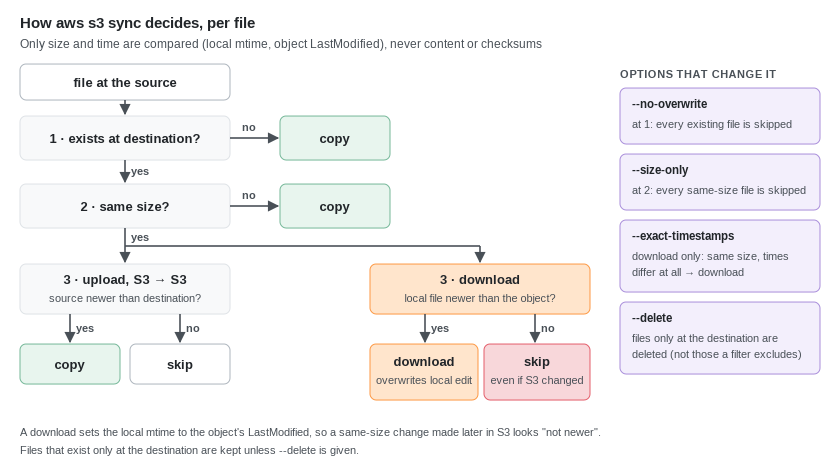
| Situation | Default behavior |
|---|---|
| Missing at destination | Copied |
| Size differs | Copied |
| Same size, upload or S3-to-S3, source newer than destination | Copied |
| Same size, upload or S3-to-S3, destination newer or equal | Skipped |
| Same size, download, S3 object newer than the local file | Skipped (see below) |
| Same size, download, local file newer than the S3 object | Downloaded (overwrites the local change) |
| Exists only at destination | Kept, unless --delete |
Sync does not compare content or checksums. Times are the local file’s modification time and the object’s LastModified.
The Download Trap
When sync downloads a file, it sets the local file’s modification time to the object’s LastModified (in the test, 09:44:36 UTC on both). On later runs it treats “same size and local time not newer” as in sync. The result: if someone changes an object in S3 without changing its size, a plain download sync does not fetch it. In the test, the object changed from b to z (both 2 bytes):
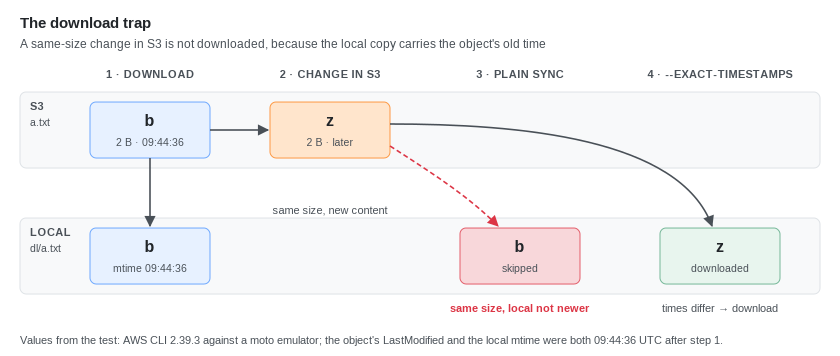
$ aws s3 sync s3://sync-demo/cmp dl
$ cat dl/a.txt
b
$ aws s3 sync s3://sync-demo/cmp dl --exact-timestamps
download: s3://sync-demo/cmp/a.txt to dl/a.txt
$ cat dl/a.txt
z
--exact-timestamps downloads same-size files whenever the times differ at all. It applies only to S3-to-local syncs. Use it for config files, version files or anything else whose size can stay the same.
The opposite case is just as surprising: editing the downloaded file locally (z to y, same size) makes the local copy newer, so the next download sync overwrites your edit with the S3 version.
Comparison Options
| Option | Effect |
|---|---|
--size-only |
Ignore times, copy only when sizes differ. Useful after a git clone or a restore resets every mtime, but a same-size edit is never copied |
--exact-timestamps |
Download same-size files whose times differ (S3 to local only) |
--no-overwrite |
Transfer only files missing at the destination, never replace an existing one, even if it is larger or different |
3. Preview With –dryrun
--dryrun lists what sync would do, with a (dryrun) prefix, and changes nothing. Run it before every first sync to a new destination and before every --delete:
$ aws s3 sync ./site s3://sync-demo/dr --delete --dryrun
(dryrun) upload: site/a.txt to s3://sync-demo/dr/a.txt
(dryrun) delete: s3://sync-demo/dr/x.tmp
Afterwards x.tmp was still in the bucket. An empty result means everything is already in sync.
4. Include and Exclude Filters
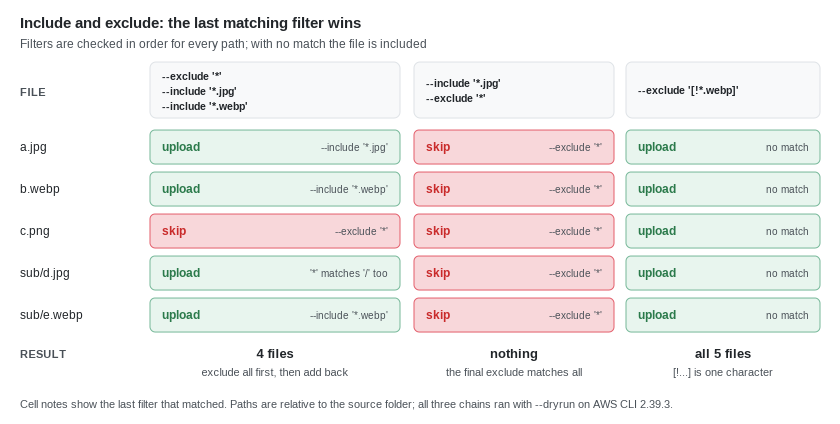
Every file is included by default. --exclude and --include take a pattern, can be repeated, and are evaluated in order, the last matching filter wins.
# Upload only images: exclude everything, then put two types back
aws s3 sync ~/photos s3://<bucket>/photos --exclude '*' --include '*.jpg' --include '*.webp'

# Skip temporary files and a directory
aws s3 sync . s3://<bucket>/app --exclude '*.tmp' --exclude '.git/*' --exclude 'node_modules/*'

# Only one subfolder
aws s3 sync . s3://<bucket>/app --exclude '*' --include 'data/*'
Order matters. --include '*.jpg' --exclude '*' transfers nothing, because the final --exclude '*' matches every file.

![
Patterns are matched against the path relative to the source folder (sub/b.log, not /home/user/src/sub/b.log). Quote them so the shell does not expand them first.
| Symbol | Matches |
|---|---|
* |
Everything, including / (so '*.jpg' also matches sub/d.jpg) |
? |
Any single character (app?.log matches app1.log, not app10.log) |
[seq] |
One character from seq, for example [0-9] |
[!seq] |
One character not in seq |
[!seq] is a single-character class, not “everything except this pattern”. --exclude '[!*.webp]' excluded nothing in the test: all five files (.jpg, .webp, .png) were uploaded, because every path is longer than one character. To keep only .webp files, use --exclude '*' --include '*.webp'.
5. Mirroring With –delete
Warning:
--deleteremoves files at the destination that do not exist at the source. In an unversioned bucket, and on a local disk, the deletes are irreversible. Always run the same command with--dryrunfirst and read everydelete:line.
# Make the bucket prefix an exact copy of the folder
aws s3 sync ./site s3://<bucket>/site --delete

# Make a local folder an exact copy of the bucket (deletes local files)
aws s3 sync s3://<bucket>/site ./site --delete
- Swapping source and destination by mistake deletes the side you meant to keep. Double-check the order.
- Excluded files are protected. With
--exclude '*.tmp', a.tmpfile that exists only at the destination is not deleted (in the testonly.txtwas deleted,only.tmpstayed). -
In a versioned bucket,
--deletecreates delete markers and the earlier versions remain, so the objects can be restored (see S3 Versioning). After deletingb.txtwith--delete:$ aws s3api list-object-versions --bucket sync-ver --prefix b.txt \ --query '{Versions:Versions[].{Key:Key,IsLatest:IsLatest},DeleteMarkers:DeleteMarkers[].{Key:Key,IsLatest:IsLatest}}' { "Versions": [ { "Key": "b.txt", "IsLatest": false } ], "DeleteMarkers": [ { "Key": "b.txt", "IsLatest": true } ] }With Object Lock the delete marker is still created but locked versions cannot be removed.
- Plain uploads also overwrite existing objects. With versioning the previous content becomes a noncurrent version, without versioning it is gone.
6. Object Options
These set properties on every object sync writes (not on objects it skips, so a changed --cache-control does not reach files that are already in sync: in the test, a second run with --cache-control 'no-cache' printed nothing and the object kept max-age=300).
aws s3 sync ./archive s3://<bucket>/archive \
  --storage-class STANDARD_IA \
  --sse AES256

aws s3 sync ./site s3://<bucket> \
  --cache-control 'max-age=300' \
  --exclude '*' --include '*.html' --content-type 'text/html; charset=utf-8'
| Option | Values and notes |
|---|---|
--storage-class |
STANDARD (default), REDUCED_REDUNDANCY (legacy, do not use for new data), STANDARD_IA, ONEZONE_IA, INTELLIGENT_TIERING, GLACIER, DEEP_ARCHIVE, GLACIER_IR. IA and Glacier classes have minimum storage durations and per-object minimums, see S3 Lifecycle |
--sse |
AES256 (SSE-S3) or aws:kms (SSE-KMS). Buckets encrypt with SSE-S3 by default since January 2023, so this is only needed to choose KMS |
--sse-kms-key-id |
KMS key ID, ARN or alias, used with --sse aws:kms. The caller needs kms:GenerateDataKey (upload) and kms:Decrypt (download) |
--sse-c, --sse-c-key |
SSE-C, a key you supply and must keep. --sse-c without --sse-c-key fails with If --sse-c is specified, --sse-c-key must be specified as well. (exit code 252). Downloads need the same key again |
--content-type |
Overrides the type guessed from the file extension. Combine with filters, otherwise every file gets the same type. --no-guess-mime-type turns guessing off (a .css file then got binary/octet-stream instead of text/css) |
--cache-control |
Header stored with the object and returned to browsers and CloudFront, for example no-cache or max-age=31536000, immutable |
--content-encoding, --content-disposition, --content-language, --expires, --metadata |
Other headers and user metadata (--metadata team=ops,env=prod) |
--acl |
Canned ACL: private, public-read, public-read-write, authenticated-read, aws-exec-read, bucket-owner-read, bucket-owner-full-control, log-delivery-write. New buckets have ACLs disabled (Object Ownership “bucket owner enforced”); uploads with any ACL other than bucket-owner-full-control then fail with AccessControlListNotSupported. Prefer a bucket policy |
--grants |
Explicit grants, Permission=Grantee_Type=Grantee_ID, for example read=uri=http://acs.amazonaws.com/groups/global/AllUsers. Same ACL caveats |
Verify what was set on one object:
$ aws s3api head-object --bucket sync-demo --key archive/a.txt \
    --query '{Class:StorageClass,Cache:CacheControl,Type:ContentType,SSE:ServerSideEncryption}'
{
    "Class": "STANDARD_IA",
    "Cache": null,
    "Type": "text/plain",
    "SSE": "AES256"
}
Cache is null because the archive sync set no --cache-control; the HTML file from the second command returned "Cache": "max-age=300" and "Type": "text/html; charset=utf-8".
Checksums
Sync never compares checksums to decide what to copy, but it can store one with every object it uploads and verify it on download:
| Option | Values |
|---|---|
--checksum-algorithm |
CRC64NVME, CRC32, CRC32C, SHA1, SHA256, SHA512, XXHASH64, XXHASH3, XXHASH128 (the choices in the CLI 2.39.3 source) |
--checksum-mode |
ENABLED: on download, ask S3 for the stored checksum and verify the data against it |
$ aws s3 sync src s3://sync-demo/ck4 --checksum-algorithm CRC32
upload: src/c.txt to s3://sync-demo/ck4/c.txt
$ aws s3api head-object --bucket sync-demo --key ck4/c.txt --checksum-mode ENABLED \
    --query '{CRC32:ChecksumCRC32}'
{
    "CRC32": "79zDhQ=="
}
79zDhQ== is the base64 CRC32 of the 2-byte file (Python’s zlib.crc32 gives the same). head-object returns the
checksum only with --checksum-mode ENABLED. This run used preferred_transfer_client = classic (section 9).
Bucket to Bucket: Which Properties Are Copied
An S3-to-S3 sync is a server-side copy, and --copy-props decides what comes along. The source object had
Content-Type: text/plain, Cache-Control: max-age=60, metadata team=ops and the tag env=prod:
--copy-props |
Type, Cache-Control, metadata | Tags |
|---|---|---|
default (also without the option) |
copied | copied |
metadata-directive |
copied | not copied |
none |
dropped (binary/octet-stream, no metadata) |
not copied |
all |
copied | copied, plus object annotations |
- Copying tags is the default. For large objects (multipart copies) the CLI then also calls
HeadObject,GetObjectTaggingandPutObjectTagging, so a cross-account copy needs those permissions too, or--copy-props metadata-directive. - A directory bucket (S3 Express One Zone) accepts only an empty tag set: copying a tagged object into one fails with
501 Not Implementedunless tags are left out. --metadata-directiveis the older switch; when it is set,--copy-propsis ignored.
7. Other Useful Options
| Option | Effect |
|---|---|
--follow-symlinks / --no-follow-symlinks |
Symlinks are followed by default (a linked directory is uploaded as real files). --no-follow-symlinks skips them |
--case-conflict error\|warn\|skip\|ignore |
For downloads of keys that differ only by case (A.txt and a.txt) onto a case-insensitive file system such as macOS or Windows (see the table below) |
--request-payer requester |
Required for Requester Pays buckets |
--force-glacier-transfer, --ignore-glacier-warnings |
Glacier and Deep Archive objects cannot be read until restored. Sync warns, skips them and returns exit code 2; --ignore-glacier-warnings hides the warning and returns 0 |
--page-size |
Keys per list call (default 1000, also the maximum) |
--endpoint-url |
Another S3-compatible endpoint, a local emulator or an accelerate endpoint |
Downloading A.txt (upper) and a.txt (lower) to macOS (APFS, case-insensitive):
--case-conflict |
Result | Exit code |
|---|---|---|
ignore (default) |
Both downloaded silently into one file, which ended up with lower |
0 |
warn |
Both downloaded, with a warning that the behavior is undefined | 0 |
skip |
A.txt downloaded, a.txt skipped with a warning |
0 |
error |
fatal error: Failed to download ... because a file whose name differs only by case either exists or is being downloaded. |
1 |
The Glacier warning from the test:
warning: Skipping file s3://sync-demo/gl/g.txt. Object is of storage class GLACIER. Unable to perform download operations on GLACIER objects. You must restore the object to be able to perform the operation. See aws s3 download help for additional parameter options to ignore or force these transfers.
8. Output and Exit Codes for Scripts
| Option | Shows |
|---|---|
| (default) | Progress line plus one line per file |
--no-progress |
One line per file, no progress line (best for CI logs) |
--only-show-errors |
Errors and warnings only |
--quiet |
Nothing at all, not even warnings (the exit code still reports them) |
| Exit code | Meaning |
|---|---|
0 |
Success, including “nothing to do” |
1 |
At least one S3 transfer failed, or a fatal error (a missing bucket gave fatal error: An error occurred (NoSuchBucket) ... and 1) |
2 |
Some files were skipped, the rest transferred: a broken symlink (warning: Skipping file ... File does not exist.), an unreadable file, a Glacier object |
130 |
Interrupted with Ctrl+C |
252 |
Invalid syntax or parameter value (--recursive, --sse-c without a key) |
253 |
Invalid environment or configuration, for example missing credentials |
254 |
The service returned an error |
255 |
Other failures |
Exit code 2 is not success, so set -e scripts stop on it. Check for it on purpose:
aws s3 sync ./data s3://<bucket>/data --no-progress
rc=$?
if [ "$rc" -eq 2 ]; then echo "sync finished but skipped some files"; elif [ "$rc" -ne 0 ]; then exit "$rc"; fi
9. Performance
Sync uses the same transfer engine as cp: large files are uploaded in parts and several requests run in parallel. Tune it in the profile, not on the command line:
aws configure set default.s3.max_concurrent_requests 20
aws configure set default.s3.multipart_chunksize 64MB
aws configure set default.s3.multipart_threshold 64MB
That writes an s3 block into ~/.aws/config:
[default]
s3 =
    max_concurrent_requests = 20
    multipart_chunksize = 64MB
    multipart_threshold = 64MB
The defaults are 10 requests and 8 MB for both threshold and part size (S3 configuration).
CLI v2 has two transfer clients. With the default preferred_transfer_client = auto it often picks the faster CRT client for uploads and downloads (S3-to-S3 copies always use the classic one); on this Mac --debug logged Auto resolved s3 transfer client to: crt. The CRT client sizes itself from target_bandwidth and ignores max_bandwidth and max_queue_size. Set preferred_transfer_client = classic or crt to choose one explicitly.
- A sync of millions of small files spends most of its time listing both sides and on per-request latency. Split the job by prefix and run several syncs in parallel, or use AWS DataSync or S3 Batch Operations.
- Over long distances, see S3 Transfer Acceleration.
- Costs: every run lists the destination (LIST requests) and every transfer is a PUT or COPY request. Downloads to the internet pay data transfer out. Copies between Regions pay inter-Region transfer.
10. Sync, cp, Replication or DataSync
| Need | Use |
|---|---|
| Copy a few files or a whole tree once | aws s3 cp (--recursive for trees) |
| Repeatable, incremental copy run from a script or CI | aws s3 sync |
| Keep two buckets in sync continuously, without a client | S3 Replication (CRR, SRR, Batch Replication) |
| Large, scheduled, verified transfers from NFS, SMB or other clouds | AWS DataSync |
11. Recipe: Deploy a Static Site
A built site (Hugo, Vite, …) has fingerprinted assets (app.9c1d.css) that never change and HTML that does. Two syncs
give each its own Cache-Control, assets first so new HTML never points to an asset that isn’t uploaded yet:
# 1. Everything except HTML: cache for a year
aws s3 sync ./public s3://<bucket> --exclude '*.html' \
  --cache-control 'public, max-age=31536000, immutable' --delete

# 2. Only HTML: always revalidate
aws s3 sync ./public s3://<bucket> --exclude '*' --include '*.html' \
  --cache-control 'no-cache' --delete

# 3. Drop CloudFront's cached copies and wait for it
aws cloudfront create-invalidation --distribution-id <id> --paths '/*'
aws cloudfront wait invalidation-completed --distribution-id <id> --id <invalidation-id>
A redeploy in the test (bucket sync-site), after old.html and assets/old.1111.js were removed and the CSS was rebuilt:
# pass 1 (everything except HTML)
delete: s3://sync-site/assets/old.1111.js
upload: public/assets/app.9c1d.css to s3://sync-site/assets/app.9c1d.css

# pass 2 (only HTML)
delete: s3://sync-site/old.html
upload: public/index.html to s3://sync-site/index.html
- Both passes can use
--deletesafely: each one excludes the other’s files, and excluded files are never deleted. Pass 1 removed only the old asset, pass 2 only the old page. --cache-controlonly reaches files that are uploaded (section 6). To change it on files that did not change, re-upload them once withaws s3 cp --recursiveor--metadata-directive REPLACE.- When the build rewrites every file’s mtime, add
--size-onlyto pass 1 only: a changed asset gets a new name anyway. Don’t use it for HTML, where a same-size edit would never be uploaded.
Gotchas
- Same-size changes in S3 are not downloaded without
--exact-timestamps, and same-size local edits are overwritten by the next download sync (section 2). --size-onlymisses same-size edits in every direction.- Filter order: the last matching filter wins, so
--exclude '*'goes first. --deletewith swapped arguments deletes the copy you wanted to keep. Dry run first.- Object options only apply to files that are transferred. To change headers or the storage class of objects already in sync, use
aws s3 cpwith--metadata-directive REPLACEor S3 Batch Operations. - Case conflicts on macOS and Windows are ignored by default: one key silently overwrites the other. Use
--case-conflict warnorerrorwhen keys can differ only by case. --quiethides skipped files. The warning disappears but the exit code is still2.- Uploads are only as consistent as the source. Sync does not snapshot the folder; files written during the run may be copied half-written or missed.
- Corrections to the source post: sync has no
--recursiveoption; the canned ACL option is--acl(--grantstakes explicit grants); SSE-S3 and SSE-KMS are chosen with--sse, while--sse-cis the different customer-provided-key mode and needs--sse-c-key;[!...]is a single-character class and cannot replace--exclude '*'; and ACLs are disabled on new buckets, not only blocked by Block Public Access.