Amazon EC2 Auto Scaling Groups: Capacity, Scaling Policies, Lifecycle Hooks and Instance Refresh
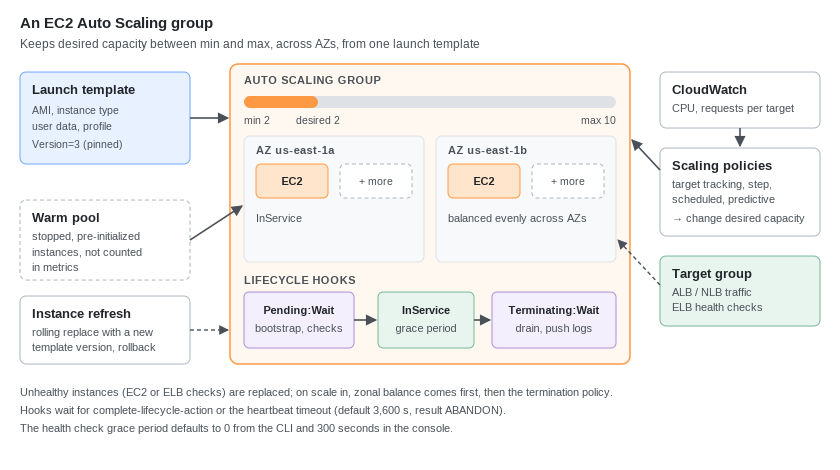
An Auto Scaling group (ASG) keeps a fleet of EC2 instances at the size you want, replaces the ones that fail, spreads them across Availability Zones, and adds or removes instances as demand changes. Amazon EC2 Auto Scaling itself has no extra charge: you pay for the instances, volumes and CloudWatch alarms it uses. This article is the reference for the group itself: the capacity numbers, launch templates, the scaling policy types and how they combine, termination order, lifecycle hooks, instance refresh and maintenance policies, mixed On-Demand and Spot fleets, warm pools, the CLI, cost, quotas and the traps.
The facts come from the Amazon EC2 Auto Scaling User Guide and API reference. The commands were checked with AWS CLI 2.39.3. Names, ARNs and IDs are placeholders.
1. The Short Version
| Question | Answer |
|---|---|
| What defines the group size? | Minimum, maximum and desired capacity. The group never goes below the minimum or above the maximum, and aims at the desired number |
| How are instances configured? | A launch template (launch configurations are the old way and no longer available to new accounts) |
| How does it spread out? | Across the Availability Zones (subnets) you choose, balanced evenly |
| How does it scale? | Target tracking (recommended), step, simple, scheduled and predictive scaling, or manually |
| How does it replace instances? | Health checks, instance refresh (rolling updates), maximum instance lifetime, Spot replacement |
| How do I run code at launch or before termination? | Lifecycle hooks |
| How do I speed up scale-out? | Warm pools and instance warmup |
| Cost | Free feature. You pay for what it launches |
| Biggest traps | Wrong health check grace period (0 by default from the CLI), scaling on a metric that does not fall when you add capacity, terminating newest or oldest instances you did not intend, and lifecycle hooks left waiting |
This guide is about EC2 Auto Scaling groups. ECS services, DynamoDB tables, Aurora replicas, Lambda provisioned concurrency, Spot Fleet, ElastiCache, EMR, SageMaker endpoints and similar resources scale through
Application Auto Scaling, a separate service with its own API (aws application-autoscaling register-scalable-target,
put-scaling-policy, describe-scalable-targets --service-namespace ecs). It has target tracking, step and scheduled scaling too, but no groups, launch templates or lifecycle hooks.
2. Capacity: Minimum, Desired and Maximum
You set a minimum size (the group never goes below it) and a maximum size (never above it). The desired capacity is the number the group tries to have, and you can change it manually or let scaling policies change it. The User Guide’s example is a group with a minimum of 4, a desired capacity of 6 and a maximum of 12.
- Desired versus current capacity: desired is what you want, current capacity counts only instances that have passed their warmup and cooldown and are running and ready.
- Always keep desired between minimum and maximum. A scheduled action and a scaling policy are both bound by the minimum and maximum, even when a policy fires after a scheduled action.
- Instance weights let a mixed group count a large instance as more than one unit of capacity, so the numbers are in capacity units and not always instances.
- Capacity can be a fixed fleet (minimum equals maximum equals desired) for self-healing only, with no scaling.
3. Launch Templates (and the End of Launch Configurations)
A group takes its instance settings (AMI, instance type, key pair, security groups, block devices, instance profile, user data, tags and more) from a launch template.
- Launch configurations are legacy. New instance types stopped being supported in launch configurations on January 1, 2023, accounts created on or after June 1, 2023 cannot create them in the console, and accounts created on or after October 1, 2024 cannot create them by any method. Use launch templates, and migrate older groups.
- Launch templates have versions. The group refers to a version number,
$Latestor$Default. Pin an explicit version in production: with$Latestor$Default, an instance refresh rollback is not supported. - Instances launched from an older version are treated as outdated by the default termination policy and by instance refresh (sections 6 and 8).
- A launch template can point to an AMI ID or an AWS Systems Manager parameter. A rollback is also not supported when the template uses an SSM parameter for the
ImageId. - Launch template names need at least 3 characters (the CLI rejects shorter ones with
Invalid length for parameter LaunchTemplate.LaunchTemplateName, value: 1, valid min length: 3). - If the AMI comes from another account, it must be shared with yours. See the instance types reference when you choose types.
4. Availability Zones and Balance
- You choose the subnets (one per AZ) with
--vpc-zone-identifier. The group balances instances evenly across them as it scales. - When it terminates instances it keeps zonal balance, and that takes precedence over the termination policy (section 6).
- If an AZ becomes unhealthy or unavailable, the group launches replacements in the others, and rebalances later (the
AZRebalanceprocess). Rebalancing launches new instances in the zone with fewer first, then terminates in the zone with more, so capacity does not drop. Near the maximum the group may go over its maximum by 10% or one instance (whichever is greater) for a few minutes to do that. SuspendAZRebalanceif that churn hurts, for example when you attach existing instances (AWS advises keeping it on). --availability-zone-distribution(strategybalanced-best-effortby default, orbalanced-only) controls what happens when launches fail in a zone.balanced-onlykeeps trying the unhealthy zone to stay balanced, andbalanced-best-effortlaunches in another healthy zone instead.
5. Scaling
5.1 The Policy Types
| Type | How it works | Use |
|---|---|---|
| Target tracking | You pick a metric and a target value (for example average CPU 50%). Auto Scaling creates and manages the alarms and adjusts capacity to keep the metric near the target | The recommended default |
| Step scaling | A CloudWatch alarm you create triggers steps, so a bigger breach adds more instances. The policy keeps responding to alarms during a scaling activity | Different sizes of response for different breaches, faster spikes |
| Simple scaling | An alarm triggers one fixed adjustment, then waits for the activity and cooldown to end | Legacy. AWS recommends step or target tracking instead, even for a single adjustment |
| Scheduled | Changes min, max or desired at a time (one-off or recurring, including cron) | Known events: business hours, a sale |
| Predictive | Forecasts load from history and scales out ahead of time | Cyclical traffic with a daily or weekly pattern |
| Manual | set-desired-capacity, or attach and detach instances |
Emergencies, tests |
AWS strongly recommends target tracking for metrics such as average CPU or request count per target. The metric must change inversely with capacity (it should go down when you add instances and up when you remove them), so it can scale proportionally. Step and simple scaling need you to create the alarms.
Predefined target tracking metrics: ASGAverageCPUUtilization, ASGAverageNetworkIn, ASGAverageNetworkOut and ALBRequestCountPerTarget. The request count one needs a ResourceLabel
(the final part of the load balancer ARN plus the final part of the target group ARN, joined with /), and the target group must be attached to the group. You can also use a custom CloudWatch metric, for example
SQS messages per instance.
Metric math builds that per-instance metric without publishing anything yourself: the CustomizedMetricSpecification takes a list of Metrics, and one expression with ReturnData: true is the
value to track (target tracking with metric math). Queue backlog per instance, target 100 messages:
{
  "CustomizedMetricSpecification": {
    "Metrics": [
      { "Id": "m1", "ReturnData": false, "MetricStat": { "Stat": "Sum",
        "Metric": { "Namespace": "AWS/SQS", "MetricName": "ApproximateNumberOfMessagesVisible", "Dimensions": [{ "Name": "QueueName", "Value": "jobs" }] } } },
      { "Id": "m2", "ReturnData": false, "MetricStat": { "Stat": "Average",
        "Metric": { "Namespace": "AWS/AutoScaling", "MetricName": "GroupInServiceInstances", "Dimensions": [{ "Name": "AutoScalingGroupName", "Value": "web-asg" }] } } },
      { "Id": "e1", "Expression": "m1 / m2", "Label": "Backlog per instance", "ReturnData": true }
    ]
  },
  "TargetValue": 100
}
aws autoscaling put-scaling-policy --auto-scaling-group-name web-asg --policy-name sqs-backlog \
  --policy-type TargetTrackingScaling --target-tracking-configuration file://backlog.json
m2 is a group metric, so group metrics collection must be on. DisableScaleIn: true in a target tracking configuration makes the policy only scale out (default false), for when another
policy, a schedule or a person should decide when to remove instances. describe-policies reads back "DisableScaleIn": true for such a policy and the three Metrics for the backlog one.
5.2 When Several Policies Apply
- If more than one dynamic policy wants to change capacity at once, Auto Scaling picks the policy that provides the largest capacity, for both scale out and scale in. Example from the docs: a CPU policy asks for 1 instance and an SQS policy asks for 2, so the group launches 2.
- With several target tracking policies, Auto Scaling scales out if any policy needs it, but scales in only when all of them agree. Step scaling policies do not coordinate with each other.
- Predictive scaling and target tracking work together: predictive scaling raises capacity ahead of forecast traffic, and target tracking handles the real traffic. Predictive scaling only scales out. You need dynamic scaling policies to scale in.
5.3 Warmup and Cooldown
- Instance warmup is the time a new instance needs before its metrics should count. During it the instance is not included in the group’s aggregated metrics, which stops over-scaling. Set a default instance warmup
for the group (
--default-instance-warmup); AWS strongly recommends it. - Cooldown applies only to simple scaling: after a launch or termination, further simple-scaling activities wait. The default cooldown is 300 seconds (
--default-cooldownto change it). Target tracking and step scaling use warmup instead, and scheduled actions and unhealthy-instance replacements do not wait for a cooldown. - Detailed monitoring (1-minute metrics) in the launch template gives target tracking faster data.
5.4 Predictive Scaling
The metric needs at least 24 hours of data, the analysis uses up to the past 14 days, it produces an hourly forecast for the next 48 hours, refreshed every 6 hours. It starts in
forecast only mode so you can check the forecast with GetPredictiveScalingForecast or the console, and you switch to forecast and scale when satisfied. By default it scales at the start of each hour, and
SchedulingBufferTime (pre-launch) starts instances earlier. Enable the default instance warmup with it.
5.5 Scheduled Scaling
Scheduled actions change the minimum, maximum and desired values at a time. Recurrence can be a fixed interval or a cron expression. Quota: 125 scheduled actions per group. Always set min and max, not only desired.
Cron expressions run in UTC unless you pass --time-zone with an IANA name such as Europe/Bucharest, which also follows daylight saving time. The cheatsheet’s 0 8 * * 1-5 with
--time-zone "Europe/Bucharest" reads back from describe-scheduled-actions as weekday-morning 0 8 * * 1-5 Europe/Bucharest. StartTime and EndTime are always in UTC.
6. Which Instance Is Removed: Termination Policies
- Zonal balance first. Auto Scaling identifies the AZ with the most instances (and at least one unprotected instance) and acts there. Balance takes precedence over the policy.
- Within the zone, the default policy looks for outdated configurations: first instances launched from a launch configuration, then from a different launch template, then from the oldest version of the current launch template.
- If several remain, it picks the one closest to the next billing hour, otherwise random. (Most EC2 is now billed per second, so this tie-breaker matters less.)
- Mixed instances groups first choose the purchase option (Spot or On-Demand) that brings the group toward your ratio, then apply the logic per zone, with an extra first step that favors the allocation strategy.
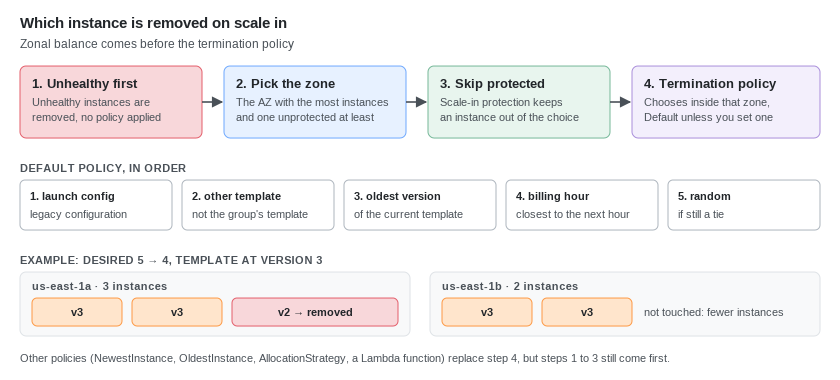
Predefined policies you can set: Default, AllocationStrategy, OldestLaunchTemplate, OldestLaunchConfiguration, ClosestToNextInstanceHour, NewestInstance, OldestInstance. Because balancing comes first, a newer instance can be removed before an
older one.
Termination policies apply only to instances that are not unhealthy. Instances marked unhealthy bypass the termination policy and are removed first.
Scale-in protection (set-instance-protection --protected-from-scale-in) stops chosen instances from being picked on scale in. It does not stop a health-check replacement or a manual termination. You can protect all new instances with --new-instances-protected-from-scale-in.
Deletion protection (--deletion-protection, values none, prevent-force-deletion, prevent-all-deletion) guards the group itself against DeleteAutoScalingGroup.
7. Lifecycle Hooks
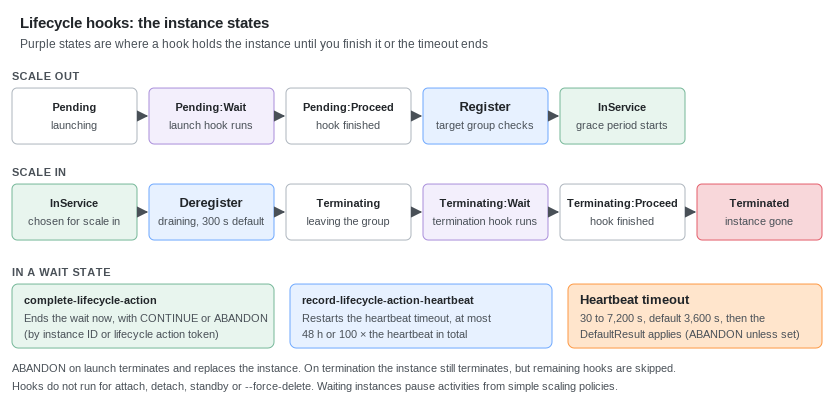
Lifecycle hooks pause an instance so you can run custom actions at two moments:
| Transition | Wait state | Typical action |
|---|---|---|
autoscaling:EC2_INSTANCE_LAUNCHING |
Pending:Wait | Install software, register in a system, warm caches, run a check before taking traffic |
autoscaling:EC2_INSTANCE_TERMINATING |
Terminating:Wait | Drain connections, push logs, deregister, back up data |
- The group sends a notification and the instance waits until you call
complete-lifecycle-action(resultCONTINUEorABANDON), or until the heartbeat timeout. AWS recommends EventBridge (the console’s default) to trigger a Lambda function; SNS topics, SQS queues (not FIFO) and Lambda directly also work from the CLI. - Heartbeat timeout: 30 to 7,200 seconds, default 3,600 (1 hour).
record-lifecycle-action-heartbeatrestarts the timeout. The total wait is capped at 48 hours or 100 × the heartbeat timeout, whichever is smaller. - Default result:
ABANDON. A hook created with no options reads back with3600andABANDON. - What the result means: on launch,
CONTINUEputs the instance in service andABANDONterminates and replaces it. On termination, both let the instance terminate, butABANDONskips any remaining hooks. - Limits: 50 lifecycle hooks per group. Notification metadata up to 4,000 characters.
- Watch out: instances stuck in
Pending:WaitorTerminating:Waitalso pause scaling activities that come from simple scaling policies until the hook finishes. Make the hook finish fast and reliably. - Termination hooks are best effort. If one times out or is abandoned, the instance is terminated right away, and a Spot interruption does not wait for it.
- Hooks do not run when you attach or detach instances, move them in and out of standby, or delete the group with
--force-delete.
7.1 Handling the Hook with EventBridge
When an instance enters a wait state, Auto Scaling sends an event with the detail type
EC2 Instance-launch Lifecycle Action or EC2 Instance-terminate Lifecycle Action (best effort, like all Auto Scaling events). The detail carries AutoScalingGroupName, LifecycleHookName, EC2InstanceId,
LifecycleActionToken and your NotificationMetadata, which is all the function needs to call complete-lifecycle-action. A hook created for EventBridge needs no notification target or role. A rule for the termination hook of web-asg:
{
  "source": ["aws.autoscaling"],
  "detail-type": ["EC2 Instance-terminate Lifecycle Action"],
  "detail": { "AutoScalingGroupName": ["web-asg"] }
}
aws events put-rule --name web-asg-terminate --event-pattern file://pattern.json
aws events put-targets --rule web-asg-terminate \
  --targets Id=drain,Arn=arn:aws:lambda:<region>:<account-id>:function:drain-instance
aws lambda add-permission --function-name drain-instance --statement-id events-web-asg \
  --action lambda:InvokeFunction --principal events.amazonaws.com \
  --source-arn arn:aws:events:<region>:<account-id>:rule/web-asg-terminate
put-rule returns the rule ARN and put-targets returns "FailedEntryCount": 0. Without the add-permission step EventBridge is not allowed to invoke the function and the hook simply times out.
With a warm pool and ReuseOnScaleIn, instances going back to the pool also produce terminate lifecycle events, with "Destination": "WarmPool" in the detail. Filter on it if the function should only act on real terminations.
7.2 From Inside the Instance: the Target Lifecycle State
The instance can see where it is going. Auto Scaling updates the instance metadata item autoscaling/target-lifecycle-state (for example InService or Terminated, plus Standby, Detached and the Warmed:* states)
when the instance starts moving to that state (target lifecycle state). It shows the target, not the current state.
Combined with a termination hook, a small script on the instance can clean up and then finish the hook itself:
#!/bin/bash
# Wait for the termination hook, clean up, then let the instance go (IMDSv2)
imds() {
  TOKEN=$(curl -s -X PUT http://169.254.169.254/latest/api/token -H "X-aws-ec2-metadata-token-ttl-seconds: 21600")
  curl -s -H "X-aws-ec2-metadata-token: $TOKEN" "http://169.254.169.254/latest/meta-data/$1"
}
ID=$(imds instance-id); REGION=$(imds placement/region)
until [ "$(imds autoscaling/target-lifecycle-state)" = "Terminated" ]; do sleep 5; done
systemctl stop myapp
aws autoscaling complete-lifecycle-action --region "$REGION" --auto-scaling-group-name web-asg \
  --lifecycle-hook-name drain --lifecycle-action-result CONTINUE --instance-id "$ID"
Run it as a service started from user data, poll often (AWS recommends polling frequently and retrying on errors), and give the instance profile autoscaling:CompleteLifecycleAction on the group. From outside the instance,
describe-auto-scaling-instances shows the current state (for example InService and Healthy), which is where an instance stuck in Pending:Wait or Terminating:Wait shows up.
7.3 Load Balancer Draining and the Termination Order
On scale in, a group attached to a target group first deregisters the instance. The target goes to draining and the load balancer waits for in-flight requests for the
deregistration delay (default 300 seconds), or less if no connections are left.
Only then does the termination hook put the instance in Terminating:Wait (how lifecycle hooks work). So:
- The time to remove an instance is roughly deregistration delay + hook wait. With the defaults that is up to 5 minutes plus 1 hour.
- The hook does not need to drain traffic for an ALB or NLB target group: that already happened. Use it for work after traffic stops (logs, deregistering from other systems).
- Match the delay to your longest request. Short requests do not need 300 seconds, and a lower value makes scale in and instance refresh faster:
aws elbv2 modify-target-group-attributes --target-group-arn <target-group-arn> \
  --attributes Key=deregistration_delay.timeout_seconds,Value=60
The response lists the attribute as "Value": "60".
7.4 Keeping the Instance When a Termination Hook Fails
By default an abandoned termination hook still terminates the instance, so whatever the hook was meant to save is lost. An instance lifecycle policy
changes that: with the retention trigger TerminateHookAbandon=retain the instance moves to a Retained state instead.
aws autoscaling update-auto-scaling-group --auto-scaling-group-name web-asg \
  --instance-lifecycle-policy "RetentionTriggers={TerminateHookAbandon=retain}"
aws autoscaling put-lifecycle-hook --auto-scaling-group-name web-asg --lifecycle-hook-name backup \
  --lifecycle-transition autoscaling:EC2_INSTANCE_TERMINATING --heartbeat-timeout 300 --default-result ABANDON
# After you have looked at a retained instance, terminate it yourself
aws autoscaling terminate-instance-in-auto-scaling-group --instance-id <instance-id> --no-should-decrement-desired-capacity
- It triggers when you call
complete-lifecycle-actionwithABANDON, or when a hook whose default result isABANDONreaches its heartbeat or global timeout. A hook that completes withCONTINUEis not affected. - Without a termination hook the policy does nothing. The default (
terminate) is the old behavior. - Retained instances do not count toward desired capacity, keep costing EC2 charges, and stay until you call
terminate-instance-in-auto-scaling-group.
TerminateHookAbandon takes retain or terminate, and terminate-instance-in-auto-scaling-group answers with an activity such as "Terminating EC2 instance: i-48d751bd5e73a7184".
8. Updating the Fleet: Instance Refresh and Maintenance Policy
8.1 Instance Refresh
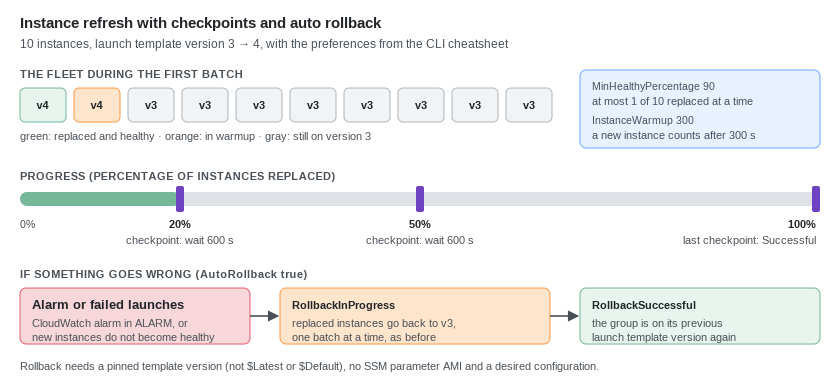
Instance refresh replaces instances in a rolling way when you change the AMI or launch template. You can also use checkpoints (a canary approach) to test a new version on a small share first. Settings and defaults:
| Setting | Default (CLI and SDK) |
|---|---|
| Minimum healthy percentage | 90% if no instance maintenance policy |
| Maximum healthy percentage | 100% (null) if no maintenance policy |
| Instance warmup | The group’s default instance warmup, else the health check grace period |
| Checkpoints and delay | Disabled; delay 3,600 seconds once you set checkpoint percentages (the last must be 100) |
| Auto rollback | Disabled (false) |
| Bake time | 0 (up to 172,800 seconds) |
| Skip matching | Disabled in the CLI, enabled in the console |
| Scale-in protected and standby instances | Wait in the CLI, ignore in the console |
| CloudWatch alarm | None. An alarm in ALARM state can fail the refresh |
Auto rollback returns the group to its previous configuration if the refresh fails or the alarm trips (rollback-instance-refresh starts one by hand). It is not supported with no desired configuration, with an SSM parameter as the AMI ID, or with $Latest or $Default template versions.
The CLI checks the preference names. A misspelled one is rejected before anything is sent:
aws: [ERROR]: An error occurred (ParamValidation): Parameter validation failed:
Unknown parameter in Preferences: "MinHealthyPercent", must be one of: MinHealthyPercentage, InstanceWarmup, CheckpointPercentages, CheckpointDelay, SkipMatching, AutoRollback, ScaleInProtectedInstances, StandbyInstances, AlarmSpecification, MaxHealthyPercentage, BakeTime
8.2 Instance Maintenance Policy
An instance maintenance policy sets MinHealthyPercentage (0 to 100) and MaxHealthyPercentage (100 to 200, and at most 100 above the minimum) as a share of desired capacity during replacement. The console presets:
| Option | Behavior |
|---|---|
| Launch before terminating | A new instance is provisioned first. Favors availability over cost |
| Terminate and launch | Launch and terminate at the same time. Favors cost and avoids launching more than current capacity |
| Custom policy | Your own min and max |
8.3 Maximum Instance Lifetime
--max-instance-lifetime (0, or at least 86,400 seconds, one day) recycles instances after a set age, so long-running instances do not drift. Uses the same replacement approach.
8.4 Replacing Only the Root Volume
An instance refresh with "Strategy": "ReplaceRootVolume" (replace root volumes) keeps each instance and swaps only its
root EBS volume for one made from the new AMI. The instance keeps its network interfaces and IP addresses, other EBS volumes, instance store data, security groups and IAM role, and no new capacity is needed,
which helps with scarce instance types. The old root volume is deleted after a successful replacement, and an instance whose replacement fails is terminated and replaced.
{
  "AutoScalingGroupName": "web-asg",
  "Strategy": "ReplaceRootVolume",
  "DesiredConfiguration": {
    "MixedInstancesPolicy": {
      "LaunchTemplate": {
        "LaunchTemplateSpecification": { "LaunchTemplateName": "web-lt", "Version": "3" },
        "Overrides": [
          { "InstanceType": "t3.micro", "ImageId": "ami-0abcdef1234567890" },
          { "InstanceType": "t3.small", "ImageId": "ami-0abcdef1234567890" }
        ]
      }
    }
  },
  "Preferences": { "MinHealthyPercentage": 90, "InstanceWarmup": 60 }
}
aws autoscaling start-instance-refresh --cli-input-json file://root-volume.json
- Requirements: the group uses a mixed instances policy, every override has an
ImageId, the AMI has a single root volume, and all instances match the group’s launch template. No$Latestor$Defaultversions. - Not with a warm pool: you cannot start it on a group with a warm pool, or add a pool while it runs.
- States:
ReplacingRootVolume,ReplacingRootVolume:Wait,ReplacingRootVolume:Proceed,RootVolumeReplaced, then back throughPending. The instance is deregistered from the load balancer first, a termination hook pauses it atReplacingRootVolume:Wait(stop the app, copy data off the root volume) and a launch hook pauses it atPending:Waitafterwards. Hook events carry"Action": "ReplaceRootVolume".
--strategy takes Rolling (the default) or ReplaceRootVolume.
9. Mixed Instances and Spot
A mixed instances policy lets one group use several instance types and both On-Demand and Spot:
OnDemandBaseCapacity: the minimum amount of capacity that must come from On-Demand.OnDemandPercentageAboveBaseCapacity: the On-Demand versus Spot split for capacity above the base.- Overrides: the list of instance types (and weights) to choose from. Use many types and all zones for Spot flexibility.
- Spot allocation strategy:
lowest-price(withSpotInstancePools),capacity-optimized, andprice-capacity-optimized(used in the current docs example). - Capacity Rebalancing (
--capacity-rebalance): Auto Scaling proactively replaces Spot instances at elevated risk of interruption, launching a replacement before terminating the old one. - Savings Plans and Reserved Instances discounts apply to the On-Demand portion.
Example of an instances distribution (from the AWS docs example): 25% On-Demand above a base of 0, the rest Spot, with eight instance type overrides across three subnets, CapacityRebalance on.
10. Warm Pools
A warm pool holds pre-initialized instances next to the group so that scale-out is faster:
- Pool states: Stopped (you pay for storage, not compute), Running, or Hibernated.
- Instances in the pool do not count toward the group’s metrics, so scaling policies reflect the real load. When more capacity is needed, a warm instance moves into the group quickly.
- A launch lifecycle hook runs twice for a new warm instance: at
Warmed:Pending:Waitwhile it is prepared, and again atPending:Waitwhen it joins. If the pool is empty the group can launch directly. - Stopping an instance for the pool does not wait for user data to finish: hold it with a launch lifecycle hook until bootstrap completes.
- Instance reuse policy
ReuseOnScaleIn: truereturns instances to the warm pool on scale in instead of terminating them. - Useful when your boot time is long (large AMI, heavy initialization).
11. Other Controls
| Control | What it does |
|---|---|
| Suspend and resume processes | Pauses Launch, Terminate, AddToLoadBalancer, AlarmNotification, AZRebalance, HealthCheck, InstanceRefresh, ReplaceUnhealthy or ScheduledActions. Use for debugging or controlled changes, and resume afterwards. Auto Scaling also suspends processes itself (an administrative suspension) when a group has failed to launch anything for over 24 hours |
Standby (enter-standby, exit-standby) |
Takes an instance out of service for maintenance, without replacing it. With --should-decrement-desired-capacity the desired capacity drops by one (for example from 2 to 1). No health checks run in standby: an instance terminated while in standby still shows Healthy until it exits standby |
| Attach and detach instances | Move existing instances in and out of the group |
| Set instance health | Mark an instance unhealthy to force replacement (a custom health check, section 11.1) |
| Traffic sources | Attach target groups (ALB, NLB) or Classic Load Balancers. Instances are registered and deregistered automatically (Elastic Load Balancing with Auto Scaling) |
| Notifications | SNS notifications for launch and terminate events |
| Tags | Propagate tags to the instances |
11.1 Health Checks
Every instance starts Healthy and stays so until a source reports otherwise (health check types):
| Type | Marks an instance unhealthy when | On by default |
|---|---|---|
| EC2 | The instance is in any state other than running (stopping, stopped, shutting-down, terminated), its instance or system status checks are impaired, or it has a scheduled event |
Yes, cannot be turned off |
| ELB | The load balancer’s target group reports it unhealthy | No |
| VPC_LATTICE | A VPC Lattice target group reports it unhealthy | No |
| EBS | An attached EBS volume is unreachable or fails its I/O status checks | No |
| Custom | You call set-instance-health --health-status Unhealthy from your own check |
Always available |
--health-check-typetakes several types, comma-separated.--health-check-type ELB,EBSreads back as"ELB,EBS". EC2 is always included, and you only passEC2to clear the others.- A non-running instance is replaced at once. An
impairedstatus check gets a few minutes for AWS to fix it, andinsufficient-datanever counts. set-instance-healthrespects the grace period unless you add--no-should-respect-grace-period. The instance then showsInService Unhealthyuntil it is replaced, and the scaling activity’s cause reads “An instance was taken out of service in response to a user health-check”.
11.2 Group Metrics
Turn on group metrics with enable-metrics-collection --granularity "1Minute" (all metrics, or a list with --metrics). They are published to the AWS/AutoScaling namespace at 1-minute granularity at
no extra charge: GroupMinSize, GroupMaxSize, GroupDesiredCapacity, GroupInServiceInstances, GroupPendingInstances, GroupStandbyInstances, GroupTerminatingInstances, GroupTotalInstances
and more, plus warm pool and capacity-unit variants. They show how the group really moved (desired versus in service during a scale out, instances stuck pending) and feed metric math policies such as the one in section 5.1.
12. CLI Cheatsheet
# Create a group (launch template version pinned, two subnets, ELB health checks, default warmup)
aws autoscaling create-auto-scaling-group --auto-scaling-group-name <asg-name> \
  --launch-template LaunchTemplateName=<template-name>,Version=<version> \
  --min-size 2 --max-size 10 --desired-capacity 2 \
  --vpc-zone-identifier "<subnet-a>,<subnet-b>" \
  --target-group-arns <target-group-arn> --health-check-type ELB --health-check-grace-period 300 \
  --default-instance-warmup 120 --new-instances-protected-from-scale-in

# Target tracking on average CPU
aws autoscaling put-scaling-policy --auto-scaling-group-name <asg-name> --policy-name cpu-50 \
  --policy-type TargetTrackingScaling \
  --target-tracking-configuration '{"PredefinedMetricSpecification":{"PredefinedMetricType":"ASGAverageCPUUtilization"},"TargetValue":50.0}'

# Scheduled action: weekday mornings
aws autoscaling put-scheduled-update-group-action --auto-scaling-group-name <asg-name> \
  --scheduled-action-name weekday-morning --recurrence "0 8 * * 1-5" --time-zone "Europe/Bucharest" \
  --min-size 4 --max-size 12 --desired-capacity 6

# Lifecycle hook on termination, then finish it (or extend it with a heartbeat)
aws autoscaling put-lifecycle-hook --auto-scaling-group-name <asg-name> --lifecycle-hook-name drain \
  --lifecycle-transition autoscaling:EC2_INSTANCE_TERMINATING --heartbeat-timeout 600 --default-result CONTINUE
aws autoscaling complete-lifecycle-action --auto-scaling-group-name <asg-name> --lifecycle-hook-name drain \
  --lifecycle-action-result CONTINUE --instance-id <instance-id>
aws autoscaling record-lifecycle-action-heartbeat --auto-scaling-group-name <asg-name> --lifecycle-hook-name drain \
  --instance-id <instance-id>

# Rolling update to a new launch template version, with checkpoints and auto rollback
aws autoscaling start-instance-refresh --auto-scaling-group-name <asg-name> \
  --desired-configuration '{"LaunchTemplate":{"LaunchTemplateName":"<template-name>","Version":"<new-version>"}}' \
  --preferences '{"MinHealthyPercentage":90,"InstanceWarmup":300,"AutoRollback":true,"CheckpointPercentages":[20,50,100],"CheckpointDelay":600}'
aws autoscaling describe-instance-refreshes --auto-scaling-group-name <asg-name>
aws autoscaling cancel-instance-refresh --auto-scaling-group-name <asg-name>
aws autoscaling rollback-instance-refresh --auto-scaling-group-name <asg-name>

# Warm pool, protection, standby, processes, activity history
aws autoscaling put-warm-pool --auto-scaling-group-name <asg-name> --pool-state Stopped --instance-reuse-policy '{"ReuseOnScaleIn":true}'
aws autoscaling set-instance-protection --auto-scaling-group-name <asg-name> --instance-ids <instance-id> --protected-from-scale-in
aws autoscaling enter-standby --auto-scaling-group-name <asg-name> --instance-ids <instance-id> --should-decrement-desired-capacity
aws autoscaling exit-standby --auto-scaling-group-name <asg-name> --instance-ids <instance-id>
aws autoscaling suspend-processes --auto-scaling-group-name <asg-name> --scaling-processes AZRebalance
aws autoscaling resume-processes --auto-scaling-group-name <asg-name> --scaling-processes AZRebalance
aws autoscaling describe-scaling-activities --auto-scaling-group-name <asg-name>
aws autoscaling describe-auto-scaling-groups --auto-scaling-group-names <asg-name>

# Health and metrics: extra health check types, a custom check, group metrics
aws autoscaling update-auto-scaling-group --auto-scaling-group-name <asg-name> --health-check-type ELB,EBS
aws autoscaling set-instance-health --instance-id <instance-id> --health-status Unhealthy --no-should-respect-grace-period
aws autoscaling enable-metrics-collection --auto-scaling-group-name <asg-name> --granularity "1Minute"

# Group-level settings
aws autoscaling update-auto-scaling-group --auto-scaling-group-name <asg-name> \
  --deletion-protection prevent-all-deletion --max-instance-lifetime 86400 --capacity-rebalance \
  --availability-zone-distribution CapacityDistributionStrategy=balanced-only \
  --instance-maintenance-policy MinHealthyPercentage=90,MaxHealthyPercentage=120 \
  --instance-lifecycle-policy "RetentionTriggers={TerminateHookAbandon=retain}"

# Delete: first scale to zero, or force delete (terminates the instances)
aws autoscaling delete-auto-scaling-group --auto-scaling-group-name <asg-name> --force-delete
The group created with the first command (two subnets), read back:
$ aws autoscaling describe-auto-scaling-groups --auto-scaling-group-names web-asg \
    --query 'AutoScalingGroups[0].{Min:MinSize,Max:MaxSize,Desired:DesiredCapacity,HealthCheck:HealthCheckType,Grace:HealthCheckGracePeriod,Protected:NewInstancesProtectedFromScaleIn,Instances:length(Instances),Zones:AvailabilityZones}'
{
    "Min": 2,
    "Max": 10,
    "Desired": 2,
    "HealthCheck": "ELB",
    "Grace": 300,
    "Protected": true,
    "Instances": 2,
    "Zones": [
        "us-east-1a",
        "us-east-1b"
    ]
}
Warning:
--force-deletedeletes the group without waiting for its instances to terminate, terminates them, and skips lifecycle hooks. Only use it when you mean to destroy the fleet. A group with deletion protection enabled cannot be deleted until you change that setting.
The CLI validates names and required options before anything is sent (a missing --max-size gives the following arguments are required: --max-size, a target tracking configuration without
TargetValue gives Missing required parameter in TargetTrackingConfiguration: "TargetValue"). Rules between values, such as the minimum not being above the maximum, are checked by the service.
The IAM side of the group uses a service-linked role that Auto Scaling creates, and your launch template’s instance profile (see AWS IAM Concepts Guide). Bootstrap with user data and the instance metadata. To patch, use Systems Manager Patch Manager, or better, build a new AMI and refresh.
13. Troubleshooting Failed Launches
When the group does not reach its desired capacity, the reason is in the scaling activities: each failed launch is an activity with StatusCode Failed and the error in StatusMessage.
aws autoscaling describe-scaling-activities --auto-scaling-group-name <asg-name> \
  --query 'Activities[?StatusCode==`Failed`].[StartTime,StatusMessage]' --output text
aws autoscaling describe-auto-scaling-instances --query 'AutoScalingInstances[].[InstanceId,AvailabilityZone,LifecycleState,HealthStatus]' --output text
aws autoscaling describe-auto-scaling-groups --auto-scaling-group-names <asg-name> --query 'AutoScalingGroups[0].SuspendedProcesses'
The common messages, from the launch failure guide:
| Message (shortened) | Cause | Fix |
|---|---|---|
We currently do not have sufficient <type> capacity in the Availability Zone you requested |
No On-Demand capacity for that type in that zone | Wait, add zones, use several instance types |
There is no Spot capacity available that matches your request |
No spare Spot capacity | More types and zones, a mixed instances policy with On-Demand base |
Your requested instance type (<type>) is not supported in your requested Availability Zone |
The type is not offered in one of the group’s zones | Check with aws ec2 describe-instance-type-offerings --location-type availability-zone --filters Name=instance-type,Values=<type>, then change the subnets |
The requested configuration is currently not supported |
Template options do not fit the type, for example an x86 AMI on Graviton | Matching AMI architecture and type |
Client.InternalError: Client error on launch |
Encrypted EBS volume, and the service-linked role cannot use the customer managed KMS key | Allow AWSServiceRoleForAutoScaling in the key policy (or a grant for a cross-account key) |
The security group <name> does not exist / The key pair <name> does not exist |
Deleted after the template was made | New template version, then update the group |
<number> instance(s) are already running |
EC2 instance quota in the Region | Request a quota increase |
The requested reservation does not have sufficient compatible and available capacity |
Targeted Capacity Reservation or Capacity Block used up | Bigger reservation, or a reservation group that falls back to On-Demand |
Also check:
- Suspended processes. A
Launchprocess suspended by hand, or the administrative suspension after 24 hours of failed launches (section 11), stops all launches. Fix the cause, thenresume-processes. - Instances that launch and are then replaced. That is usually a health check (ELB checks with a grace period shorter than the boot) and not a launch failure. The activity’s cause names the failed check.
- Instances stuck in
Pending:Waitare waiting for a launch hook (section 7).describe-lifecycle-hookslists them, and they block simple scaling until they finish.
14. Cost and Quotas
- No Auto Scaling charge. You pay for EC2 instances, EBS volumes, CloudWatch alarms and detailed monitoring and whatever else the group uses. Warm pools cost the stopped instances’ storage, or the running or hibernated instances.
- Quotas:
| Quota | Default |
|---|---|
| Auto Scaling groups per Region | 500 (adjustable) |
| Launch configurations per Region | 200 (adjustable) |
| Lifecycle hooks per group | 50 |
| Scaling policies per group | 50 |
| Scheduled actions per group | 125 |
| Step adjustments per step scaling policy | 20 |
| Target groups per group / Classic Load Balancers per group | 50 / 50 |
| SNS topics per group | 10 |
Cost levers: scale in when idle, use Spot through a mixed instances policy, Graviton types, Savings Plans for the base load, and scheduled scaling for known quiet hours.
15. Tips and Gotchas
- Prefer target tracking and a metric that falls when you add capacity. CPU and request count per target work, queue depth per instance works with a custom metric, raw “number of requests” does not.
- Set the health check grace period and default instance warmup to your real boot time. The grace period defaults to 0 when the group is created with the CLI or an SDK (300 in the console), so new
instances can be marked unhealthy and killed while they still boot. With a launch lifecycle hook you can keep it at 0, because the instance is ready before it goes
InService. - Use
ELBhealth checks when the group is behind a load balancer, so an instance that serves errors is replaced and not only one that is powered off (health checks). - Pin launch template versions so refresh, rollback and “outdated instance” logic behave.
- Make bootstrap idempotent and fast. Bake software into the AMI and use user data for configuration, and use warm pools when it is still slow.
- Do not rely on instance-local data. Instances can be terminated at any time. Keep state in S3, RDS, DynamoDB or EFS, and use a termination lifecycle hook for last-moment work.
- Terminate hooks and scale-in protection are not guarantees. An unhealthy instance, a Spot interruption, a manual termination or
--force-deletecan still end an instance without them. - Check scaling activity history (
describe-scaling-activities) first when something looks wrong: it states why an instance was launched or terminated. - Test rollbacks. Auto rollback needs a pinned version and a desired configuration.
- Do not edit the instances by hand. Changes are lost on replacement. Change the template and refresh.
- Leave headroom in the maximum so a policy can scale, and a minimum high enough to survive losing a zone.
- Delete test groups. A forgotten group keeps its minimum number of instances running.